Move from Android to iPhone
New iPhone in hand, years of Android life — photos, chats, contacts — sitting on the old phone. Apple's Move to iOS app promises a one-shot transfer during setup, and when it works it is genuinely smooth. When it stalls halfway, it is usually Wi-Fi or impatience. Here is how to get across cleanly.
TL;DR / Quick Fix
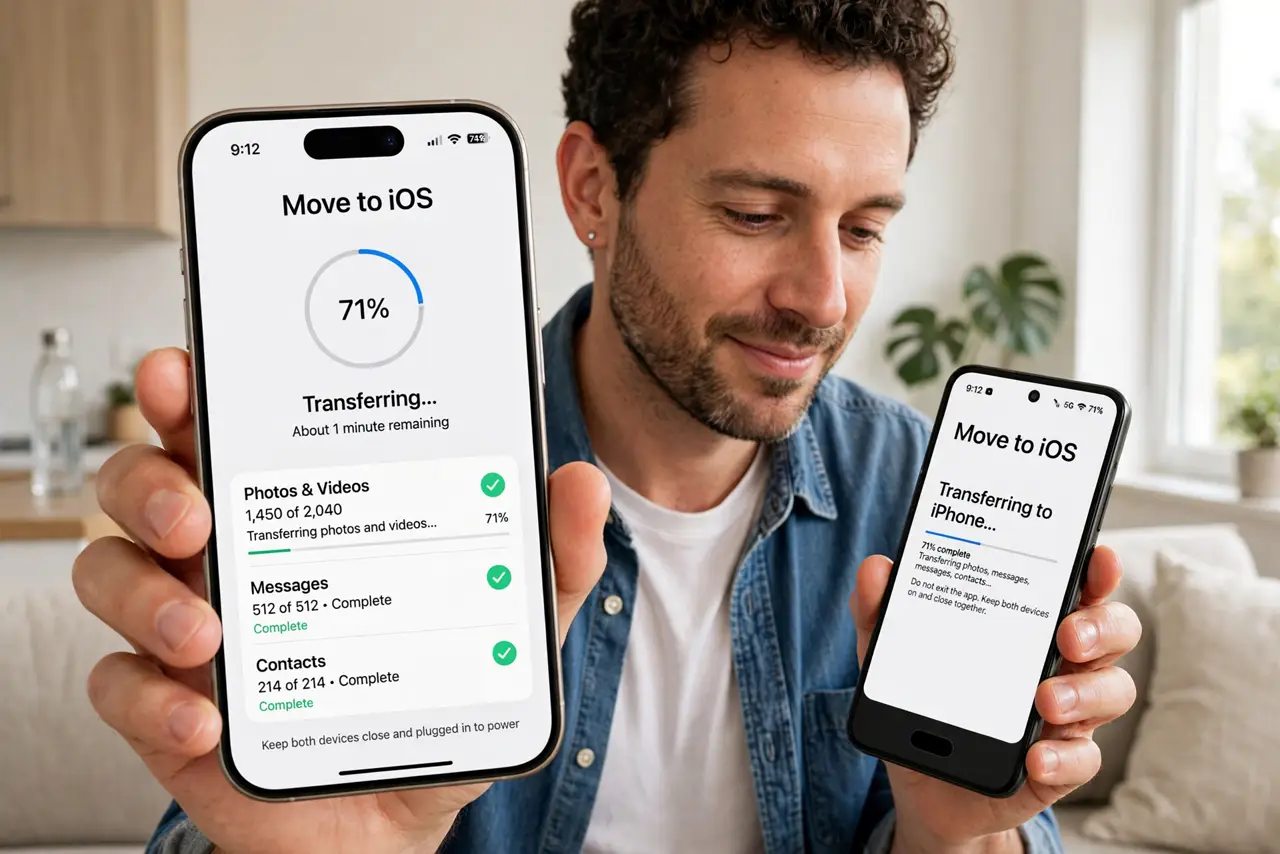
Quick fix: moving from Android to iPhone is easiest with Apple's Move to iOS app — it transfers contacts, photos, messages, and apps over a private Wi-Fi link during setup. Run it on the new iPhone's setup screen, keep both phones plugged in and nearby, and don't interrupt the transfer.
Follow these steps
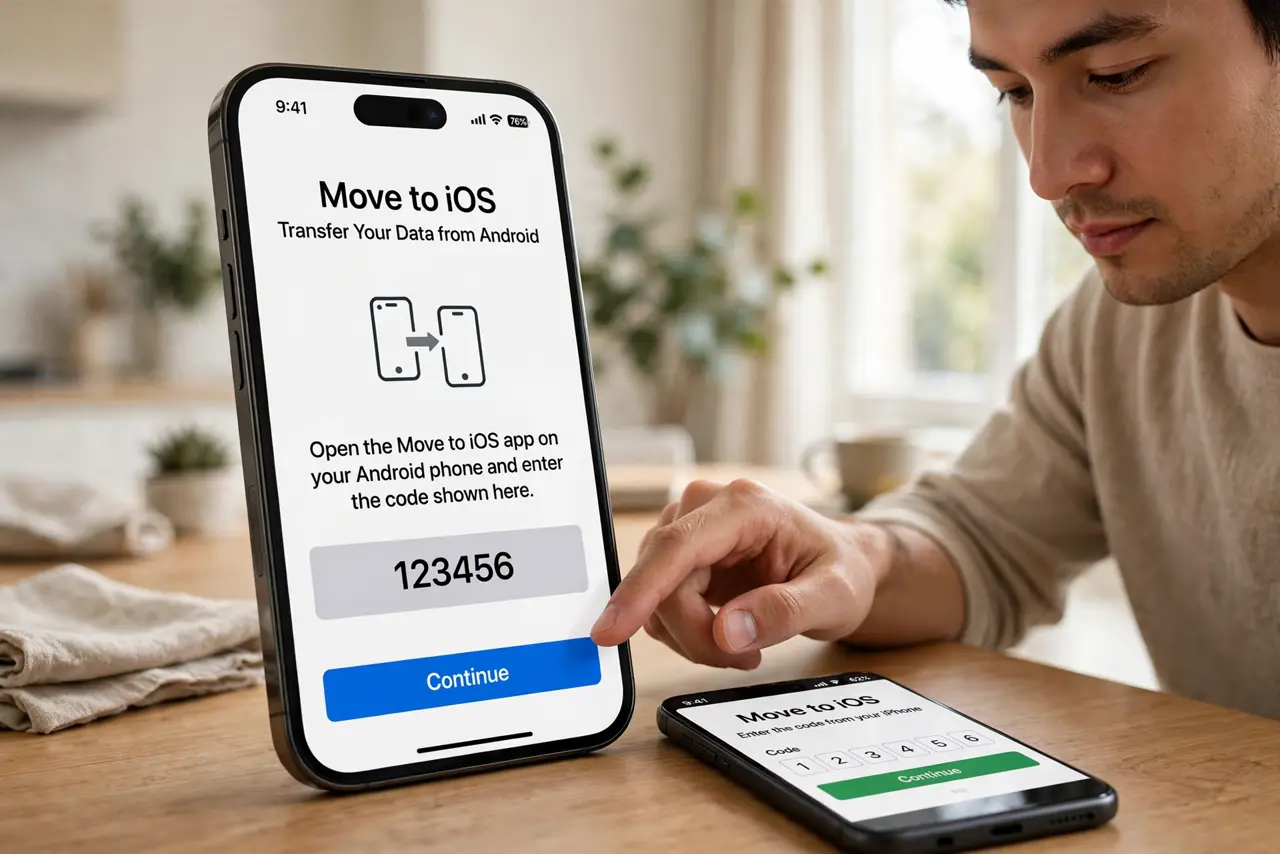
- Start during iPhone setup. On the new iPhone's setup screens, choose to transfer from Android when offered — this launches the Move to iOS flow. Doing it mid-setup is key; after setup completes, you would need to erase and restart to get the same flow.
- Install Move to iOS on the Android. Get Apple's 'Move to iOS' app from the Play Store on your old phone. It is Apple's own tool — free, no account needed — and it handles the heavy lifting.
- Join the private Wi-Fi. The iPhone creates a temporary private Wi-Fi network; join it from the Android when prompted. Keep both phones close together and undisturbed — this link carries everything, and interruptions restart chunks of it.
- Choose what to transfer. Contacts, message history, photos, videos, and many apps transfer; some app data and DRM content do not. Review the checklist on screen and accept the gaps — a few apps will need manual login afterward regardless.
- Keep both phones plugged in. Transfers of large photo libraries take a while. Both phones on chargers, screens awake, nobody touching anything — the boring recipe that prevents the famous mid-transfer stall.
- Verify before wiping the Android. After the transfer, check contacts, photos, and messages on the iPhone. Only erase the old phone once you have confirmed — and backed up — everything that matters. The old phone is your safety net until then.
What NOT to do
- Do not start the transfer on low battery. A dead phone mid-migration is the classic disaster — chargers on both, non-negotiable.
- Do not use the phones during transfer. Calls, app-switching, or letting screens sleep can stall or break the private Wi-Fi link.
- Do not wipe the Android first. The old phone is your backup until the new one is verified — impatience here is unrecoverable.
- Do not expect every app to transfer. Banking apps, authenticators, and some games need manual setup — move your 2FA codes separately and carefully.
Frequently asked questions
How long does the transfer take?
Minutes for contacts and messages; potentially an hour-plus for large photo and video libraries. Start it when you can leave both phones alone.
What doesn't transfer?
Some app data, music not in your library, DRM-protected content, and certain settings. Apple lists the gaps on screen — read them before finishing.
Can I do it after setup is complete?
Not with the automated flow — you'd need to erase the iPhone and start setup over. Manual moves (contacts via Google account, photos via cloud) still work anytime.