iPhone System Data Storage Looks Huge
System Data eats tens of gigabytes and the iPhone will not say what it is. It is mostly caches, logs, and temporary files from apps and updates — and most of it can be shrunk safely without deleting anything you care about.
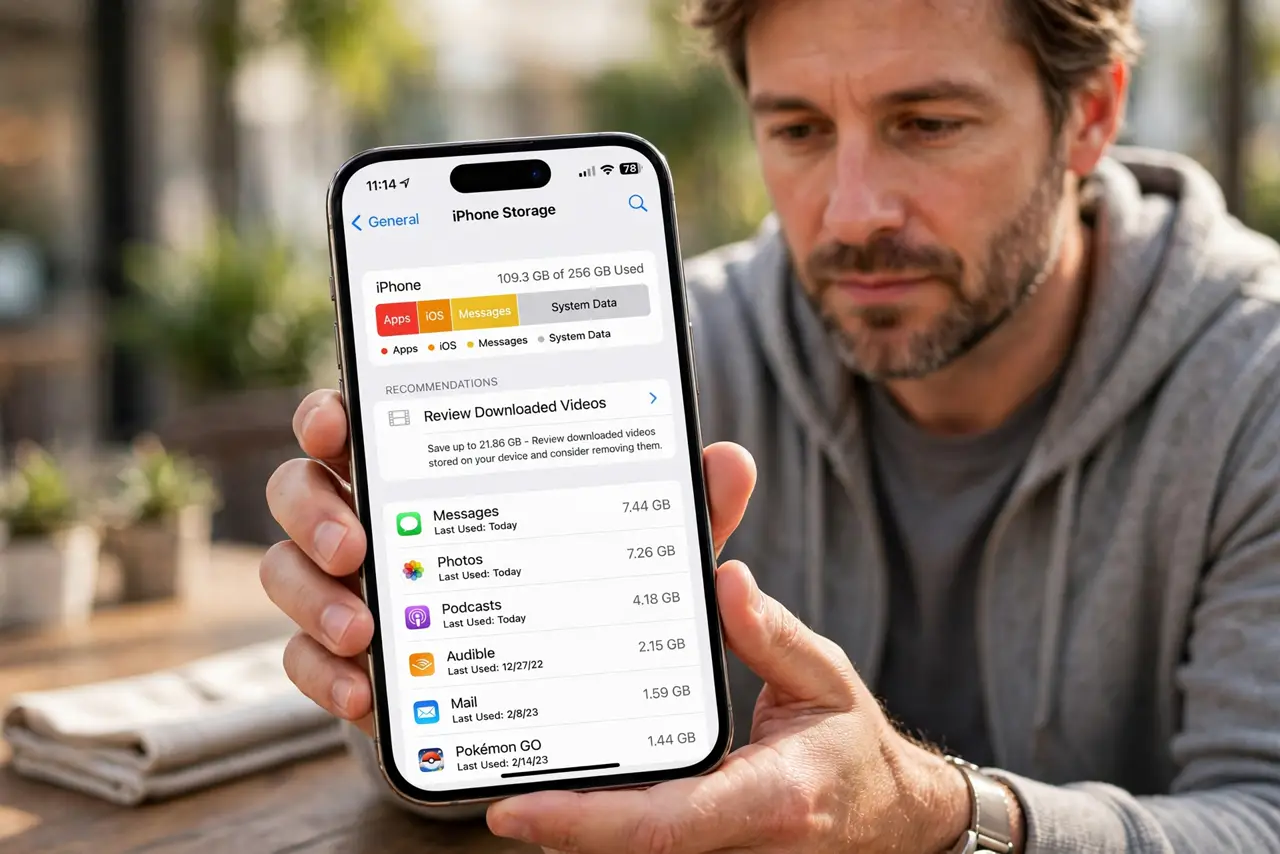
TL;DR / Quick Fix
Quick fix: restart the iPhone, then check Settings, then General, then iPhone Storage for the System Data size. Update iOS, clear Safari website data, and offload the biggest unused apps. If System Data stays huge, back up and restore — that rebuilds the storage cleanly.
Follow these steps
- See the real number. Open Settings, then General, then iPhone Storage, and wait for the list to load. Note the System Data size so you can tell whether your fixes actually shrink it.
- Restart the iPhone once. A restart clears temporary files and half-finished downloads that inflate System Data. Check the number again after the restart — it often drops on its own.
- Update iOS if one is waiting. Open Settings, then General, then Software Update. Updates clean up old system files, and a fresh install organizes storage more efficiently than a patched one.
- Clear Safari website data. Open Settings, then Apps, then Safari, then Clear History and Website Data. Browser caches are a classic System Data filler, and clearing them costs you nothing but saved logins.
- Offload the biggest unused apps. In iPhone Storage, tap a large app you rarely open and choose Offload App. Offloading removes the app but keeps its data, which is safer than deleting it outright.
- Back up and restore if it stays huge. If System Data still hogs the drive, back up the iPhone and restore it. A restore rebuilds the storage from scratch and usually wipes the mystery gigabytes.

What NOT to do
- Do not delete photos to fight System Data. Photos are your files, while System Data is caches and logs — shrinking the wrong thing costs you memories.
- Do not buy a cleaner app that promises to erase System Data. iOS does not let apps touch it, so those apps cannot do what they claim.
- Do not factory-reset without a backup. A restore is the big fix, but without a backup first, your own data goes with the caches.
- Do not ignore a System Data size that keeps growing. If it climbs week after week, an app is leaking cache, and the storage list shows which one.
Frequently asked questions
What exactly is System Data?
Caches, logs, Siri voices, and temporary files from iOS and apps. Apple groups everything it cannot label as an app, photo, or message into this bucket.
Why does it grow after every update?
Updates leave old system files and rebuild caches. The number usually settles down a few days after the install finishes.
Is a huge System Data a sign of a virus?
No. iPhones do not get classic viruses, and a big System Data is almost always caches, not malware.