Accept Payments on iPhone
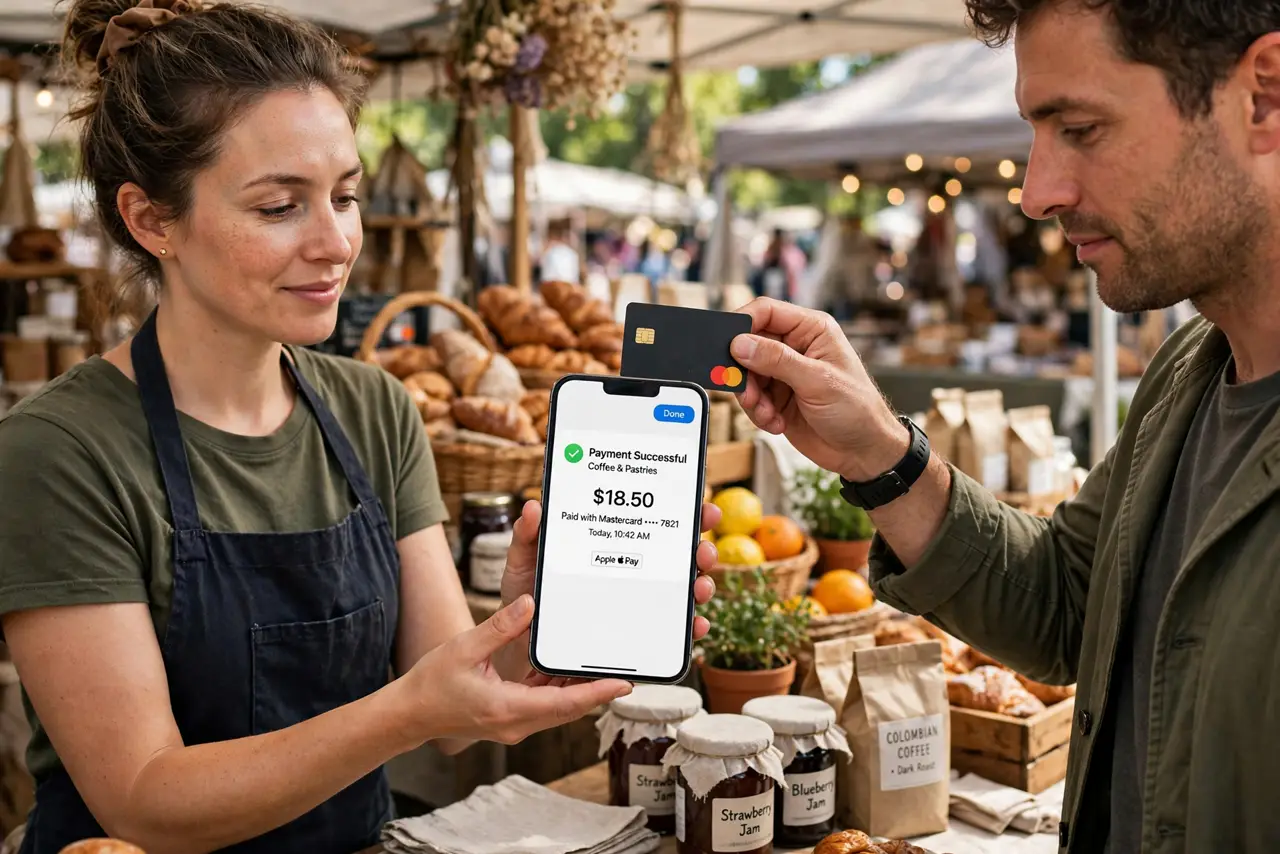
Running a market stall, a food truck, or any small business means taking card payments — and you no longer need a separate card reader. Tap to Pay on iPhone turns the phone itself into a payment terminal: the customer taps their card or phone, and the sale is done. You do need a payment service app and account first; the phone alone is not a bank. For shoppers, the contactless payment basics work the same way in reverse.
TL;DR / Quick Fix
Quick fix: Tap to Pay turns a supported iPhone into a card reader — the customer taps their card or phone and the sale completes. You need a payment service app and merchant account first. Enter the amount, present the phone, and send a receipt.
Follow these steps
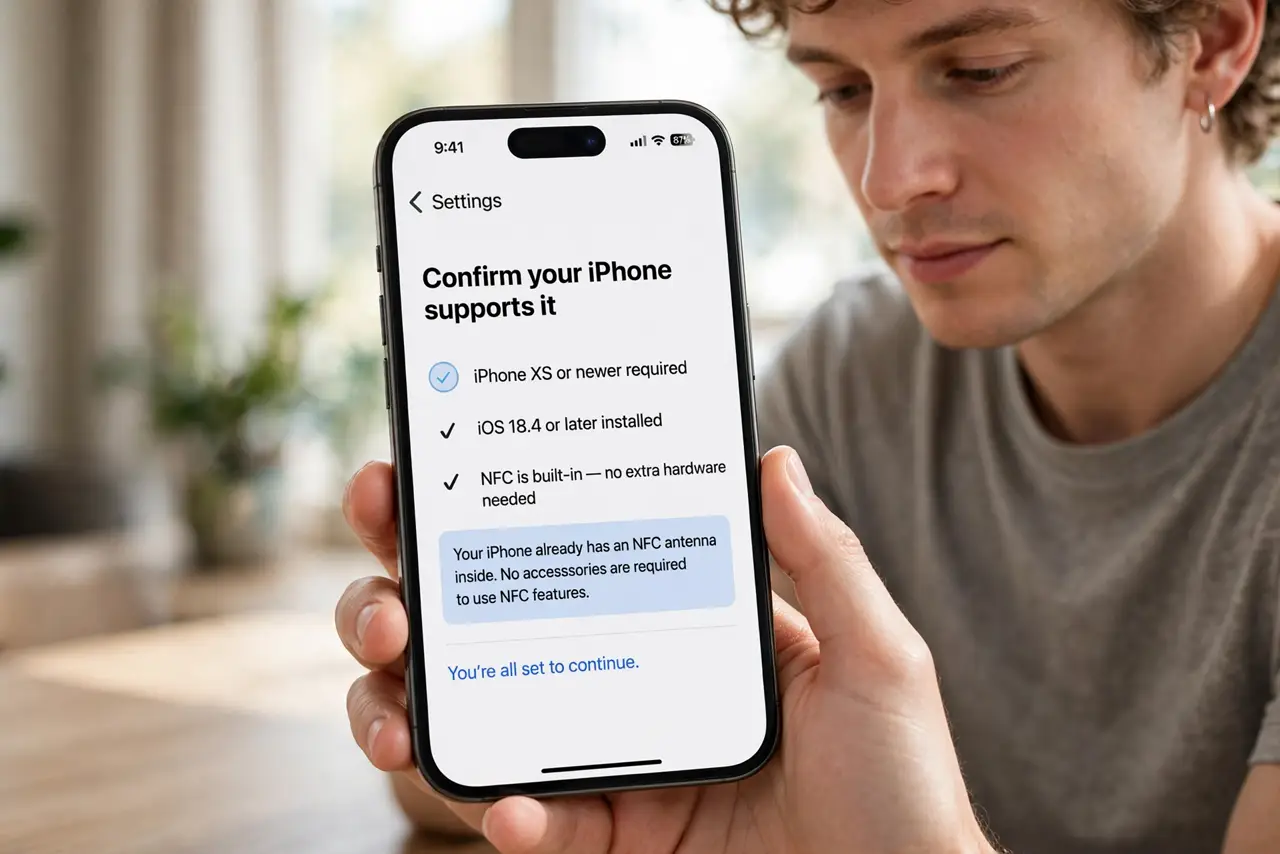
- Confirm your iPhone supports it. You need an iPhone XS or newer with a recent iOS version. No extra hardware is required — the NFC antenna already inside the phone handles the tap.
- Choose a payment service provider. Tap to Pay works through payment apps from banks and payment companies. Compare their transaction fees and payout times before committing, since the phone is only the terminal, not the account.
- Set up your business account first. Create the merchant account in the provider's app and complete their identity check. This step takes the longest, so do it before your first selling day — approval is not instant.
- Enable Tap to Pay in the app. Open the provider's app, find the Tap to Pay or card-present option, and follow the setup. The phone will confirm the NFC reader is active and ready to accept taps.
- Take a payment. Enter the amount, present the phone to the customer, and have them hold their contactless card or phone near the top of your iPhone. A checkmark confirms the payment went through.
- Send receipts and track sales. Offer email or text receipts from the app, and reconcile sales at day's end. Keep the app updated — payment features get security updates you do not want to miss.
What NOT to do
- Do not skip the provider setup and expect the phone to take money alone. Tap to Pay needs a merchant account; the iPhone is the reader, not the bank.
- Do not take payments on a phone with a dying battery. A shutdown mid-tap leaves the sale in limbo — charge before selling.
- Do not ignore the fees. Every tap costs a percentage; price your goods knowing the cut, not discovering it at payout.
- Do not hand your unlocked phone to the customer. They only need to tap near it — keep the device in your hand.
Frequently asked questions
Does the customer need a special app?
No. They tap any contactless card, phone, or watch. The special app is only on your side, as the seller.
Is Tap to Pay on iPhone secure?
Yes — each transaction is encrypted and tokenized like any contactless payment. Your phone never stores the customer's card number.
Can I refund a customer later?
Yes, through the same payment app. Process the refund to the original card — never hand back cash for a card payment unless your records track it.