Shortcuts That Expand Into Text
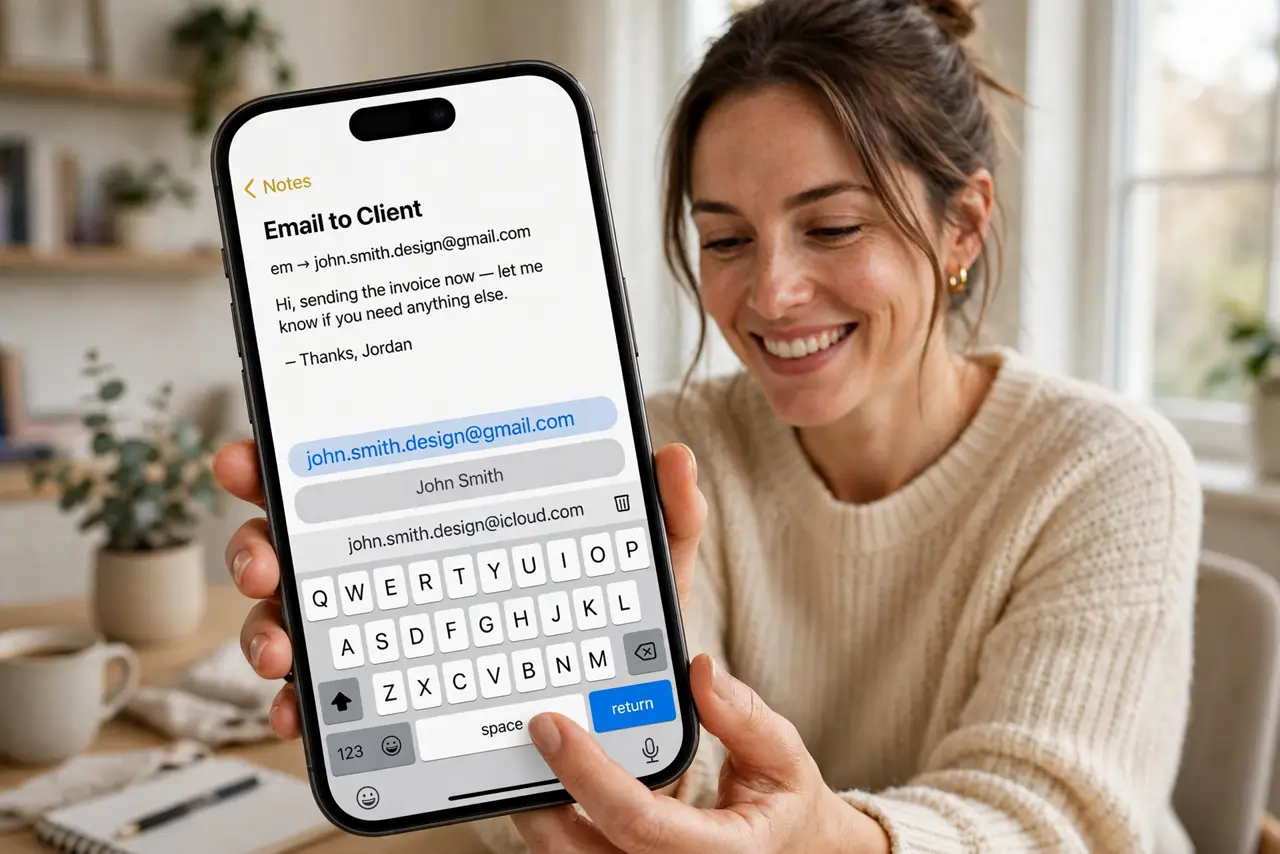
Typing your full email address for the fiftieth time is a small daily tax. Text replacement lets a short trigger — like ‘eml’ — expand into the full address everywhere you type. Set up a handful of shortcuts once, and they pay you back every single day.
TL;DR / Quick Fix
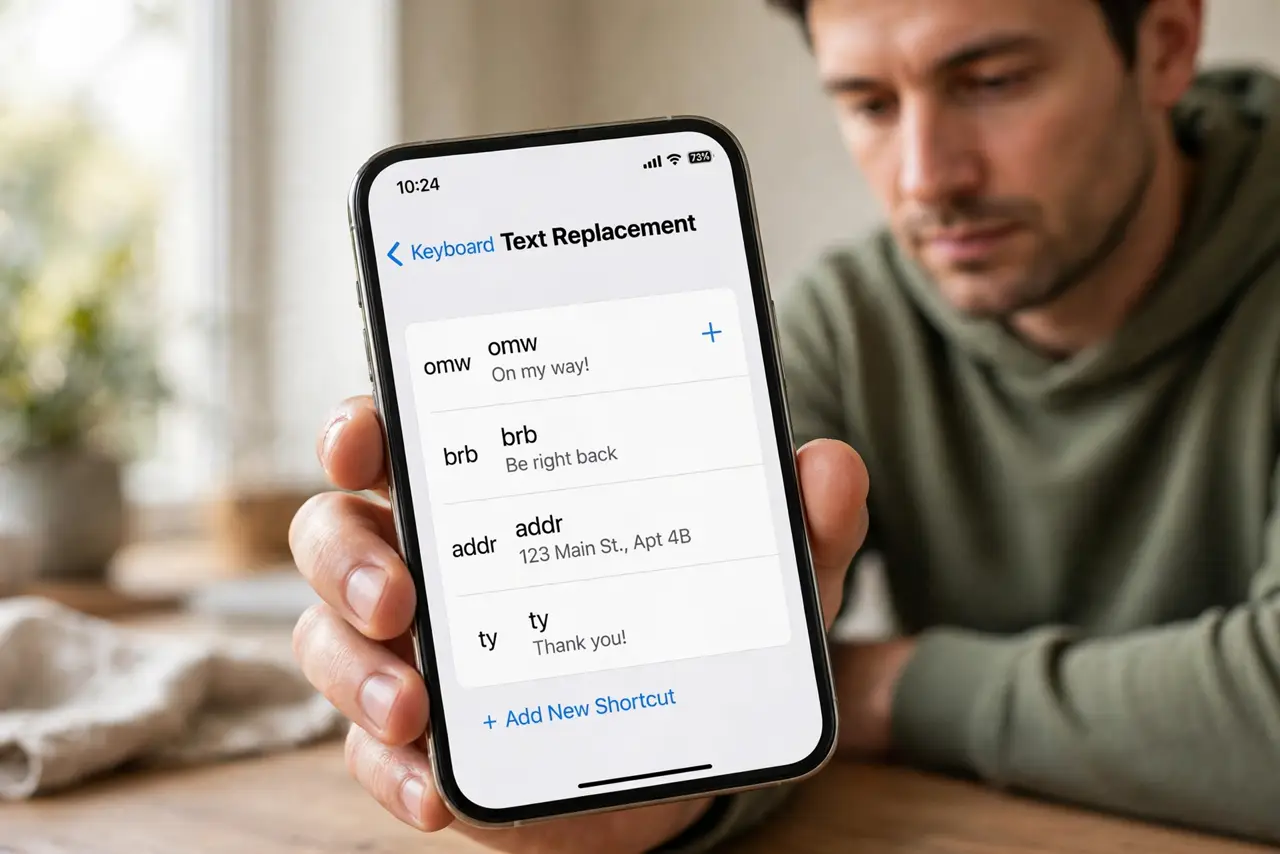
Quick fix: open Settings > General > Keyboard > Text Replacement and tap the plus to add a shortcut, like typing omw to expand into On my way. Shortcuts sync through iCloud. Delete stale ones from the same screen so old addresses stop appearing.
Follow these steps
- Open Text Replacement settings. Go to Settings > General > Keyboard > Text Replacement. You will see any existing shortcuts listed.
- Add a shortcut with the plus button. Tap +, type the full phrase (Phrase) and the short trigger (Shortcut). Use triggers you would never type normally, like ‘eml’ or ‘addr1’.
- Test it in any app. Type the trigger in Messages or Notes and tap space — the full phrase replaces it. It works system-wide, including third-party apps.
- Add your high-value phrases first. Email addresses, phone numbers, home address, and frequent replies save the most keystrokes. Five good shortcuts beat fifty mediocre ones.
- Let iCloud sync them. Shortcuts sync to your other Apple devices automatically. Add once on iPhone, use on iPad and Mac too.
- Prune stale shortcuts yearly. Old addresses and outdated replies cause embarrassing misfires. Delete them from the same screen — and if autocorrect mangles names, that is a separate setting.
What NOT to do
- Do not use common words as triggers. A trigger like ‘the’ will ambush your typing constantly.
- Do not create shortcuts for things you type rarely. The setup time should pay for itself within a week.
- Do not forget triggers are case-insensitive by default. ‘EML’ and ‘eml’ trigger the same expansion.
- Do not expect it inside password fields. Text replacement is disabled where it would be a security risk.
Frequently asked questions
Why didn't my shortcut expand?
You must type the trigger then space or punctuation. Also check the shortcut is saved — the + screen needs Save tapped, not just typed.
Do text replacements work in all apps?
Nearly all, including third-party keyboards' apps. They are disabled only in password and secure fields.
Can I sync shortcuts to Android?
Not directly. Gboard has its own personal dictionary under Settings > Dictionary > Personal dictionary for the same trick.