Ride Transit with Your iPhone
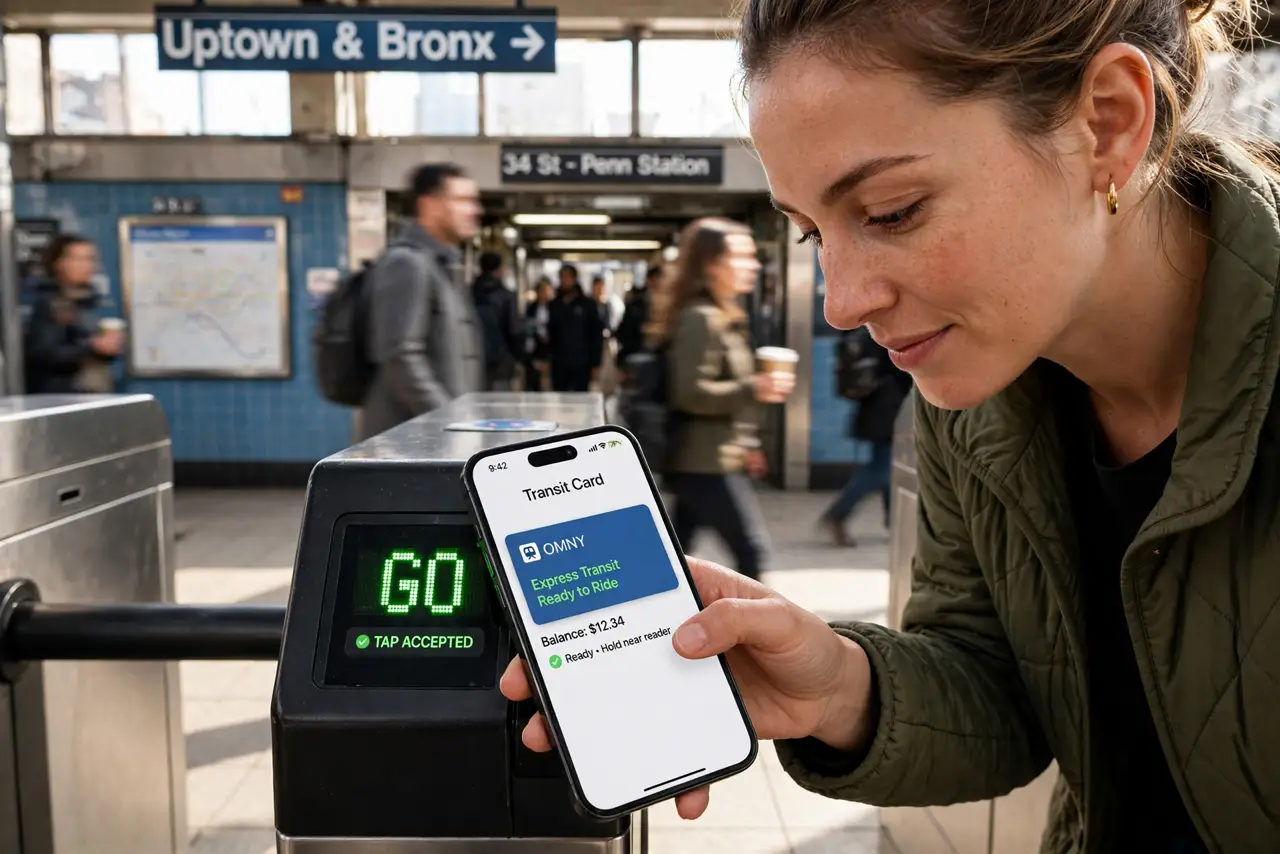
Rush hour, gates closing, and you are digging through your bag for the transit card while the line glares. If your city's transit system supports it, that card can live in Apple Wallet: tap your iPhone (or Apple Watch) at the gate with Express Transit — no unlocking, no app-opening, no fumbling. It even works for hours after your battery dies.
TL;DR / Quick Fix
Quick fix: add your transit card to Apple Wallet — tap +, choose Transit Card, pick your city's card, and transfer the balance. Tap your iPhone at gates with Express Transit, no unlocking needed. It works on a dead battery via power reserve, and you can reload from the phone.
Follow these steps
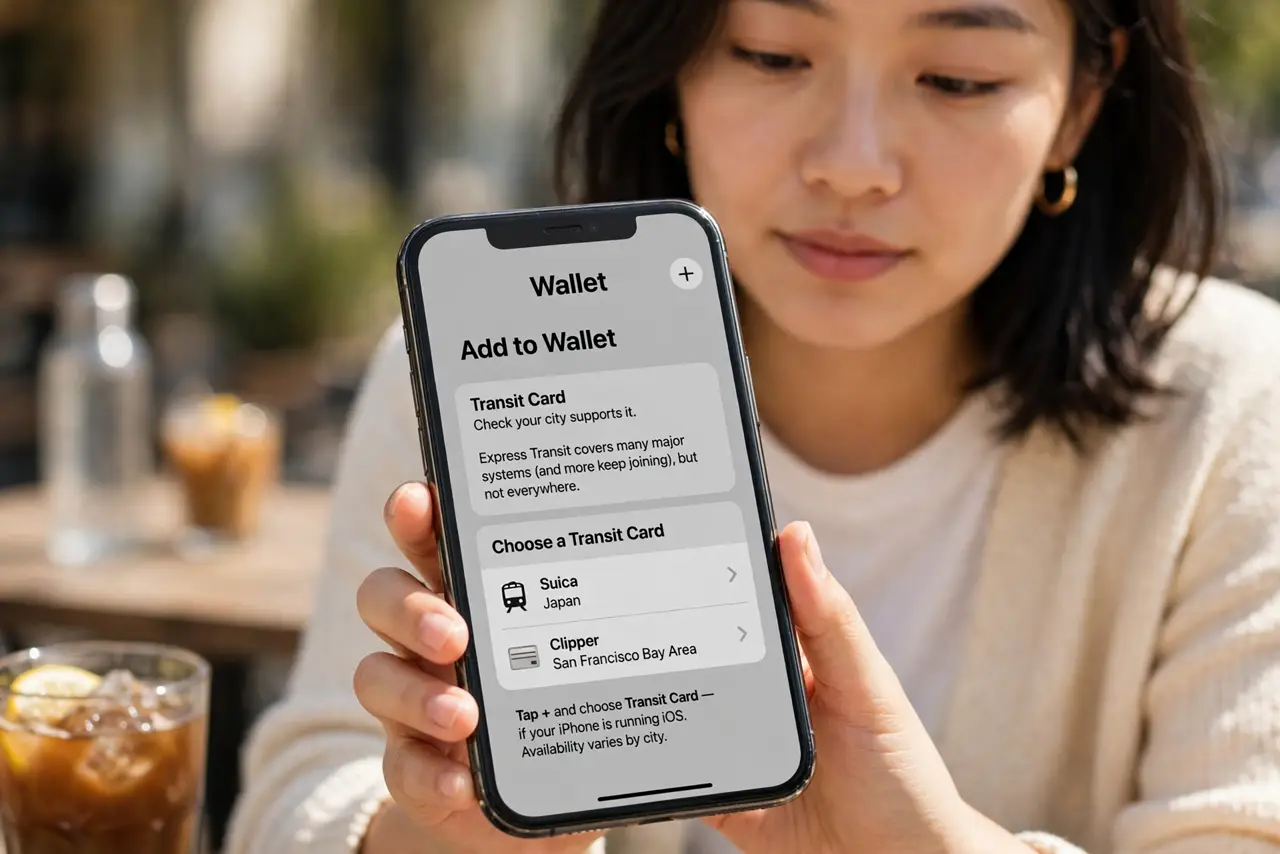
- Check your city supports it. Express Transit covers many major systems (and more keep joining), but not everywhere. In Wallet, tap + and choose Transit Card — if your city's card appears, you are in business. If not, your system is not supported yet.
- Add the card. Pick your city's card, transfer an existing physical card's balance or create a new one, and add funds. The physical card usually deactivates when transferred — that is normal, not an error.
- Enable Express Transit. In Wallet, select the transit card and turn on Express Transit. This is the magic: tap-and-go at gates without waking or unlocking the phone — faster than any card fumble.
- Ride and reload from the phone. Tap in and out like normal; the balance deducts automatically. Reload anytime in Wallet with Apple Pay — no more vending-machine queues. Trip history lives in the card details.
- Know the dead-battery trick. Like Wallet keys, Express Transit works for hours on power reserve after the battery dies. A dead phone at the gate is an inconvenience, not a stranded commuter.
- Manage it like a real card. Remove the card if you move cities, and keep a backup payment method for the rare gate that misbehaves. Check boarding passes for the same tap-and-go idea applied to flights.
What NOT to do
- Do not transfer the physical card without reading the terms. Transfer usually deactivates the plastic — fine if you want digital-only, annoying if you did not.
- Do not rely on it with 1% battery and no backup. Power reserve covers hours, not days — carry a backup payment method on long days.
- Do not forget Express Transit is per card. If you carry two cities' cards, set the right one as the Express card before traveling.
- Do not panic at the first failed tap. Re-tap deliberately — most failures are haste, not malfunction. Persistent failures mean checking the card status in Wallet.
Frequently asked questions
Does it work on Apple Watch too?
Yes — the transit card syncs to your watch, and Express Transit works there with a wrist tap. Phone stays in the pocket.
Can tourists use it?
In many cities, yes — create a new digital card in Wallet on arrival and top it up. No local bank account needed in most cases.
What if my city is not listed?
Then Express Transit is not available there yet — keep the physical card. Coverage keeps expanding, so check again before your next trip.