Add Boarding Passes to Wallet
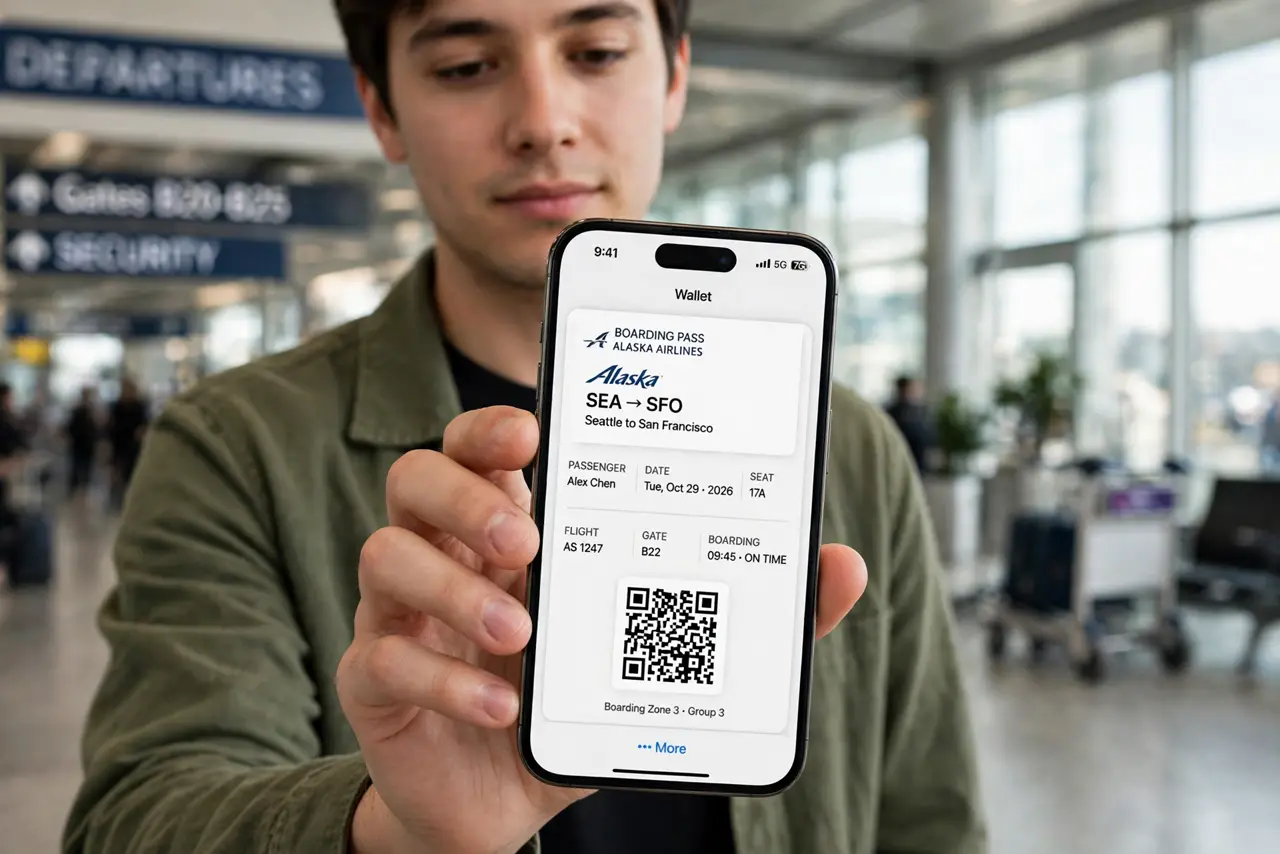
Paper boarding passes get crumpled, lost, and reprinted at the worst moments. Adding the pass to Apple Wallet puts a scannable code on your lock screen exactly when you need it — at check-in, security, and the gate. It takes ten seconds from the airline's app, works offline, and survives a dead-signal terminal.
TL;DR / Quick Fix
Quick fix: add boarding passes to Apple Wallet from the airline's app or email — tap Add to Apple Wallet for a pass. At the airport it surfaces on your lock screen. Screenshot it as backup and keep brightness up at the scanner. Paper backup for international trips is wise.
Follow these steps
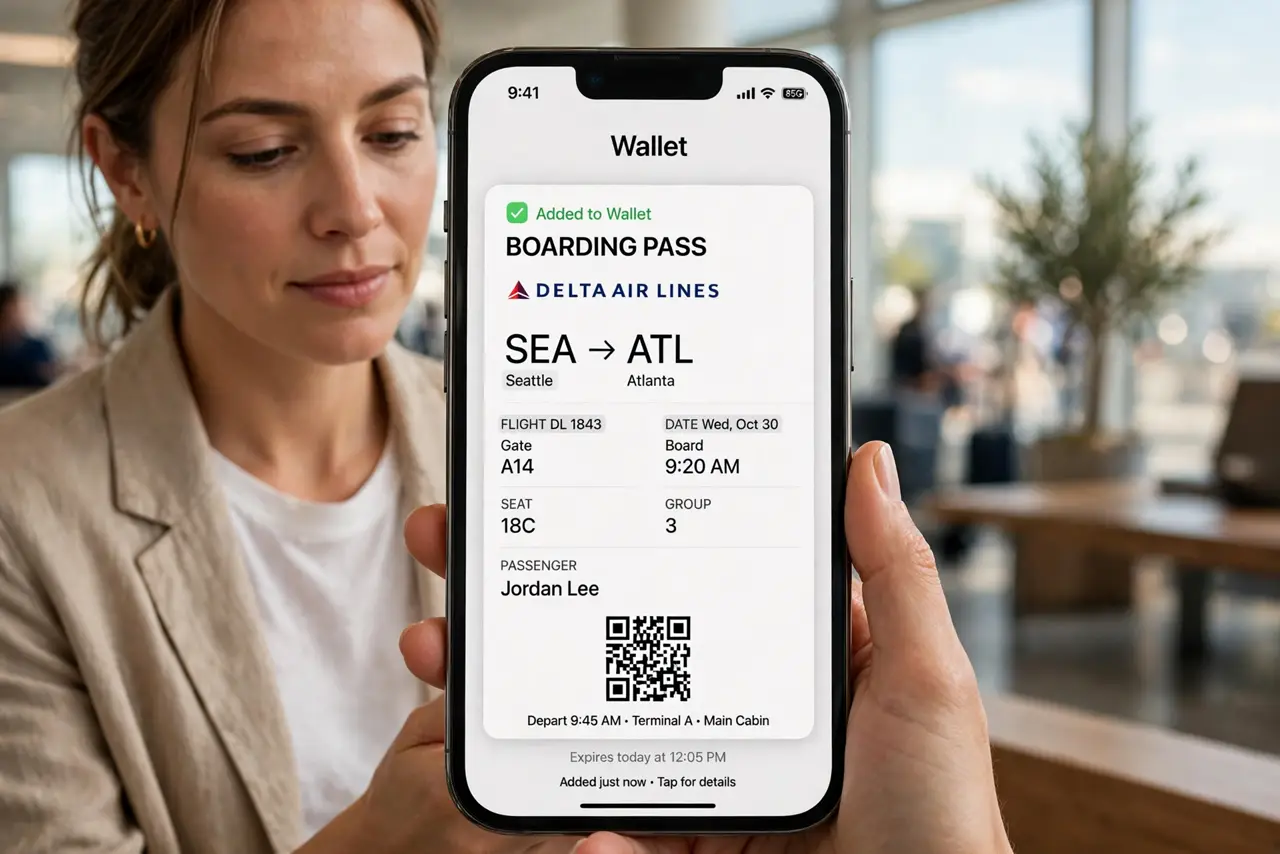
- Add it from the airline app. After check-in, the airline app offers Add to Apple Wallet. Accept it — the pass lands in Wallet with your flight details and a QR or barcode.
- Or add it from email. Many airlines include an Add to Wallet attachment or link in the confirmation email. Same result — the pass appears in Wallet either way.
- Check the details immediately. Open the pass and verify name, flight, seat, and time. Catching a wrong-name typo at home beats catching it at security.
- Let it surface on the lock screen. On travel day, the pass appears on your lock screen automatically near the airport (location-based). Tap it — no unlocking, no digging through apps.
- Screenshot it as backup. Screenshots work at most scanners if Wallet glitches — just know the screenshot risks and delete it after the trip.
- Max brightness at the scanner. Dim screens fail scanners. Crank brightness to full before tapping — the two seconds of battery are worth the first-try scan.
What NOT to do
- Do not rely on the airline app alone at security. Apps log you out and need signal — the Wallet pass works offline, which is the whole point.
- Do not share screenshots of your boarding pass online. The barcode holds your booking reference — post the view, not the pass.
- Do not delete the pass mid-trip. Return flights and connections live on the same pass — keep it until you are home.
- Do not forget ID requirements. The digital pass replaces paper, not your passport or ID — international trips still need both.
Frequently asked questions
Why did not the pass appear on my lock screen?
Location services for Wallet need to be on, and the airport geofence is not perfect. Open Wallet manually — the pass is there regardless.
Can I add someone else's boarding pass?
Yes — each traveler adds their own from their own check-in. You cannot add a companion's pass to your Wallet from your email.
What if my phone dies at the gate?
The airline can reprint a paper pass at the counter in a minute. It is also why a screenshot on a travel companion's phone is smart backup.