Use Transit Directions
Navigating an unfamiliar city’s trains and buses is stressful — wrong platform, missed transfer, doors closing as you arrive. Transit directions in your maps app handle the whole chain: which line, where to change, when to get off. Here is how to use them like a local.
TL;DR / Quick Fix
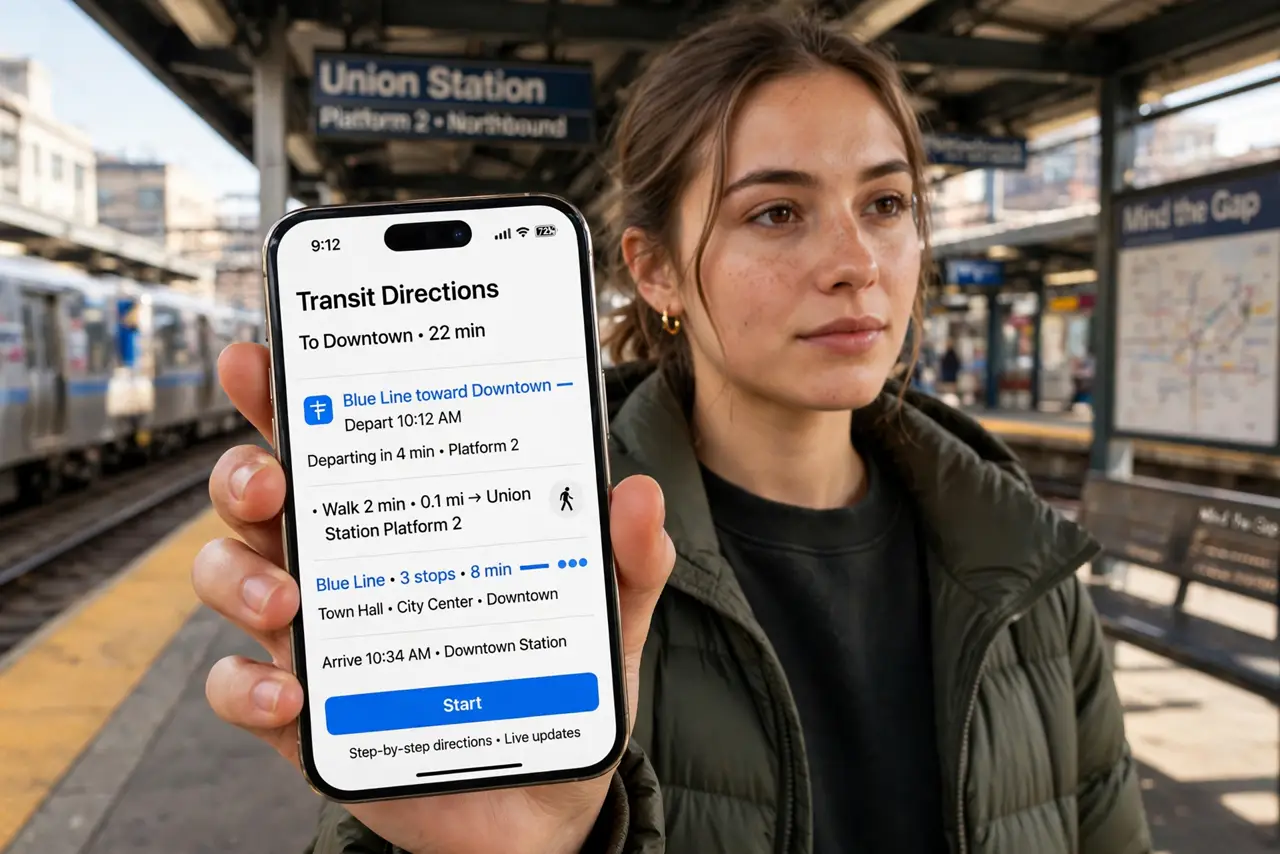
Quick fix: in Apple Maps or Google Maps, enter your destination and tap the transit icon (the train) — you’ll get routes with departures, transfers, and walking legs. Check the departure time options for later trips and save frequent routes. Download offline maps first; stations kill signals.
Follow these steps
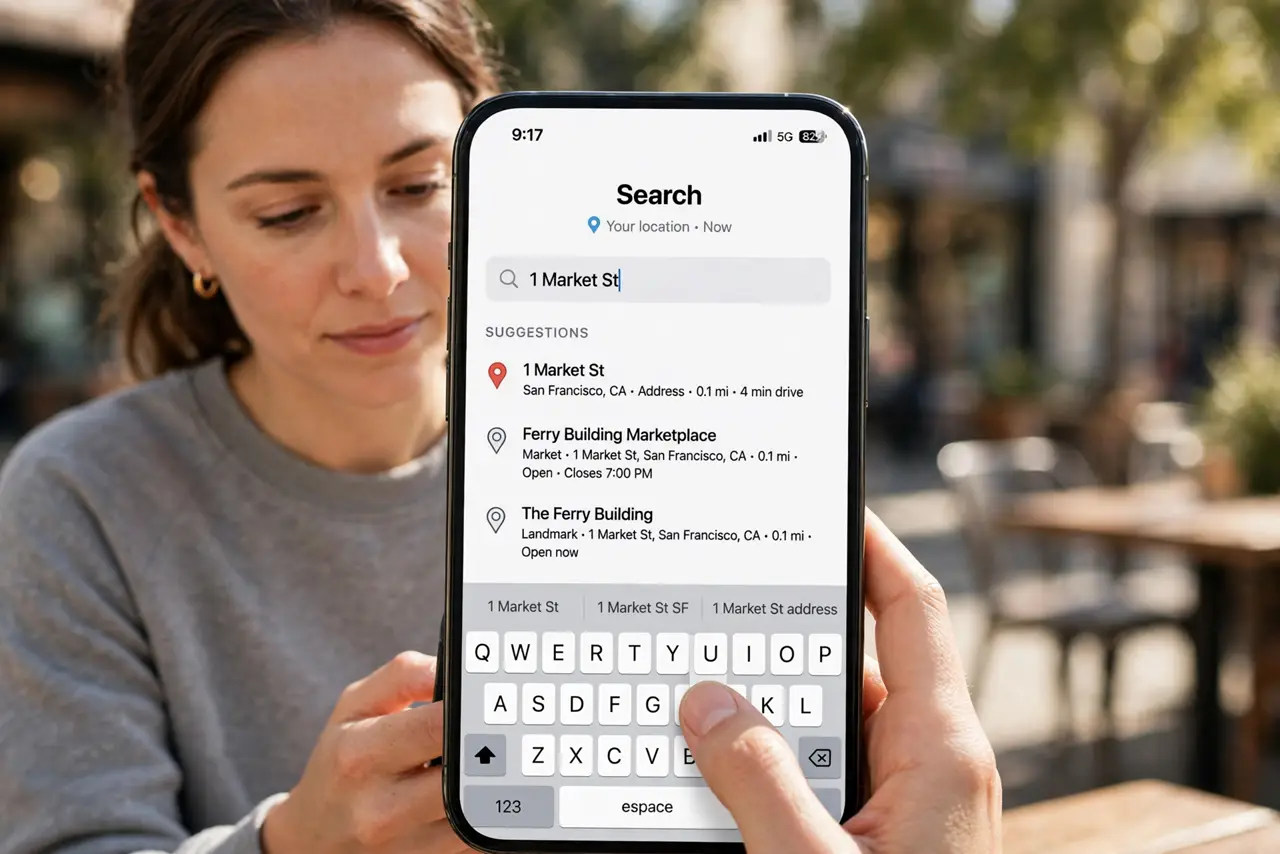
- Enter your destination. Type where you are going in Apple Maps or Google Maps — an address, a place name, anything. The app figures out your starting point from GPS.
- Tap the transit icon. Above the results, tap the train icon to switch from driving to transit. Routes appear with total time, number of transfers, and next departures — pick the balance you prefer.
- Read the whole route first. Expand the route: which line, direction, stops, where to change, and the walking legs at each end. Knowing the transfer station before you board prevents platform panic.
- Set departure or arrival time. Tap the time options to plan a later trip or ensure arrival by a specific hour. Rush-hour frequencies differ wildly from midday — plan with the real schedule, not the current one.
- Save frequent routes. Commutes and regular trips can be saved or pinned. One tap beats retyping the same journey every morning — and add transit cards to your wallet for tap-to-ride.
- Go offline-ready. Save the area in offline maps before descending — stations and tunnels eat signals, and a cached route keeps working when live data dies.
What NOT to do
- Do not board without checking the direction. ‘Uptown’ vs ‘downtown’ mistakes waste more time than any other transit error.
- Do not trust the first route blindly at rush hour. Check two options — a ‘slower’ route with fewer transfers often wins when stations are packed.
- Do not forget the last walking leg. The app’s arrival point may be a station exit far from your actual door — zoom in on the final walk before committing.
- Do not rely on live data underground. Real-time departures need a signal; cached schedules do not. Screenshot the key departures before you descend.
Frequently asked questions
Apple Maps or Google Maps for transit?
Both are strong in major cities; Google’s coverage is broader globally, Apple’s is deeply integrated on iPhone. Try both on your commute and keep the winner.
Why is my route missing a line?
Map data lags real service changes. Check the transit agency’s own app or site for disruptions — maps are usually right, but not always first.
Can I pay fares from the phone?
In many cities, yes — express transit cards in the wallet app let you tap through. Set it up before rush hour, not during.