Translate With the Camera?
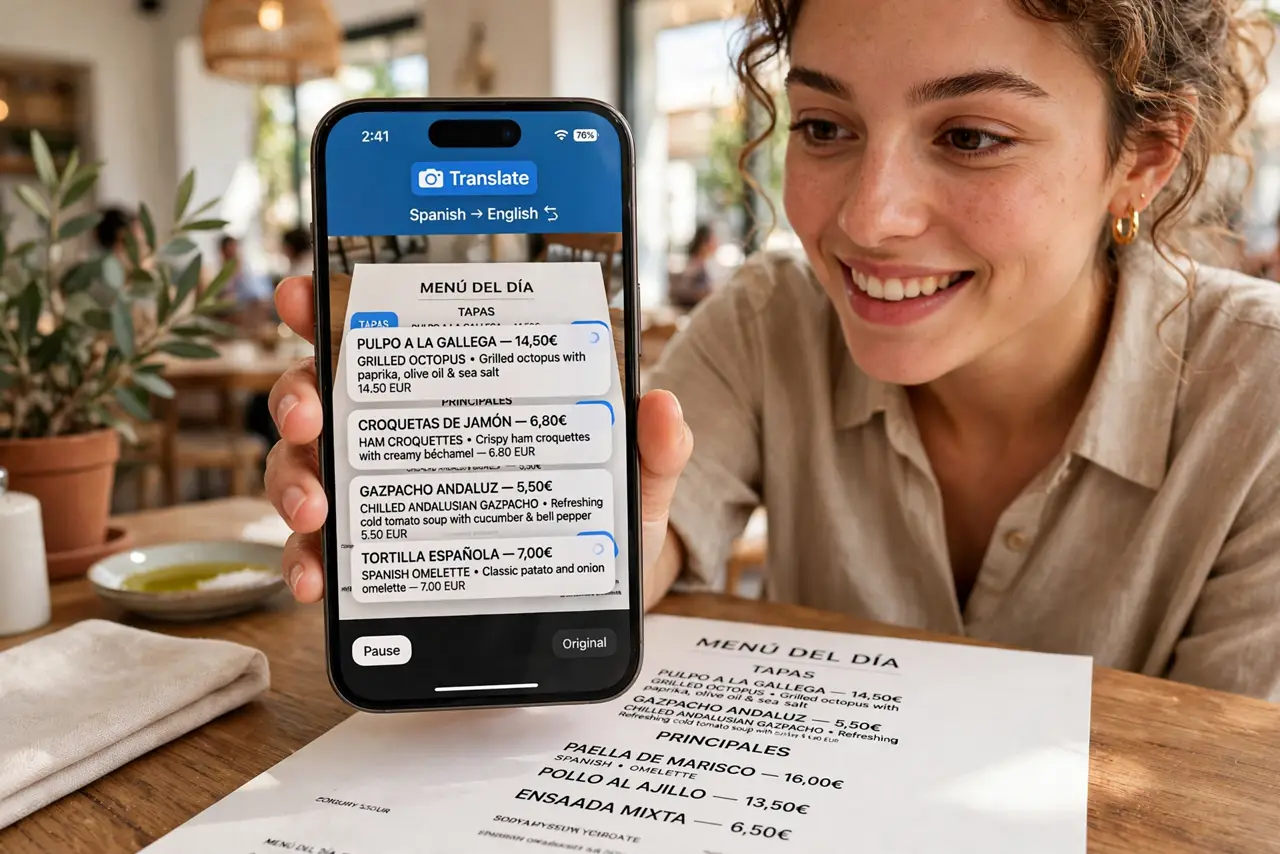
Point your iPhone camera at a sign, menu, or document in another language and it can translate the text live on screen — no typing needed. The Camera app does this through Live Text, and the standalone Translate app adds a dedicated camera mode with instant overlays. It works offline too, once you download the language pack. This guide shows both routes so you pick the one that fits the moment.
TL;DR / Quick Fix
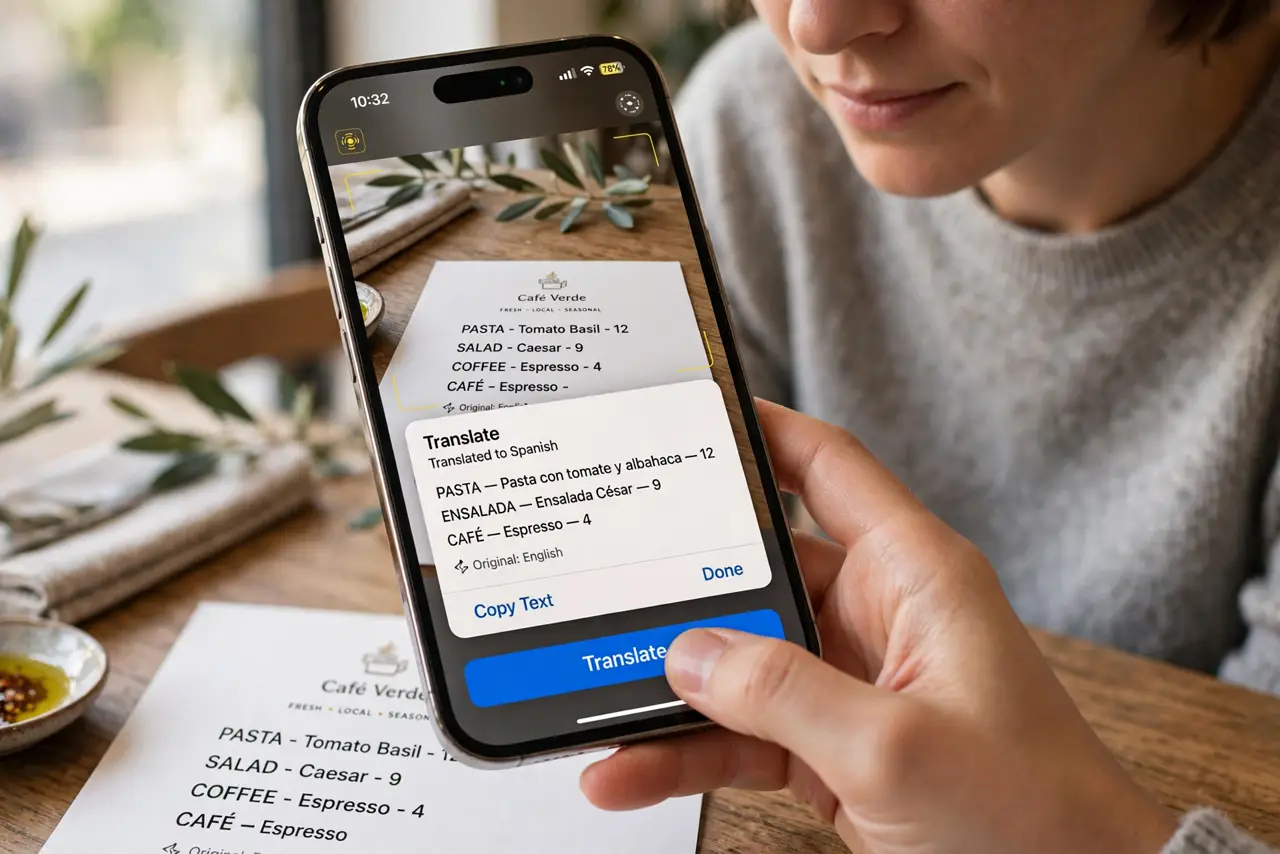
Quick fix: open the Camera app, point it at foreign text, tap the Live Text button, then tap Translate for an instant overlay. For menus and signs, the Translate app's camera mode works better. Download the language pair ahead of time and it works offline.
Follow these steps
- Use the Camera app's Live Text. Open the Camera app and point it at the text. When the yellow Live Text brackets appear in the corner, tap them, then tap the detected text and choose Translate. This is the fastest route for a quick line or two — the same text-from-photos trick powers it.
- Open the Translate app's camera mode. For longer passages like menus or signs, open the Translate app, tap the Camera tab, and point the phone. The translation overlays directly on the image in real time. Set the language pair at the top first so it doesn't guess wrong.
- Download languages for offline use. Tap the language name in the Translate app and download the pair before you travel. Offline mode skips roaming charges and works in dead zones like subways and rural areas — the quality is nearly as good as online.
- Hold steady and get close. Camera translation struggles with shaky, dim, or tiny text. Move closer, hold still for a second, and make sure the text fills the frame. Good lighting fixes more failures than any setting.
- Copy or save the result. After translating, tap the result to copy it, save it to favorites, or hear it spoken aloud. For a conversation, switch to the Conversation tab instead of the camera — it's built for back-and-forth dialogue.
- Check critical translations twice. Menu items and street signs are forgiving, but medication labels and legal notices are not. For anything high-stakes, confirm with a second source or a human — machine translation can mangle nuance.
What NOT to do
- Do not rely on camera translation for medication or safety labels. A mistranslated dosage or warning can be dangerous — confirm critical text with a person who reads the language.
- Do not translate through the viewfinder at arm's length in the dark. Blurry input gives garbled output; move closer and add light first.
- Do not leave the language on Auto-detect for similar languages. Auto-detect can confuse closely related languages — set the pair manually for menus and documents.
- Do not forget to download languages before a trip. Without the offline pack, the feature dies the moment your data connection does.
Frequently asked questions
Does camera translation work without internet?
Yes, once you download the language pair in the Translate app — the on-device models handle it. Download both directions of the pair before you travel, and keep the app updated so the models stay current.
Can it translate handwriting?
Sometimes — clean printed text works best. Neat handwriting can work with Live Text, but cursive or messy script often fails. Type short handwritten phrases into the Translate app instead for better accuracy.
Why is the overlay flickering or wrong?
Flickering usually means the phone is moving or the text is at a sharp angle. Hold steady, shoot the text straight-on, and make sure it fills the frame — and check the language pair is set correctly, not auto-guessing.