Add Keys to Apple Wallet
Your keyring is a janitor's nightmare — house, office, gym, plus a hotel key card every trip that you always lose by checkout. For supported locks, hotels, offices, and cars, those physical keys can live in Apple Wallet instead: tap your iPhone to unlock, with Express Mode so it works without unlocking the phone — even for hours after the battery dies, thanks to power reserve.
TL;DR / Quick Fix
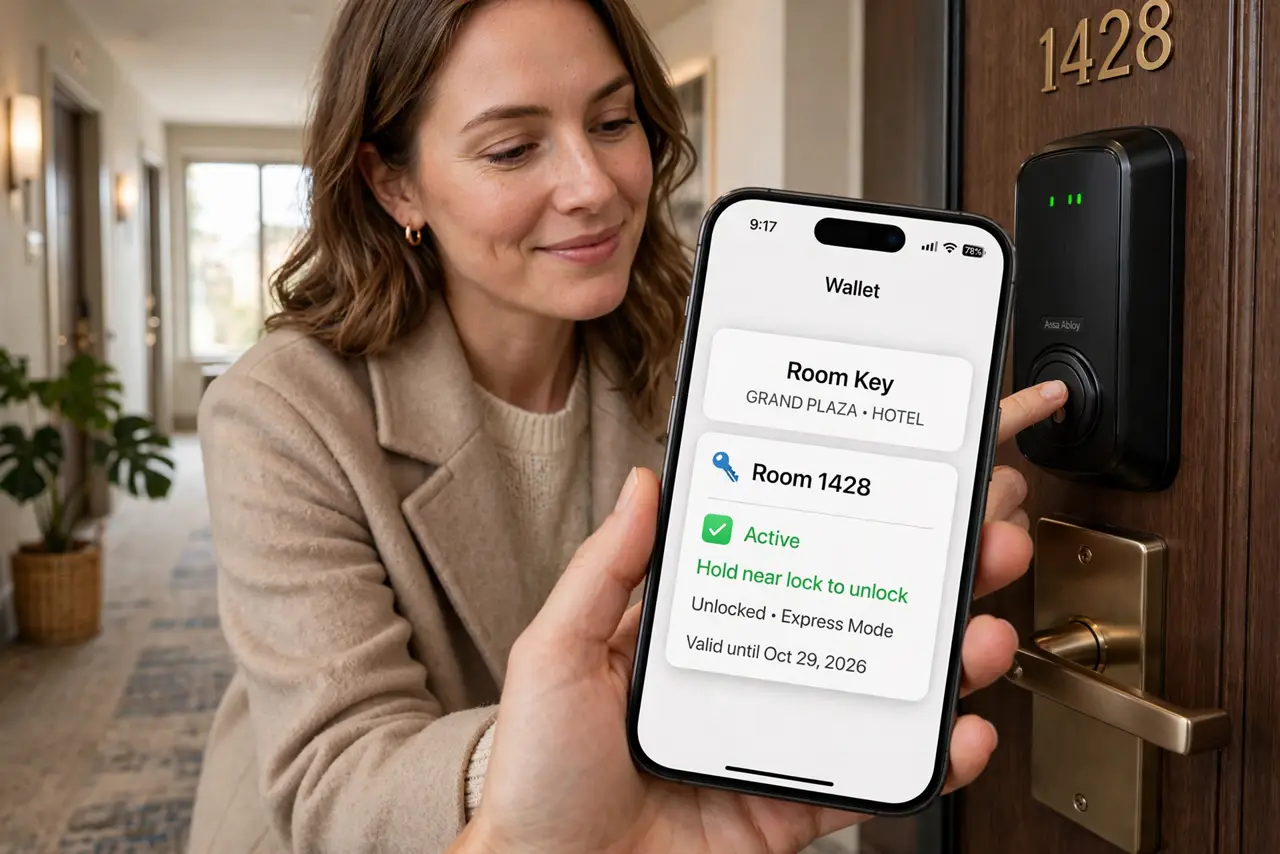
Quick fix: add hotel, home, and car keys to Apple Wallet — tap +, pick the key type, and follow the pairing steps in the provider's app. Your iPhone unlocks doors with a tap, even on a nearly dead battery via power reserve. Remove old keys when you check out.
Follow these steps
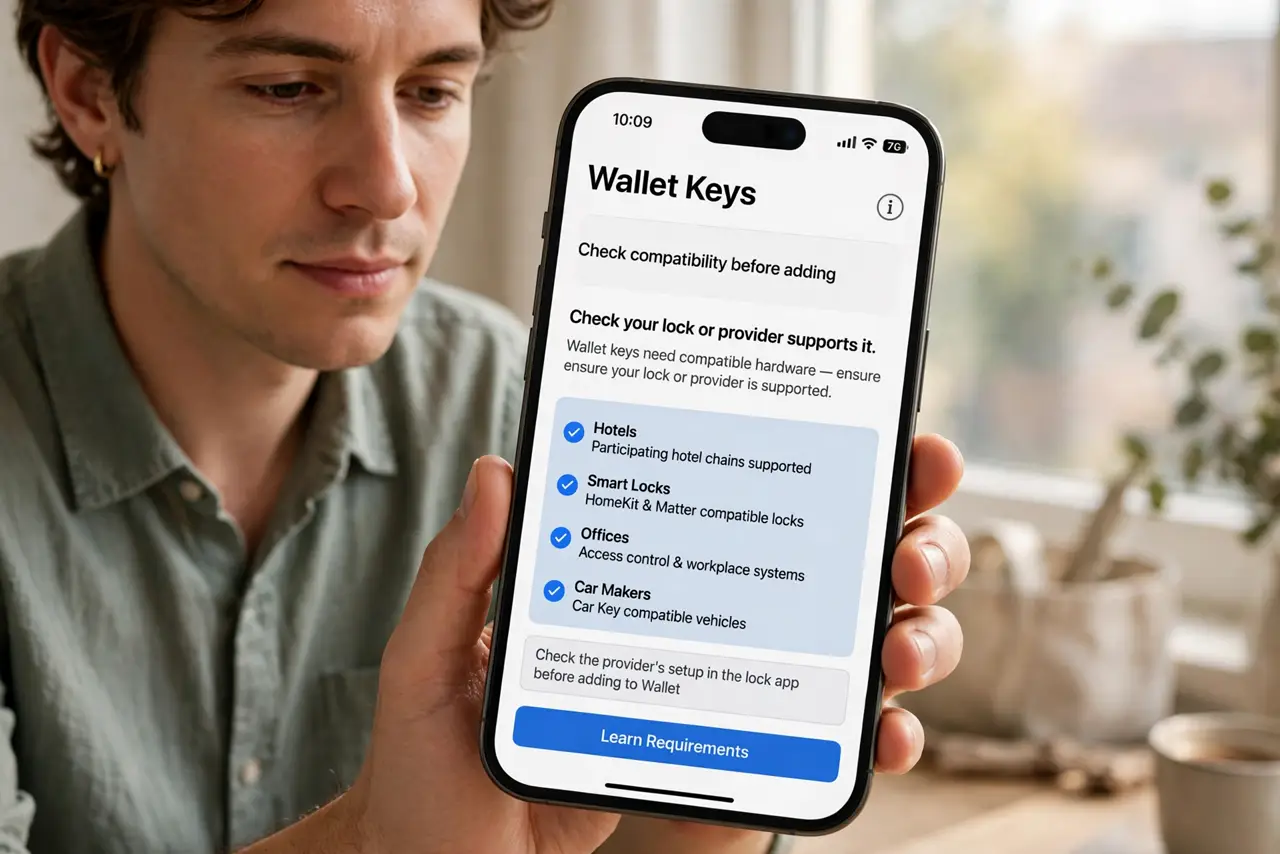
- Check your lock or provider supports it. Wallet keys need compatible hardware — participating hotel chains, smart locks, offices, and car makers. Check the provider's app or website for Add to Apple Wallet before expecting it to work; not every smart lock qualifies.
- Add the key. Open Wallet, tap +, and choose the key type (or start from the provider's app, which hands the key to Wallet). Follow the pairing steps — usually an account login plus holding the phone near the lock once.
- Enable Express Mode. For home and hotel keys, turn on Express Mode so the key works with a tap — no Face ID, no unlocking the phone. This is what makes it faster than digging out a key card, and it is safe because the key only opens that one door.
- Know about power reserve. Express keys keep working for hours after the iPhone battery dies — a small reserve powers NFC taps. A dead phone at the hotel door is no longer a crisis, though you should still charge it.
- Manage keys like the physical ones. Remove hotel keys at checkout, revoke old office keys when you leave a job, delete sold cars. Wallet keys are real credentials — audit them the way you would a keyring, including transit cards and IDs like a digital ID.
- Share keys when appropriate. Some keys (home, car) can be shared with family via Messages with time limits. Share deliberately — a key shared is access granted, digital or not.
What NOT to do
- Do not assume every smart lock works with Wallet. Compatibility is per manufacturer and model — verify before buying a lock for this feature.
- Do not leave Express Mode on for keys you rarely use. Convenience has a small security cost; keep Express for daily doors, require authentication for the rest.
- Do not forget to remove old keys. A digital keyring accumulates silently — checkout, move-out, and job-change cleanups apply to Wallet too.
- Do not share keys casually. Each share is a copy of access with its own lifetime — time-limit shares and revoke them after.
Frequently asked questions
What happens if I lose my iPhone?
Use Find My to mark it lost or erase it — Wallet keys are suspended with the device. Your physical backup key still works, which is why you keep one somewhere safe.
Do hotel Wallet keys work after checkout?
They expire automatically at checkout time. If one lingers, delete it manually — expired keys are clutter, not access.
Can Android phones do this?
Google Wallet supports similar key types with participating partners — the concept is cross-platform, the specific partners differ.