Widget Stacks? Basics
Your home screen is a sprawling mess of widgets eating space — weather here, calendar there, battery somewhere else. Widget stacks pile multiple widgets into one slot that you swipe through, or that rotates smartly on its own. One stack replaces four widgets and your home screen breathes again.

TL;DR / Quick Fix
Quick fix: long-press the home screen, tap +, add a widget, then drag another same-sized widget directly on top — they form a stack. Swipe up or down to flip through widgets, or leave Smart Rotate on and let the iPhone surface the right one.
Follow these steps
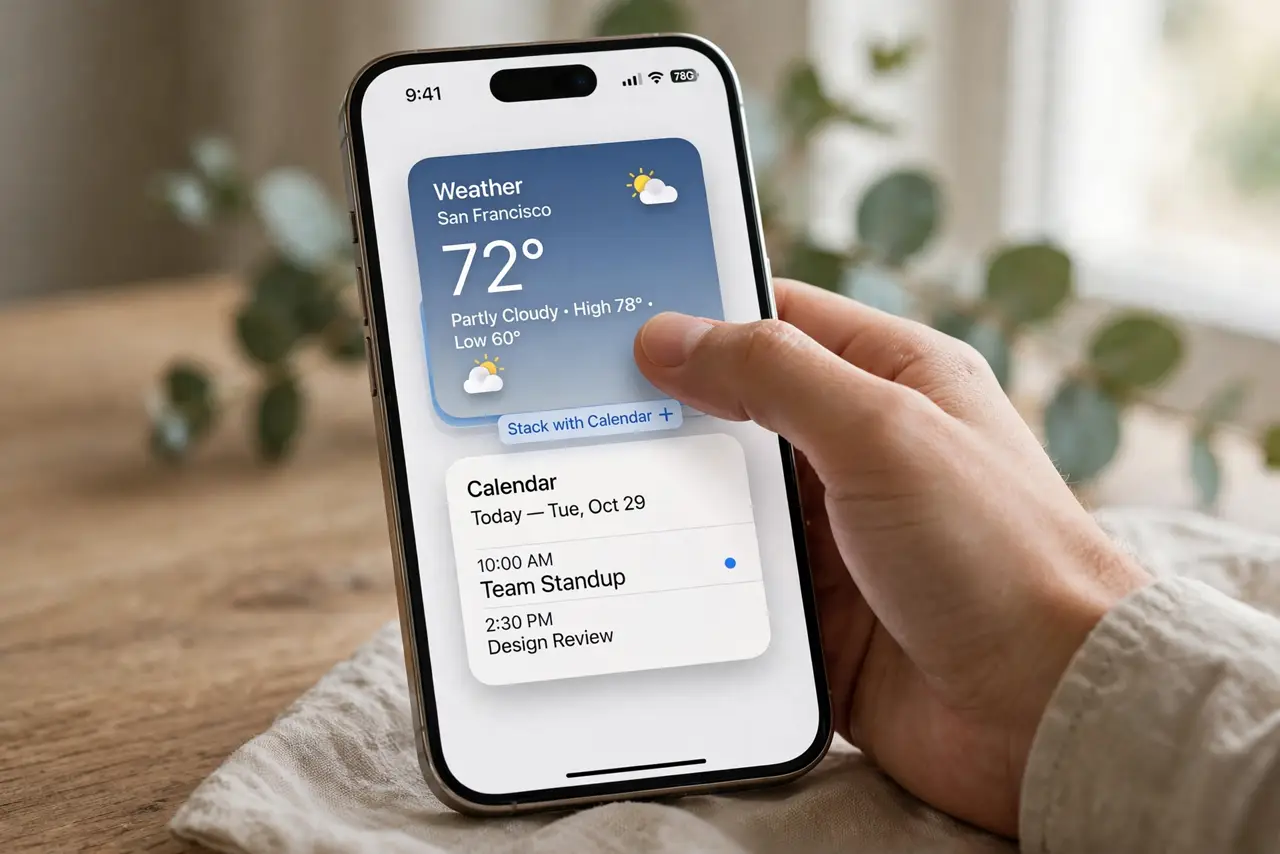
- Build your first stack. Long-press the home screen, tap the + button, add any widget. Then drag a second same-sized widget directly onto the first — they merge into a stack. Same size is required; different sizes won't stack.
- Swipe through the stack. Swipe up or down on the stack to flip between its widgets. It's one home-screen slot behaving like many — the core space-saving trick.
- Try Smart Rotate. Long-press the stack, Edit Stack, and enable Smart Rotate. The iPhone learns your routine — calendar in the morning, music in the evening — and surfaces the right widget automatically. See wrong widget on top if it guesses badly.
- Edit and reorder. In Edit Stack, drag to reorder widgets or tap minus to remove one. Curate ruthlessly — a stack of ten widgets you never swipe is just clutter with extra steps.
- Use Smart Stack for starters. Apple's pre-made Smart Stack (in the widget gallery) is a solid default covering calendar, weather, and photos. Customize it rather than building from zero — see the phone widget stack for the concept.
- Fix stale widgets. Widgets showing old data usually need the app opened once to refresh, or a re-add of the widget. See blank or stale widgets if yours freeze.
What NOT to do
- Do not stack widgets you'll never swipe to. A stack is for widgets you check in rotation — burying a critical widget third in a stack means you'll never see it.
- Do not expect Smart Rotate to read your mind day one. It learns over a week or two — give it time before declaring it useless.
- Do not mix sizes hoping they'll merge. Only same-sized widgets stack; a small and medium widget just sit side by side, mocking you.
- Do not forget stacks work on iPad too. The same long-press and drag builds stacks on iPadOS — your tablet home screen deserves the same cleanup.
Frequently asked questions
How many widgets fit in a stack?
Up to ten. In practice, three to five is the sweet spot — beyond that you forget what's in there.
Can I have multiple stacks?
Yes — build as many as you like. Many people run one info stack and one fun stack (photos, music) on different pages.
Why is Smart Rotate showing the wrong widget?
It's still learning, or your routine changed. Reorder manually in Edit Stack, or see wrong-widget fixes for tuning it.