iPhone Widgets Show Old Data? Refresh Them
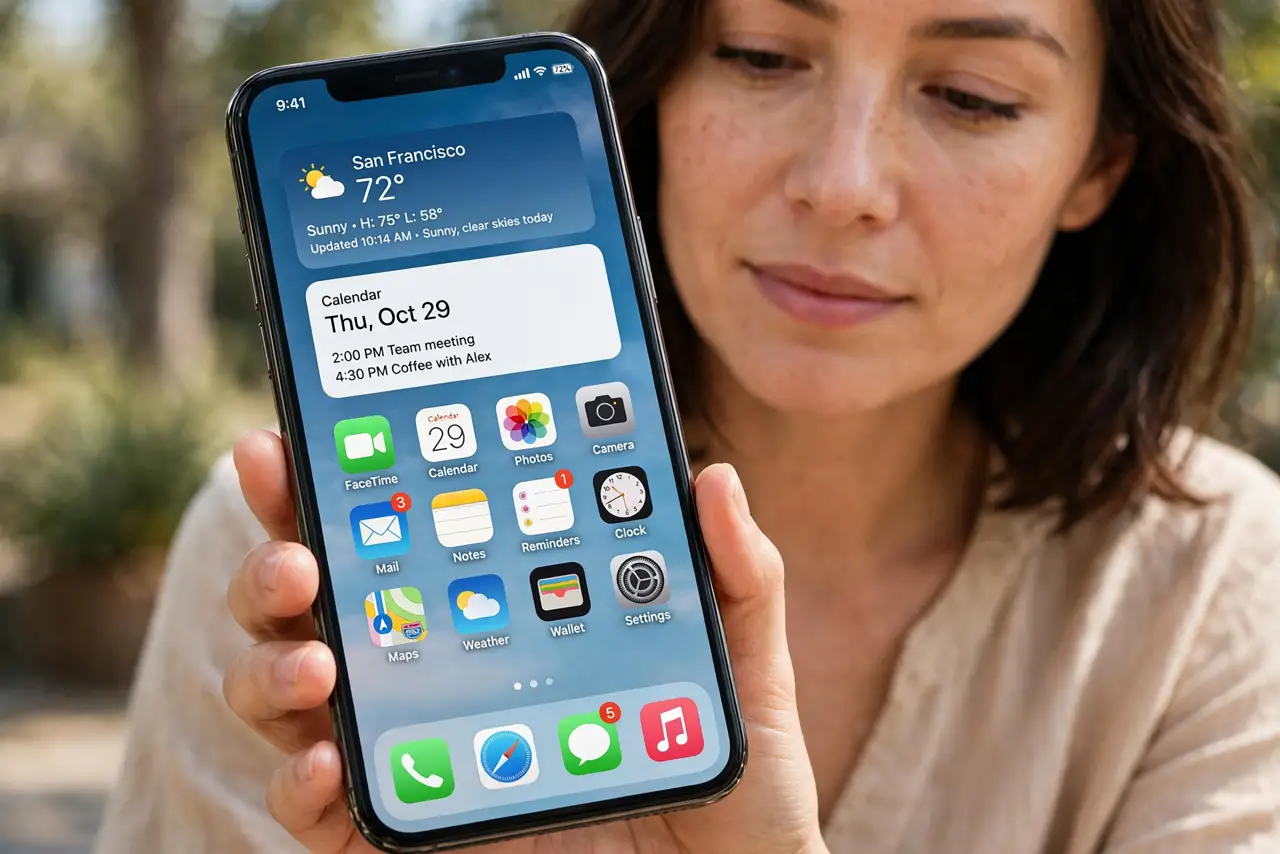
A widget shows yesterday's weather, an old score, or a stale calendar, even though the app itself is up to date. Widgets refresh on their own schedule, so a stale widget usually means the app cannot refresh in the background or the widget itself is stuck.
TL;DR / Quick Fix
Quick fix: open the app itself and pull to refresh, then check that Background App Refresh is on for that app. If the widget still shows old data, remove it from the Home Screen and add it again fresh. Test once more after a restart.
Follow these steps
- Open the app and refresh it. Open the app behind the widget and pull down to refresh, or wait for it to load fresh data. If the app itself shows old data, the widget is not the problem.
- Check your connection. Widgets need a connection to fetch new data, so confirm Wi-Fi or mobile data is working by opening a web page. A widget cannot refresh while the phone is offline.
- Turn on Background App Refresh. Open Settings, then General, then Background App Refresh, and make sure it is on for that app. Without it, the widget may only update when you open the app.
- Check Low Power Mode. Low Power Mode pauses background refresh to save battery, so widgets can go stale while it is on. Turn it off for a test, or accept slower widget updates while saving battery.
- Remove and re-add the widget. Touch and hold the widget, remove it, then add it again from the widget gallery. A fresh widget clears a stuck state that refreshing alone cannot fix.
- Update the app and restart. Update the app in the App Store, then restart the iPhone and check the widget after a few minutes. If it still shows old data, the app maker may need to fix the widget.
What NOT to do
- Do not delete the app just to fix a widget. Removing and re-adding the widget is safer and keeps your app data intact.
- Do not turn off Background App Refresh for every app at once. That saves battery but makes every widget stale, not just one.
- Do not expect a widget to update every second. Widgets refresh on a schedule, so a short delay is normal even when everything works.
- Do not ignore Low Power Mode. If it is on, stale widgets are expected, and the fix is to turn it off, not to rebuild the widget.
Frequently asked questions
Why does the app show new data but the widget does not?
The widget refreshes on its own schedule and needs Background App Refresh. Opening the app refreshes the app, not always the widget.
Does Low Power Mode stop widgets updating?
Yes, it can pause background refresh. Turn it off to test whether widgets update normally again.
Will removing a widget delete my data?
No. Removing a widget only removes it from the screen. Your app and its data stay untouched.