Use Wi-Fi Calling Abroad
Abroad, every call feels like it might cost a fortune — and on cellular roaming, it might. Wi-Fi calling routes your calls over Wi-Fi instead, often at domestic rates or free, using your same number. Set it up before you leave, because some carriers require activation on the home network first.

TL;DR / Quick Fix
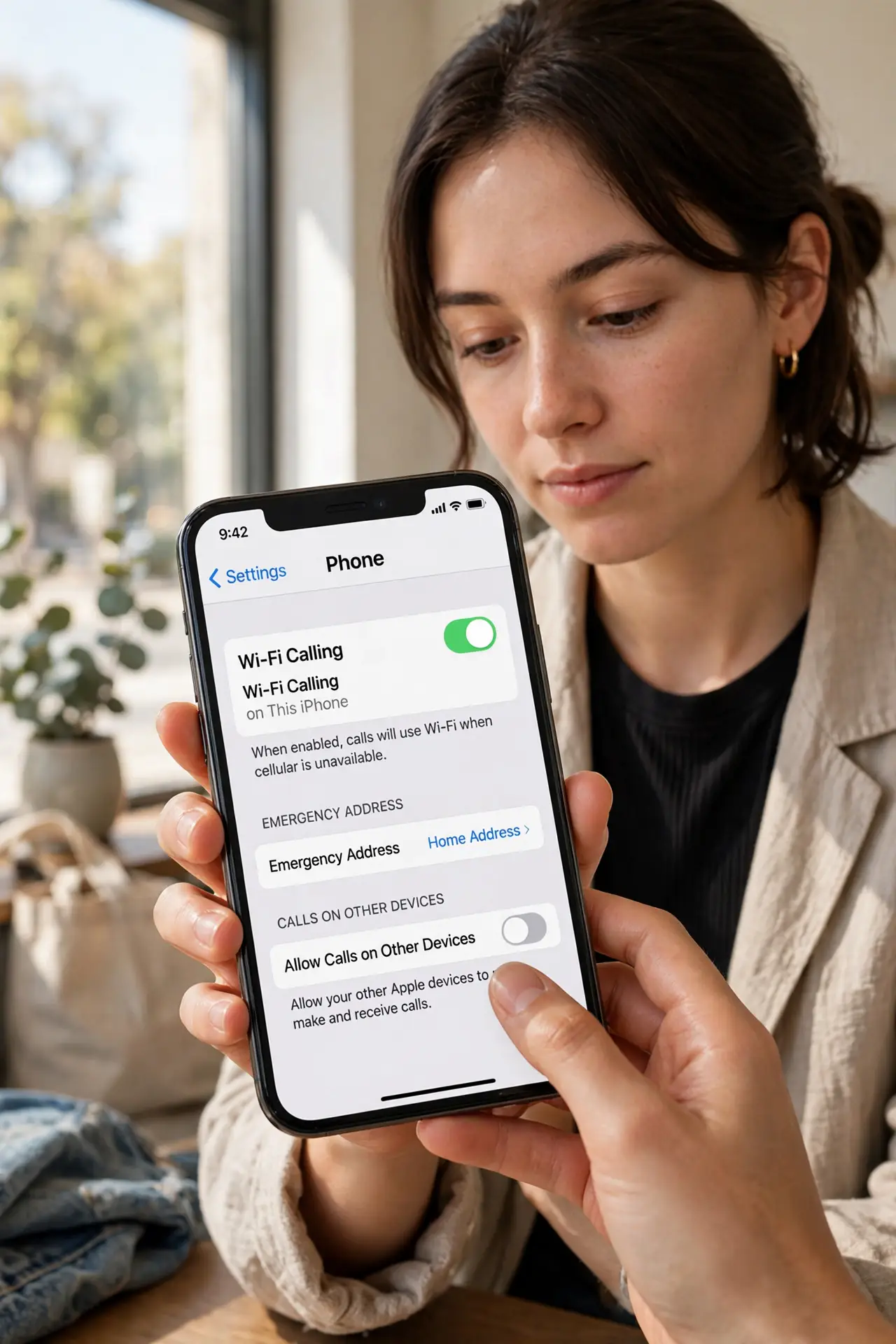
Wi-Fi calling lets your phone make calls over Wi-Fi using your regular number — often at domestic rates abroad. Enable it before traveling: on iPhone, Settings, Phone, Wi-Fi Calling; on Android, check call settings. Confirm with your carrier how Wi-Fi calls are billed. The roaming charges guide explains the alternative.
Follow these steps
- Enable Wi-Fi calling before you leave. On iPhone: Settings, Phone, Wi-Fi Calling, toggle on. On Android: Phone app settings or Settings, Network, Wi-Fi calling. Some carriers require first activation on the home network — do not wait until the airport.
- Confirm your carrier's international policy. Ask or check the carrier's site: are Wi-Fi calls abroad billed as domestic, international, or free? Policies differ wildly — this one check prevents bill shock.
- Test it at home first. Turn on airplane mode, enable Wi-Fi, and make a call. If the phone shows Wi-Fi calling active, the feature works and you know what the indicator looks like.
- Use it on hotel and cafe Wi-Fi. Abroad, join Wi-Fi and let calls route over it. Your regular number shows on caller ID — contacts need no special apps.
- Know the emergency-call limitation. Wi-Fi calls may not transmit your location to emergency services abroad the way cellular does. Know the local emergency number and your address when traveling.
- Combine with a local eSIM for data. Wi-Fi calling handles calls; a cheap local eSIM handles data between Wi-Fi spots. Together they beat roaming rates by an order of magnitude.
What NOT to do
- Do not assume Wi-Fi calling is free abroad. Some carriers bill international Wi-Fi calls at international rates — verify before chatting for an hour.
- Do not wait until abroad to enable it. Carriers that require home-network activation will leave you stuck if you try at the destination.
- Do not rely on it for emergency calls. Location data may not transmit — know local emergency numbers and your address.
- Do not forget to turn off data roaming. Wi-Fi calling plus roaming data on equals a surprise bill — disable data roaming and use Wi-Fi plus local eSIM.
Frequently asked questions
Will people see a different number?
No — Wi-Fi calling uses your regular number and caller ID. To your contacts, nothing changes.
Does the other person need Wi-Fi calling?
No. Only your side uses Wi-Fi; the call connects to any phone normally through your carrier.
What if the hotel Wi-Fi blocks it?
Some restrictive networks block the ports Wi-Fi calling needs. A VPN sometimes bypasses this; otherwise fall back to messaging apps.