iPhone Wi-Fi Drops When Screen Locks? Keep It On
Wi-Fi drops every time the screen locks, downloads pause, and calls or streams switch to mobile data. Power saving, Wi-Fi Assist, or a weak network usually causes it. Check auto-join, Low Power, and the network itself before blaming the router.
TL;DR / Quick Fix
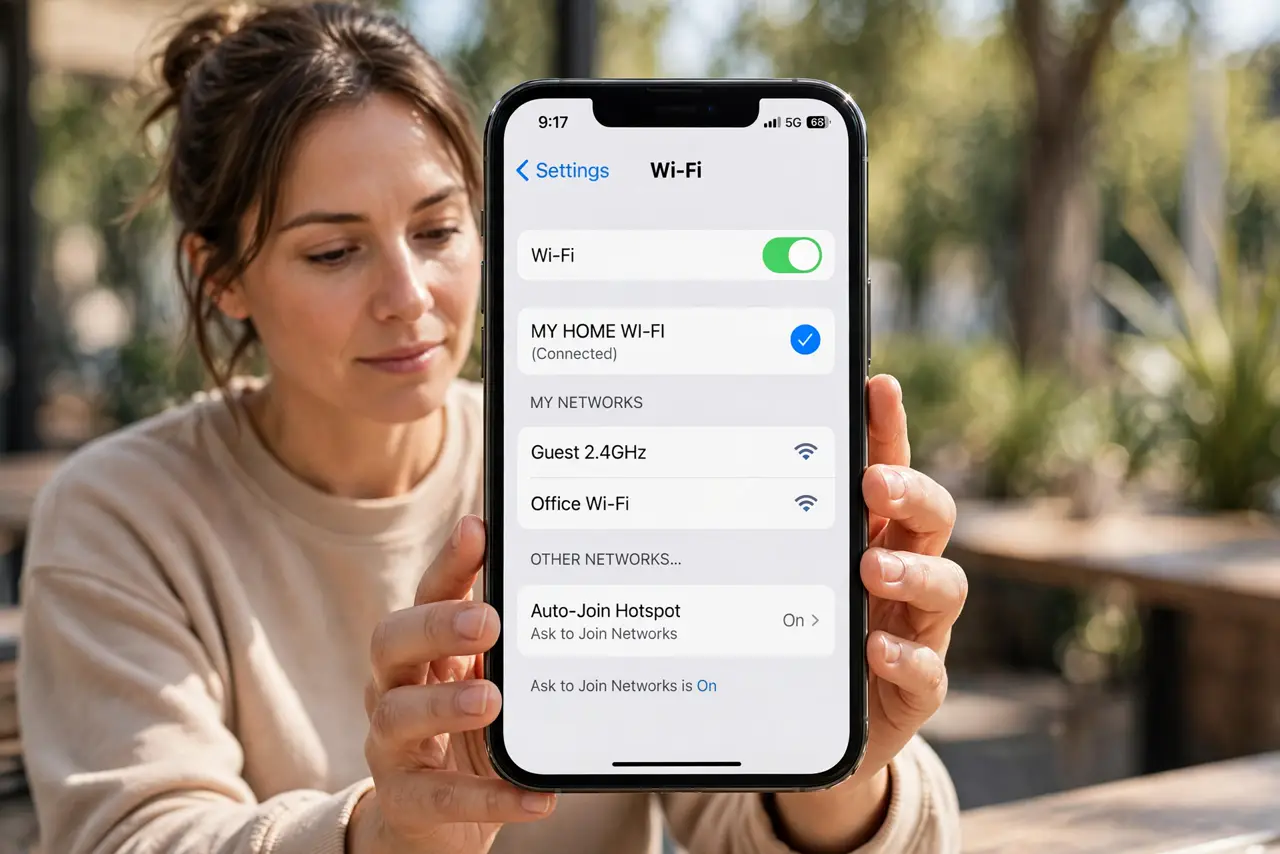
Quick fix: open Settings, then Wi-Fi, tap your network, and confirm Auto-Join is on. Turn off Low Power Mode for testing, then lock the screen for two minutes and check whether Wi-Fi stayed connected. Then test the fix for a full day before changing anything else.
Follow these steps
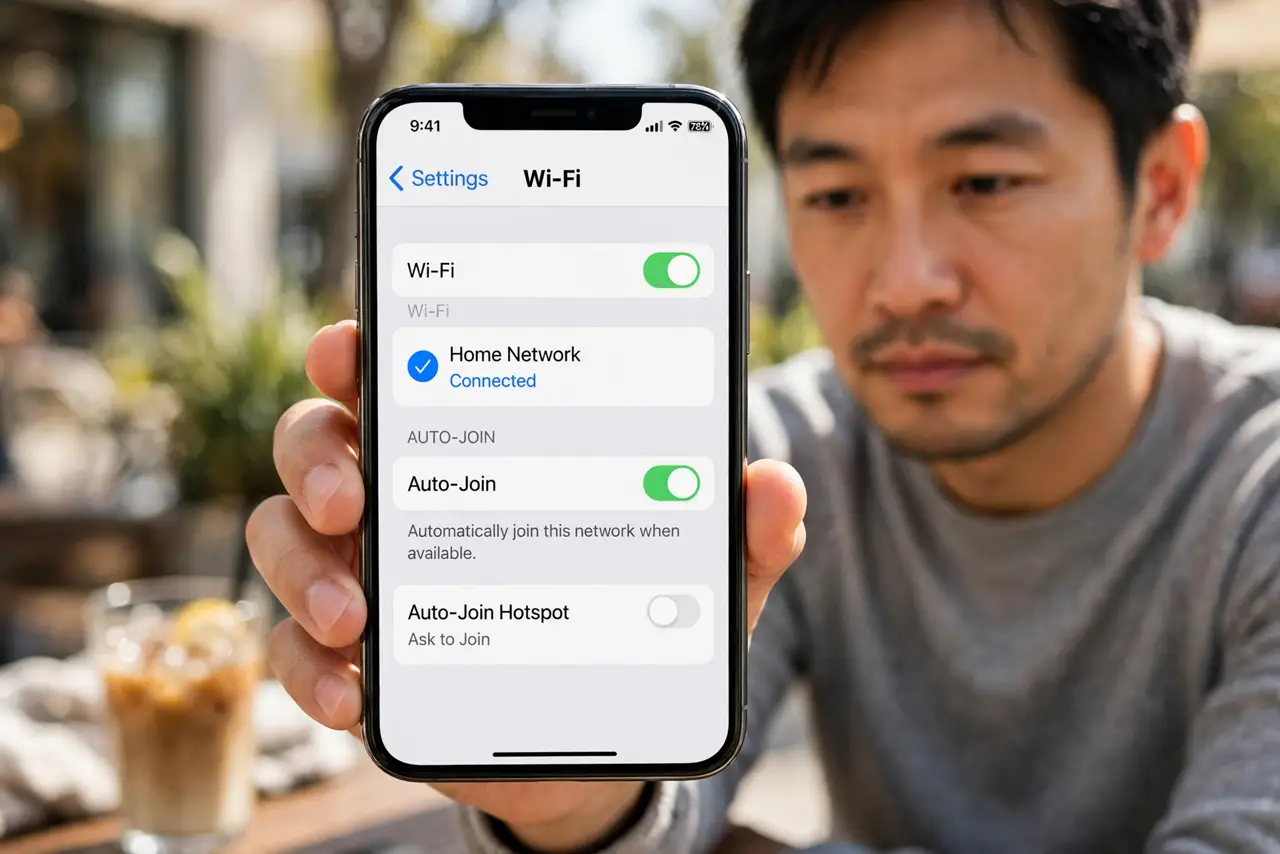
- Confirm Auto-Join is on. Open Settings, then Wi-Fi, tap your network, and turn Auto-Join on. Without Auto-Join, the iPhone may not return to the network after locking.
- Turn off Low Power Mode for testing. Open Settings, then Battery, and turn Low Power Mode off. Low Power can limit background network activity when the screen locks.
- Check Low Data Mode. In Wi-Fi settings for your network, check Low Data Mode. Turn it off for testing, since it can pause background activity that looks like a drop.
- Forget and rejoin the network. Tap Forget This Network, then join it again with the correct password. A fresh join clears a stuck network state that drops on lock.
- Test near the router. Stand near the router, lock the screen for two minutes, then unlock and check Wi-Fi. If it holds near the router, weak signal at your usual spot is the cause.
- Check Wi-Fi Assist behavior. Open Settings, then Mobile Data, then Wi-Fi Assist, and note whether it is on. Wi-Fi Assist switches to mobile data on weak Wi-Fi, which can look like a drop.
What NOT to do
- Do not turn off Wi-Fi entirely to stop drops. That forces everything onto mobile data and does not fix the lock behavior.
- Do not reset network settings as a first step. Auto-Join, Low Power, and a fresh join fix most lock drops without a reset.
- Do not ignore signal strength. Wi-Fi that is weak already will drop first when the screen locks and power saving begins.
- Do not test lock drops with the screen on. The screen must actually lock for the test to mean anything, so wait the full two minutes.
Frequently asked questions
Why does Wi-Fi drop when the screen locks?
Power saving, a missing Auto-Join, or weak signal can pause Wi-Fi on lock. Checking those three finds most causes.
Will Low Power Mode drop Wi-Fi?
It can limit background activity on lock, which looks like a drop. Turning it off for testing separates it from other causes.
What if Wi-Fi drops only in one room?
Signal is likely weak there. Test near the router first; if it holds there, the room signal, not the phone, is the issue.