Fix Jitter for Gaming
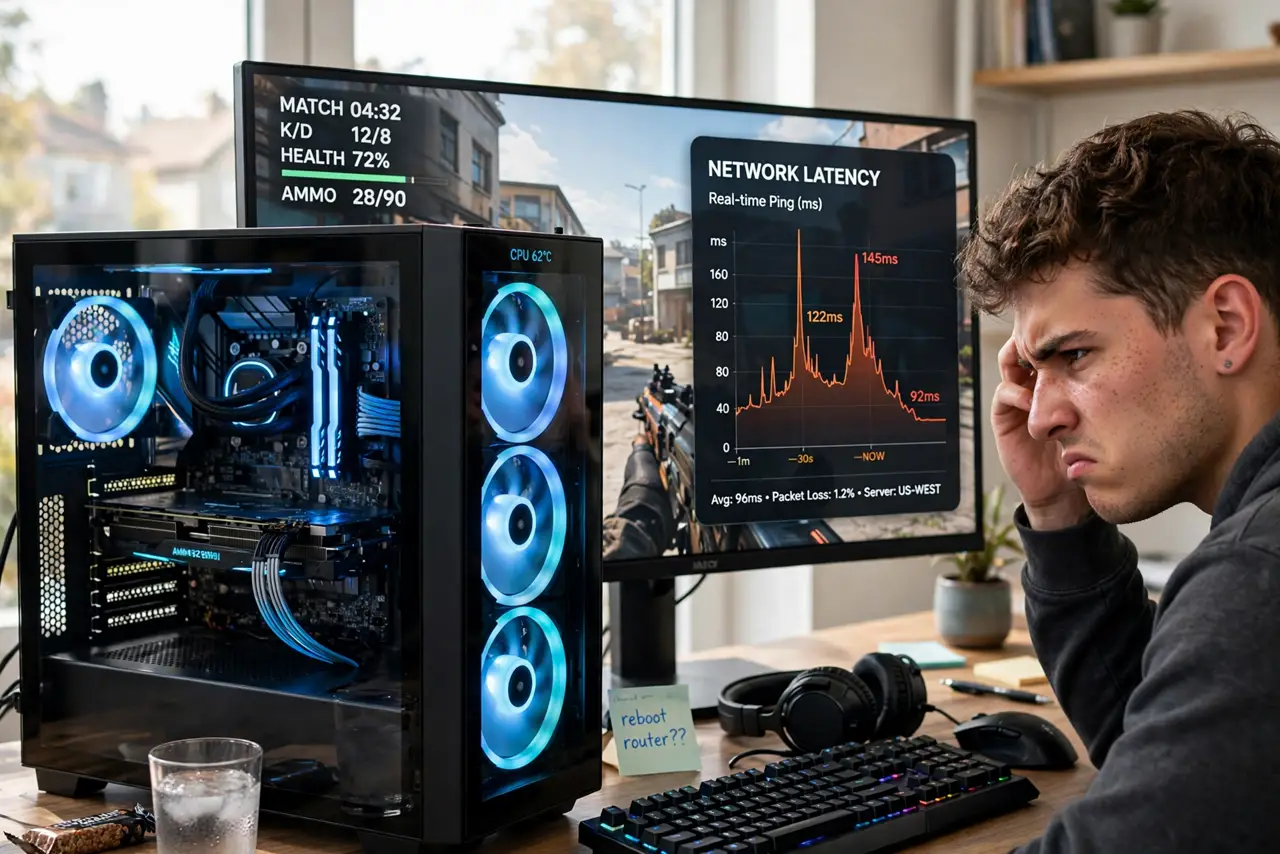
Your ping looks fine, but the game rubber-bands — your character teleports, shots register late, and everything stutters despite a good connection. That is jitter: not slow packets, but inconsistent ones arriving at irregular intervals. Games need a steady rhythm of packets, and jitter breaks the rhythm even when average speed looks great.
TL;DR / Quick Fix
Quick fix: switch from Wi-Fi to a wired ethernet connection — jitter's number one cause is wireless interference. Close bandwidth hogs like cloud backups and streams, and restart your router. If jitter persists, test at different times to spot congestion patterns.
Follow these steps
- Understand what jitter is. Ping measures average delay; jitter measures delay variation. A steady 40ms plays fine; a ping swinging between 15 and 120ms rubber-bands constantly. Consistency beats raw speed — see jitter explained.
- Go wired first. Plug in with ethernet, even temporarily, and retest. If the rubber-banding vanishes, Wi-Fi interference was the cause — the most common one, especially on crowded Wi-Fi.
- Kill background bandwidth hogs. Cloud backups, photo syncs, streaming on other devices, and downloads all inject bursts that spike jitter. Pause them during play and watch the graph smooth out.
- Restart your router. Routers accumulate stale states that manifest as jitter. A clean reboot takes two minutes and fixes a surprising share of cases.
- Test at different times. Evening congestion — your whole neighborhood streaming at once — raises jitter on oversold connections. If it is fine at noon and terrible at 9pm, the problem is upstream capacity.
- Consider bufferbloat. Some routers queue packets badly under load, spiking latency. Modern routers with smart queue management tame this — a router upgrade is the last resort, not the first.

What NOT to do
- Do not buy a faster plan to fix jitter. More bandwidth does not fix inconsistency — a stable 50Mbps beats a jittery gigabit for gaming.
- Do not game on Wi-Fi extenders. Extenders add latency variation by design — they are jitter machines.
- Do not ignore the ping paradox. Good ping with rubber-banding is the classic jitter signature — see ping-good-but-rubber-banding for the full picture.
- Do not run speed tests only. Speed tests show bandwidth; you need a jitter or bufferbloat test to see the real problem.
Frequently asked questions
What is a good jitter number?
Under 30ms is fine for most games; under 15ms is excellent. Above 50ms, rubber-banding becomes noticeable.
Can my ISP fix jitter?
If the jitter starts beyond your router — test wired directly to the modem — then yes, it is their network, and a support call with test results helps.
Does jitter affect streaming video?
Barely — video buffers seconds ahead, absorbing variation. Gaming and video calls suffer because they are real-time.