Kids Tablet App Asks for Purchases? Lock It
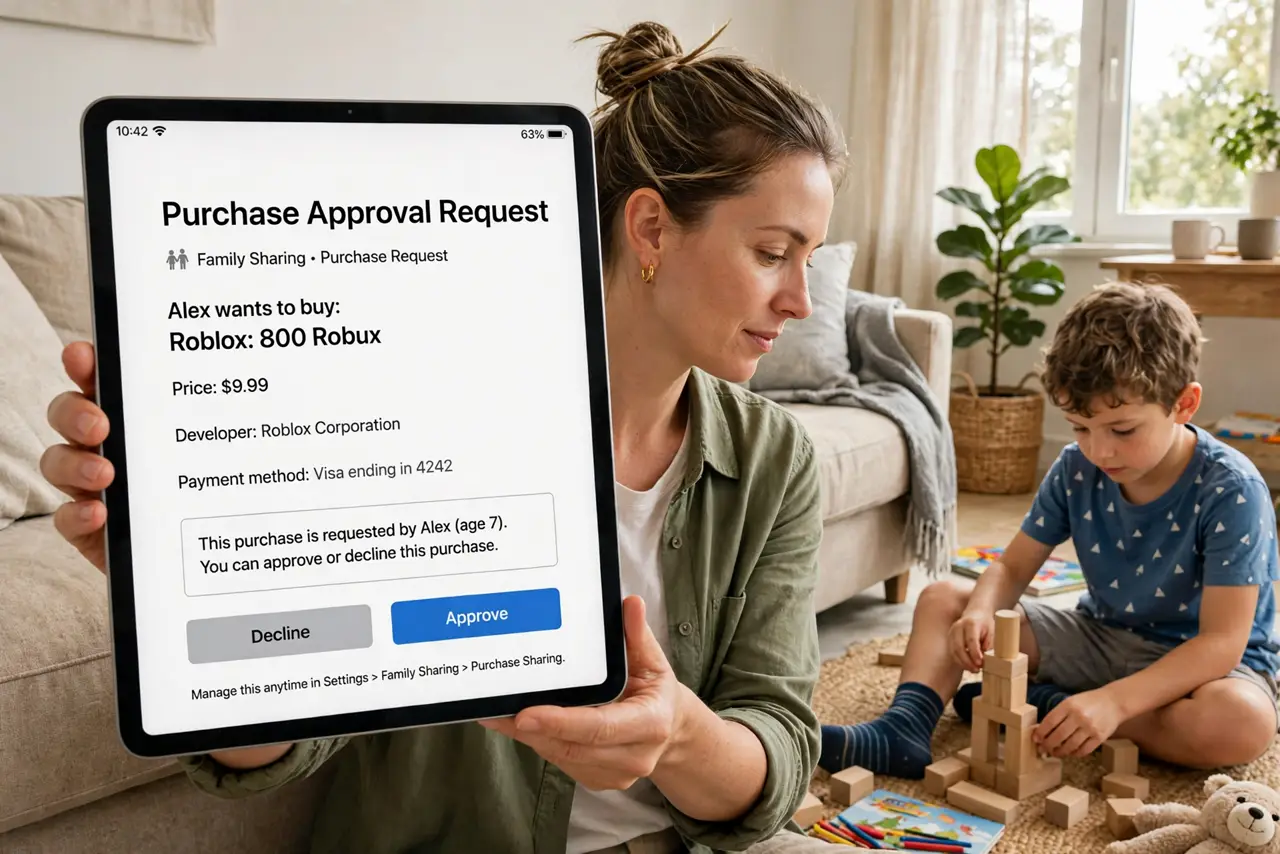
Children tap quickly, and an app that asks for purchases inside a game can charge a card before an adult notices. The fix is to require approval for every purchase, turn off in-app purchases where possible, and use a child profile with its own limits.
TL;DR / Quick Fix
Quick fix: turn on purchase approval or require a password for every purchase, turn off in-app purchases in device settings if offered, and set up a child profile. Check recent purchases and request refunds for anything bought without approval. Lock purchases before handing the tablet back.
Follow these steps
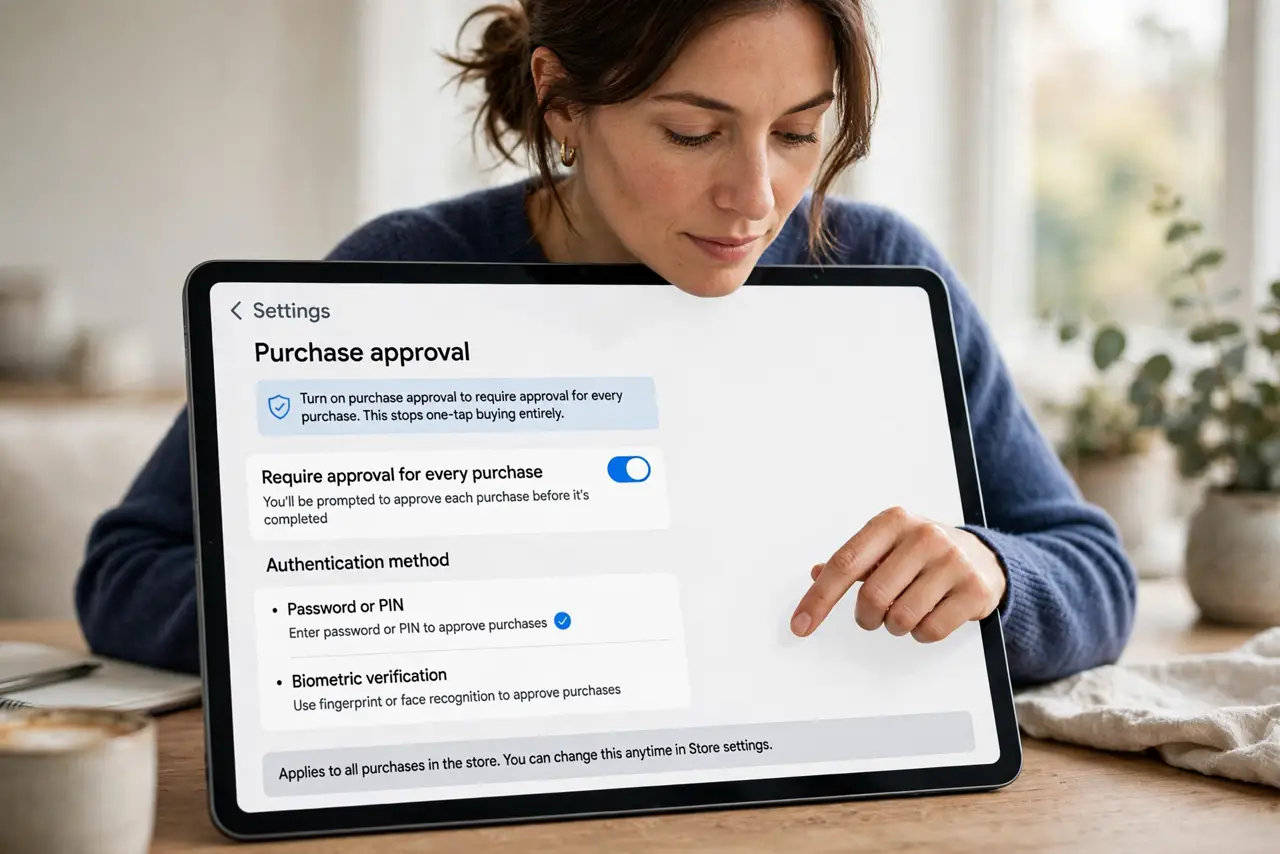
- Turn on purchase approval. In device or store settings, turn on approval for every purchase, or require a password, PIN, or biometric check. This stops one-tap buying entirely.
- Turn off in-app purchases if offered. Look for an in-app purchases switch in device restrictions or parental controls, and turn it off. This blocks purchases inside apps while keeping the apps usable.
- Set up a child profile. Create a child profile or family account for the tablet, with age-appropriate limits. A child profile applies purchase rules automatically, without relying on memory.
- Remove or protect the payment method. If the tablet is mainly for a child, consider removing the payment method from that profile, or keeping it behind approval only. No stored card means no accidental charge.
- Check recent purchases. Check purchase history in the store account for charges you did not approve. Request a refund through the store for accidental purchases, explaining they were made by a child.
- Test the lock with the child. Hand the tablet back and try a purchase together. Confirm the approval prompt appears, and explain to the child that purchases need an adult.
What NOT to do
- Do not leave a payment method on a child tablet with one-tap buying on. That combination is how accidental charges happen.
- Do not share your store password or PIN with a child to speed up a purchase. A shared PIN defeats the approval it was meant to provide.
- Do not ignore small charges. Small purchases test whether approval is on, and larger ones often follow.
- Do not rely on telling a child not to tap buy buttons. Locks work better than instructions for young children.
Frequently asked questions
Can I get a refund for a child purchase?
Often yes, if you request it promptly through the store and explain it was accidental and by a child. Policies vary, so act quickly.
Will approval block free downloads too?
Approval usually covers paid items and in-app purchases. Free apps may still need approval depending on settings, which is fine for a child profile.
What if the child knows my PIN?
Change the PIN, use biometric approval only you can provide, and explain that purchases always need an adult, without sharing the new code.