Accuracy vs Battery?
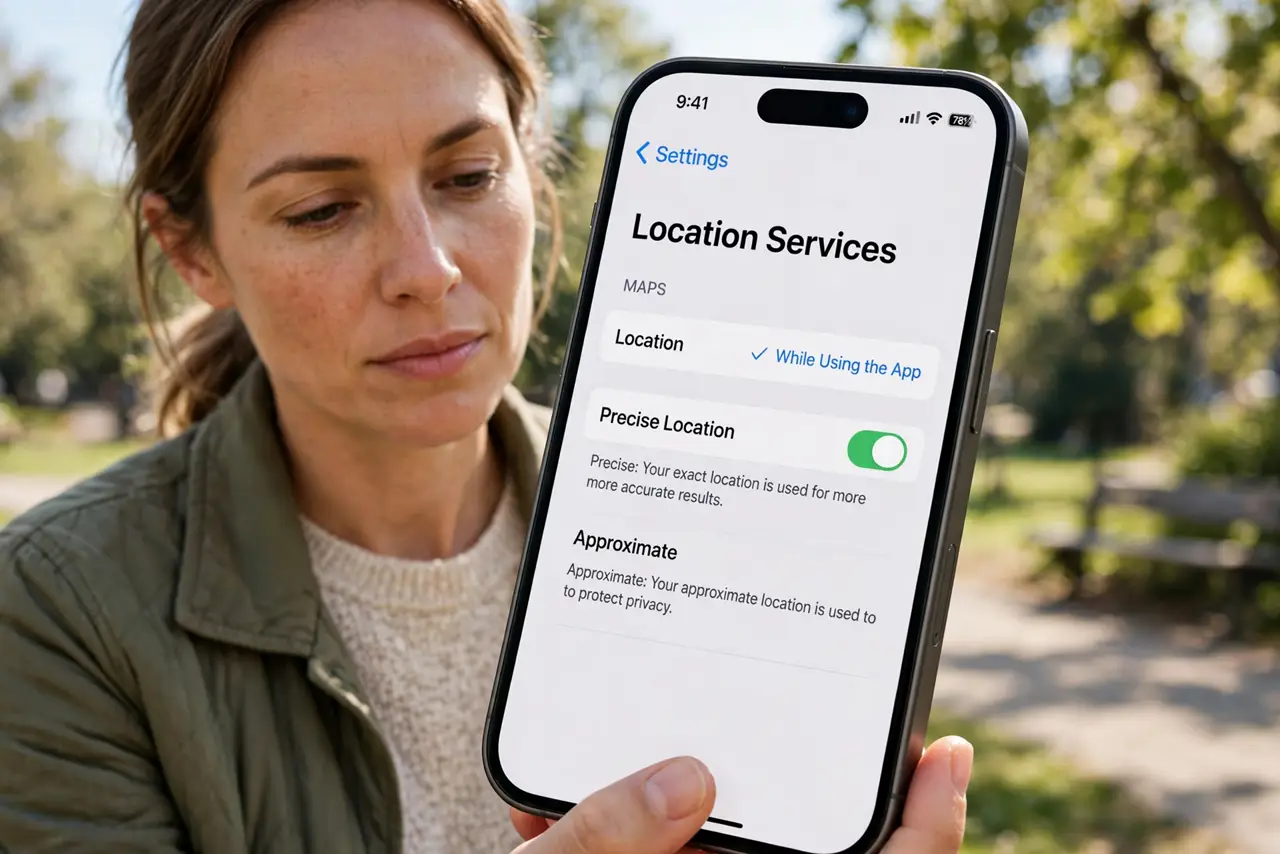
Your phone asks: allow precise location, or approximate? Precise pins you to the exact doorway and drains the battery faster; approximate says roughly the neighborhood, sipping power and sharing less. Most apps work fine on fuzzy — reserve the pinpoint for maps and navigation. Watch the background location drain too, and the camera mic dots.
TL;DR / Quick Fix
Quick fix: precise location gives apps your exact spot but drains battery faster; approximate location saves power and shares less. Most apps work fine on approximate — grant precise only to maps and navigation. Less precision means more privacy and more battery.
Follow these steps
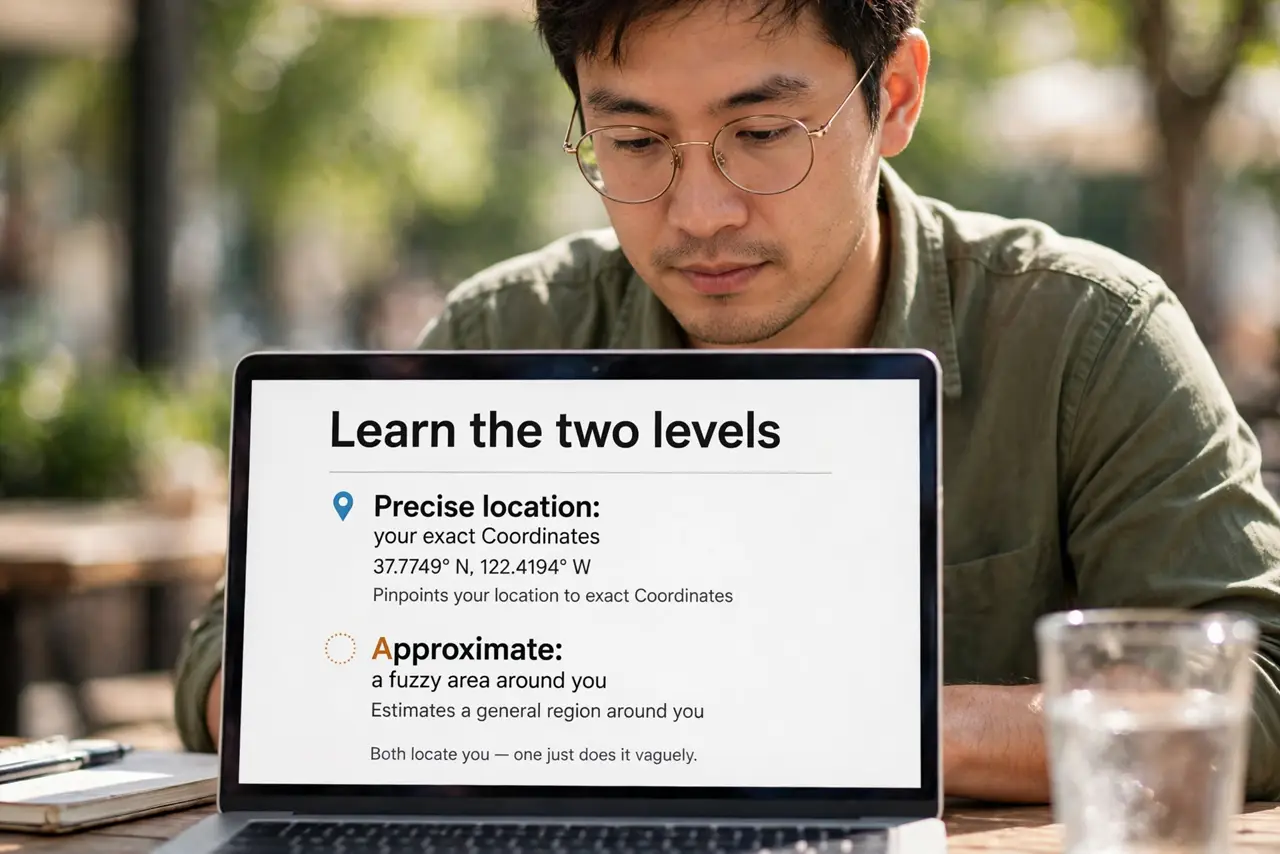
- Learn the two levels. Precise location: your exact coordinates. Approximate: a fuzzy area around you. Both locate you — one just does it vaguely.
- Default new apps to approximate. When an app first asks, choose approximate unless it is maps or navigation. You can upgrade later if the app truly needs it.
- Reserve precise for navigation. Maps, ride shares, and delivery need the pinpoint. Social apps, shopping, and games almost never do.
- Watch the battery difference. Precise location leans on GPS heavily; approximate leans on cheaper signals. The battery savings are real over a day.
- Enjoy the privacy bonus. Approximate location means apps know the neighborhood, not your doorstep. Less precision is more privacy by default.
- Review existing permissions. Go through your location settings and demote apps from precise to approximate. Most will never notice the difference.
What NOT to do
- Do not grant precise by reflex. The prompt is designed for yes — pause and ask whether the app earns the pinpoint.
- Do not assume approximate breaks apps. The vast majority function perfectly on fuzzy location.
- Do not forget background access. An app with background location drains regardless of precision — check both settings.
- Do not leave navigation on precise forever. Demote it back after the trip; the setting persists otherwise.
Frequently asked questions
Will apps complain about approximate?
Rarely. Most apps accept it silently; a few navigation-adjacent ones may ask for precise — decide case by case.
Does approximate really save battery?
Yes — it avoids the power-hungry GPS lock most of the time. The savings add up across a day of use.
Can I change it later?
Anytime, in location settings per app. Nothing about the choice is permanent.