Location Sharing On by Accident? Turn It Off
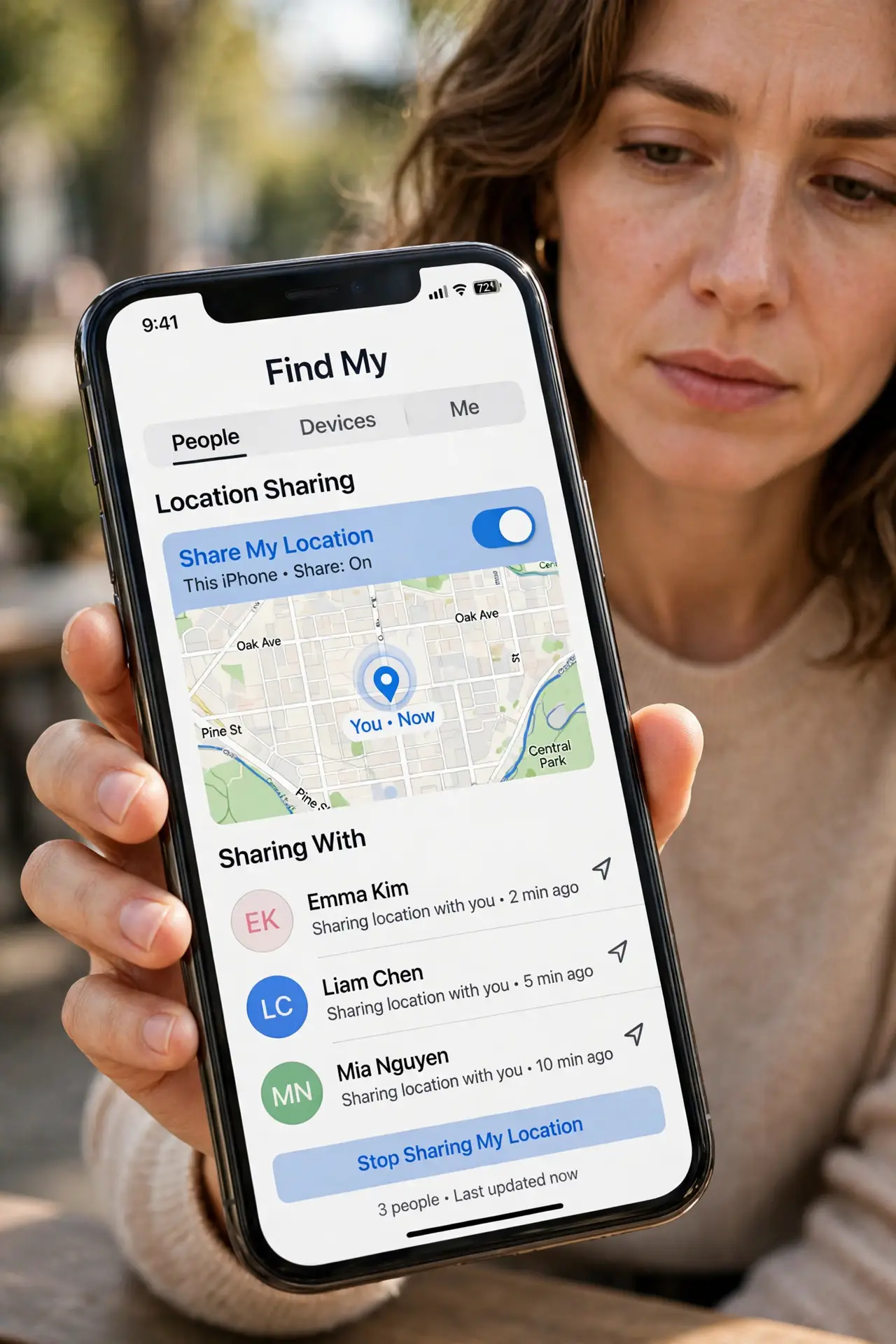
Location sharing is easy to enable by accident: one tap during setup, or accepting a prompt in a hurry. The fix is to find every place that shares your location, remove people you did not mean to include, and switch sharing off.
TL;DR / Quick Fix
Quick fix: open location sharing in your maps or find-my app, remove anyone you did not mean to share with, and turn sharing off. Then check location permission for each app and set it to While Using Only or Never.
Follow these steps
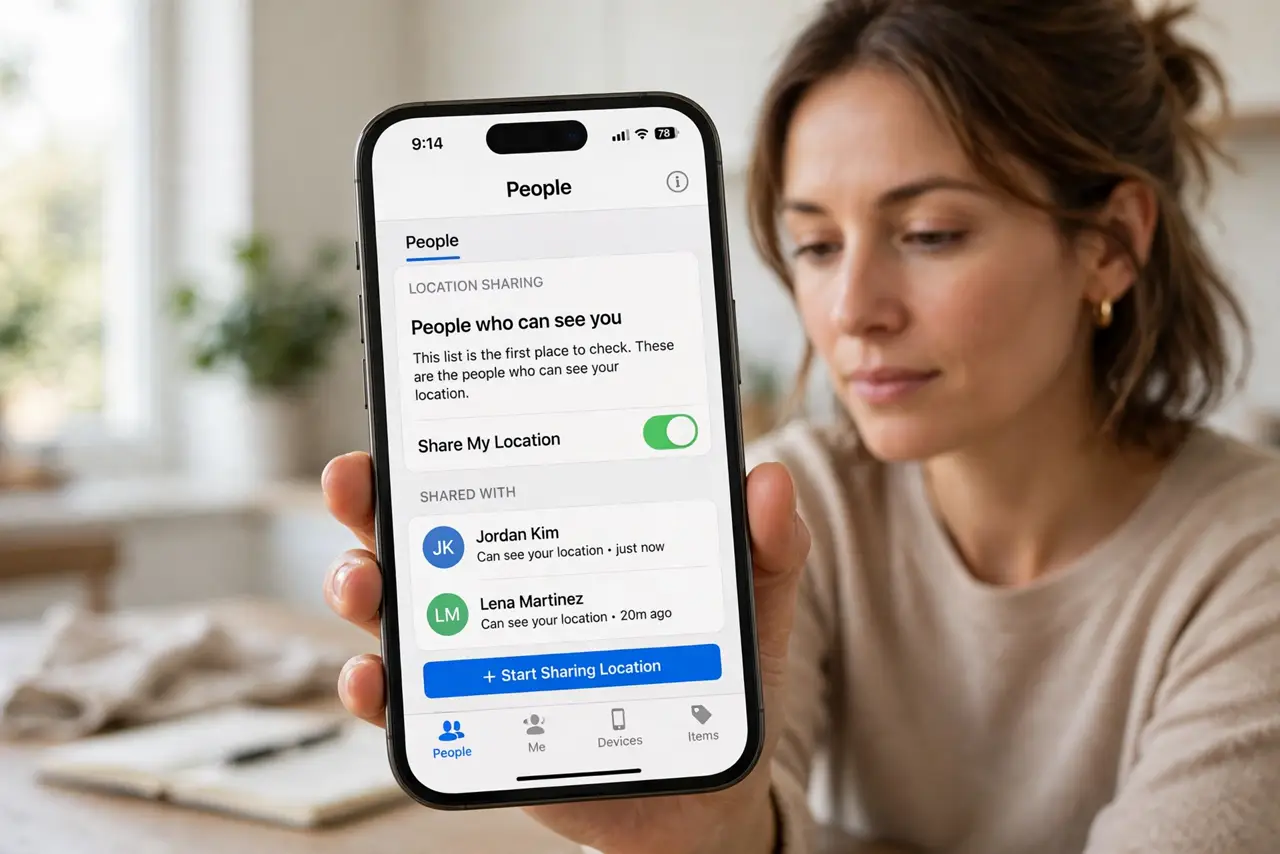
- Open location sharing settings. Open your maps app or find-my app and look for location sharing, or people who can see you. This list is the first place to check.
- Remove people you did not mean to include. Remove anyone you do not recognize, or anyone added by accident. Sharing stops for them as soon as you remove them.
- Turn sharing off if you do not need it. If nobody needs your live location right now, turn sharing off entirely. You can turn it back on for a single trip when you need it.
- Check location permission per app. In device settings, open location permission for each app. Set apps that do not need your location to Never, and the rest to While Using Only.
- Check family and device sharing too. If your device is in a family group, check whether location is shared there as well. Family sharing has its own switch, separate from app sharing.
- Recheck after updates. Recheck sharing after major updates, since updates can re-enable location for new features. A quick check keeps an accident from quietly returning.
What NOT to do
- Do not leave location sharing on just because removing people feels awkward. You can pause sharing without announcing it.
- Do not set every app to Always for convenience. Always means background tracking, even when you are not using the app.
- Do not share live location in a public post or story. A post can reach far more people than a private share.
- Do not ignore a location icon that stays on. It means an app is using your location right now, so check which one.
Frequently asked questions
How do I know if location is being shared?
Check the sharing list in your maps or find-my app. Anyone listed there can see your location while sharing is on.
Will turning it off break maps?
No. Maps still work for directions with While Using Only permission. Only live sharing with other people stops.
What if I need sharing for safety?
Share with one trusted person, for a limited time, and turn it off when the trip ends. Limited sharing is safer than always-on sharing.