Hide Notification Content on the Lock Screen
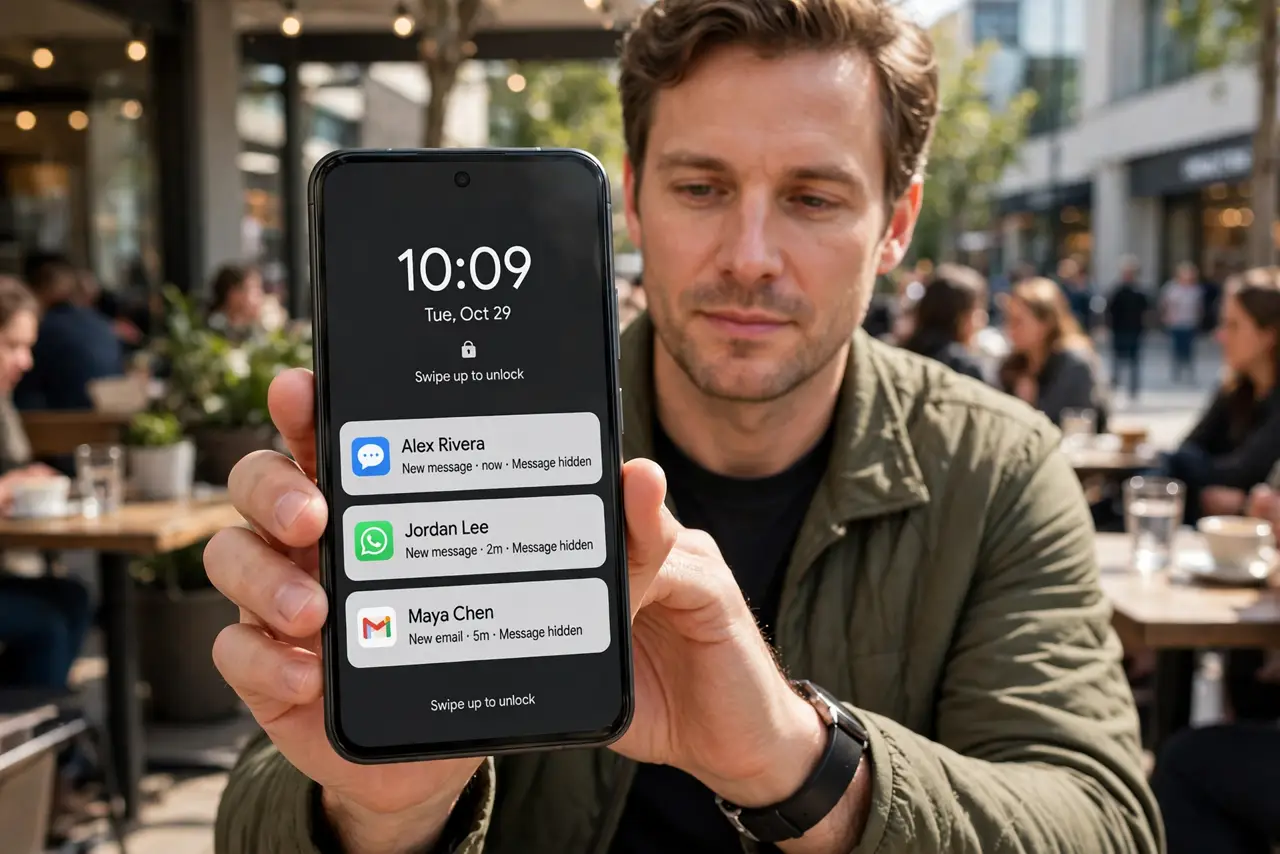
Message previews on your lock screen show full texts to anyone who glances at your phone: codes, names, private news. Hiding the content keeps the alert while keeping the words for your eyes only.
TL;DR / Quick Fix
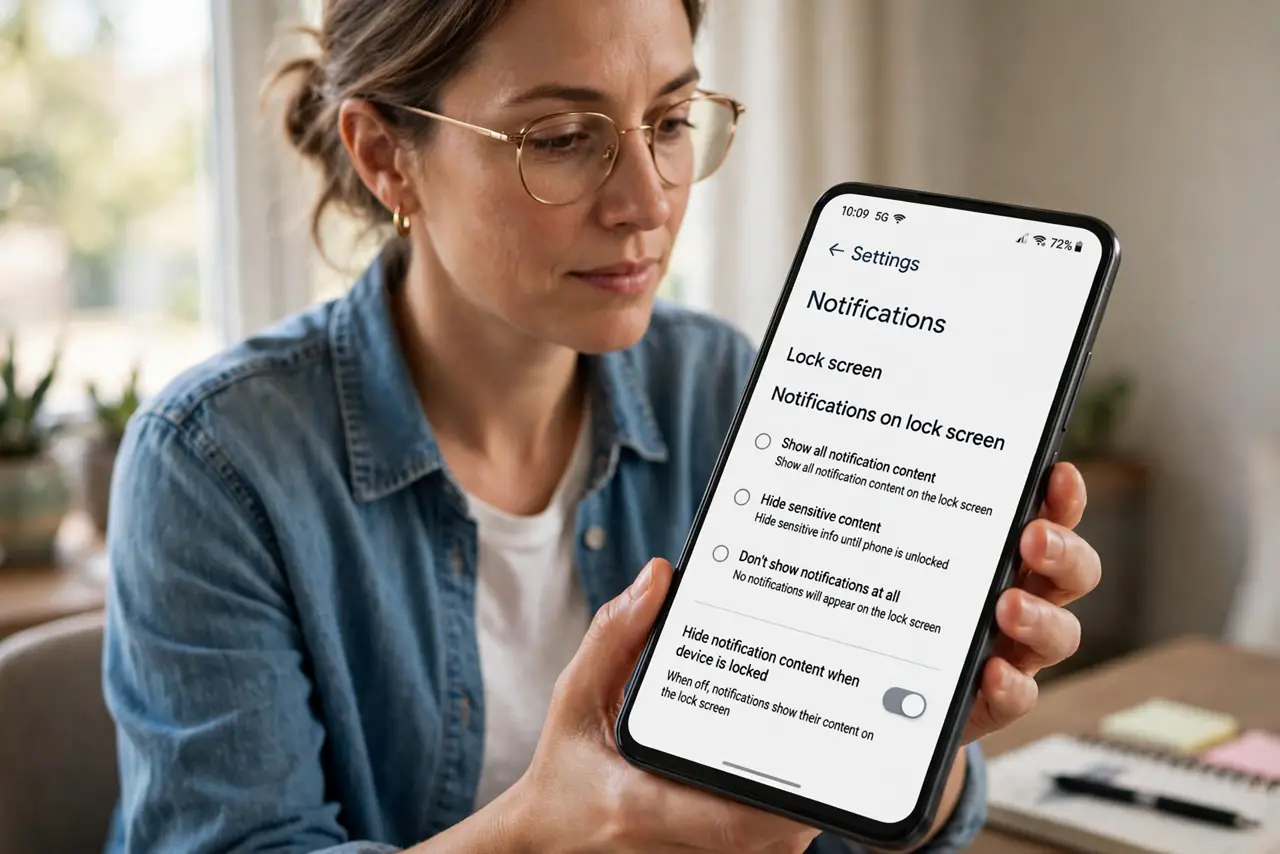
Quick fix: open notification settings and set lock-screen previews to When Unlocked or Never, so message contents stay hidden until you authenticate. Keep the sender names if you like, but hide the actual text from anyone glancing at your phone.
Follow these steps
- Open the notification settings. On iPhone, go to Settings, then Notifications, then Show Previews. On Android, look under Notifications on the lock screen. The control lives in one place per platform.
- Set previews to When Unlocked. Choose When Unlocked so content appears only after Face ID or fingerprint. Never hides even the sender, which some people find too quiet.
- Check messaging apps individually. Some apps override the system default with their own preview setting. Open each sensitive app's notification options and match them to the system choice.
- Test it with the phone locked. Lock the phone and send yourself a test message. The banner should show the sender but hide the words, which confirms the setting took.
- Pair it with a [[privacy screen|shoulder-surfing-privacy-screen-worth-it]] for laptops. Lock-screen privacy covers the phone, while a filter covers the laptop. Public life exposes both, so guard both.
- Tell family why banners look different. A partner used to reading previews may think something broke. One sentence of explanation prevents a week of confusion.
What NOT to do
- Do not leave full previews on because it is convenient. Convenience here means strangers read your messages, codes, and private news.
- Do not assume hiding previews hides everything. The sender name still shows, so sensitive contacts may need nicknames too.
- Do not forget work messaging apps. Personal messages get the attention, while work apps leak meeting details just as easily.
- Do not skip the test. A setting that looks right but did not apply leaves you exposed while feeling safe.
Frequently asked questions
Will I still get notifications?
Yes. The alert, sound, and sender still appear; only the message content hides until you unlock.
What is the difference between When Unlocked and Never?
When Unlocked shows content after you authenticate; Never hides it even then, showing only that a notification exists.
Do I need this if I never leave my phone around?
Public glances count too. A phone on a cafe table shows previews to the whole table.