See What's Draining Battery
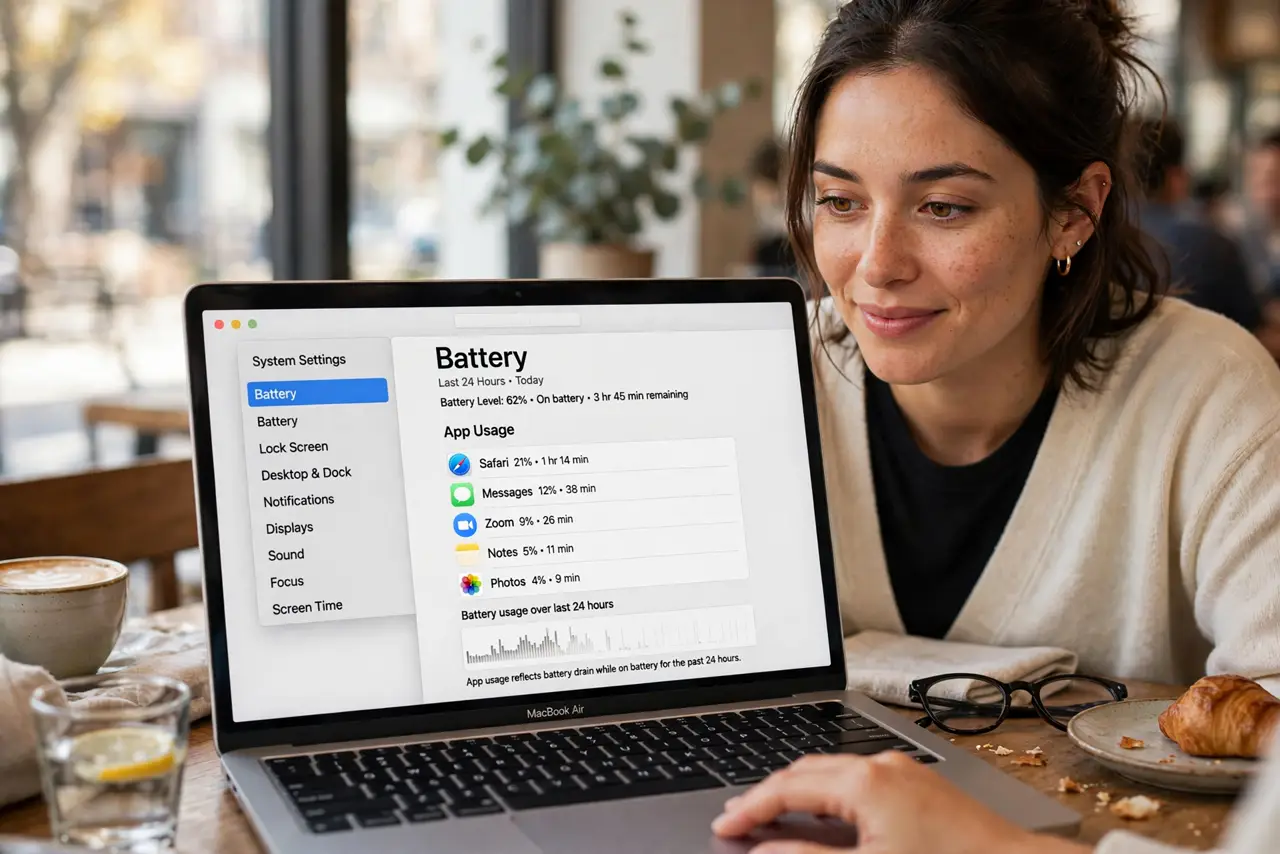
Your MacBook showed 80% at lunch and now it is gasping at 4 p.m. — and you barely did anything. Something is drinking power in the background, and macOS will name it. The battery menu and Activity Monitor together reveal the hog in under two minutes.
TL;DR / Quick Fix
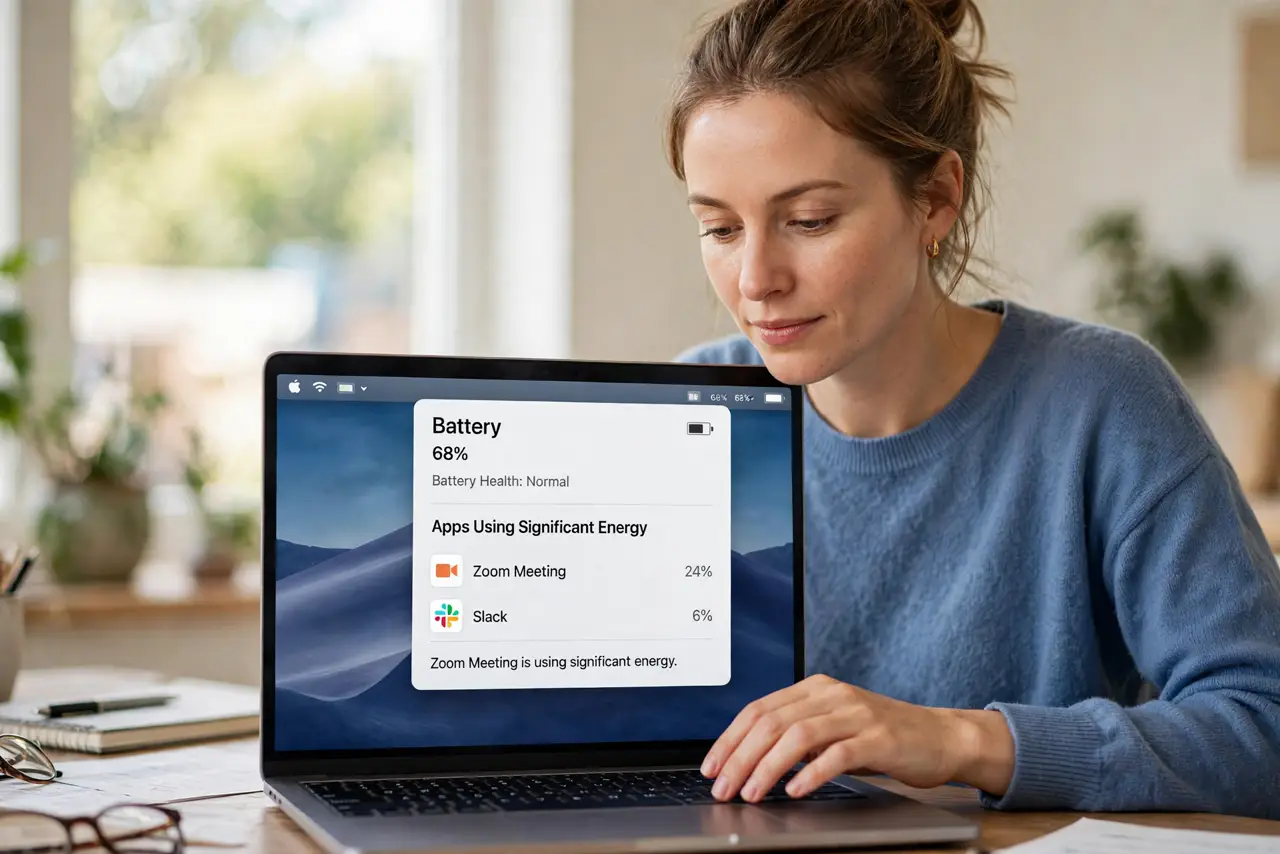
Quick fix: click the battery icon in the menu bar to see which apps used significant energy, then open Activity Monitor sorted by energy impact for the full picture. Quit or update the top offender. Dim the display one notch — the screen is always the biggest steady drain.
Follow these steps
- Check the battery menu first. Click the battery icon in the menu bar — macOS lists apps using significant energy right there. The culprit is often embarrassingly obvious, like a video call left running.
- Open Activity Monitor energy tab. Applications, Utilities, Activity Monitor, then the Energy tab. Sort by Energy Impact — the confusing energy tab becomes clear once sorted: big numbers, big drain.
- Compare against the usual suspects. Browsers with many tabs, video calls, and photo syncing top the charts. If the numbers match the fast drain patterns, the fix is behavioral, not hardware.
- Dim the display. The screen is the largest constant power draw. One or two notches down saves more than quitting three background apps — brightness is the master lever.
- Hunt overnight drain. Losing charge while asleep points to Power Nap or a misbehaving peripheral. The overnight drain checklist covers the settings that let a sleeping Mac sip power.
- Check battery health. System Settings, Battery, then the info icon — a degraded battery drains fast no matter what you quit. Sudden drops deserve the health warning check.
What NOT to do
- Do not install battery saver apps. macOS manages power well natively; third-party savers add overhead, not savings.
- Do not drain to zero regularly to calibrate. Modern batteries prefer shallow cycles — deep discharges age them faster.
- Do not ignore a swelling battery. A trackpad that clicks oddly or a case that will not sit flat means stop using it and get service.
- Do not blame the battery before checking apps. Software hogs cause most fast drain; hardware is the last suspect, not the first.
Frequently asked questions
What uses the most battery on a Mac?
The display, then video calls and browsers. Background culprits like photo syncing come next.
Should I quit apps or leave them open?
Quit the energy hogs; leave light apps alone. macOS suspends idle apps efficiently — quitting everything is busywork.
Does dark mode save battery?
On modern MacBooks with efficient displays, barely. Brightness matters far more than theme.