'App Is Damaged' and Won't Open on Mac
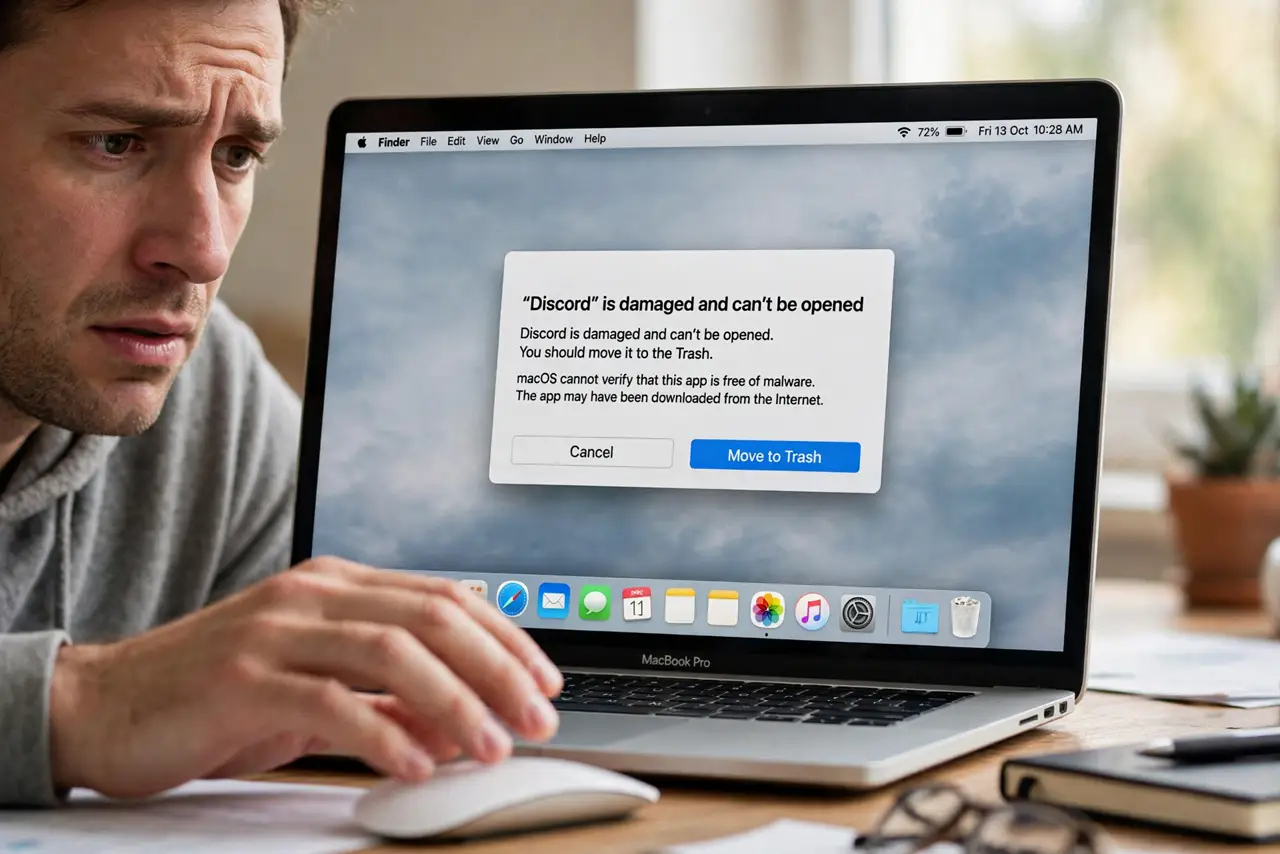
You try to open an app and macOS declares it 'damaged' and offers to trash it — even though it worked last week. The app is rarely actually damaged; Gatekeeper flags apps whose signature broke during a move, a download hiccup, or an overzealous cleaner. This guide gets it opening again.
TL;DR / Quick Fix
Quick fix: delete the app and download a fresh copy from the developer's official site — most 'damage' is a corrupted download. If it is an app you trust from outside the App Store, right-click > Open once to approve it deliberately.
Follow these steps
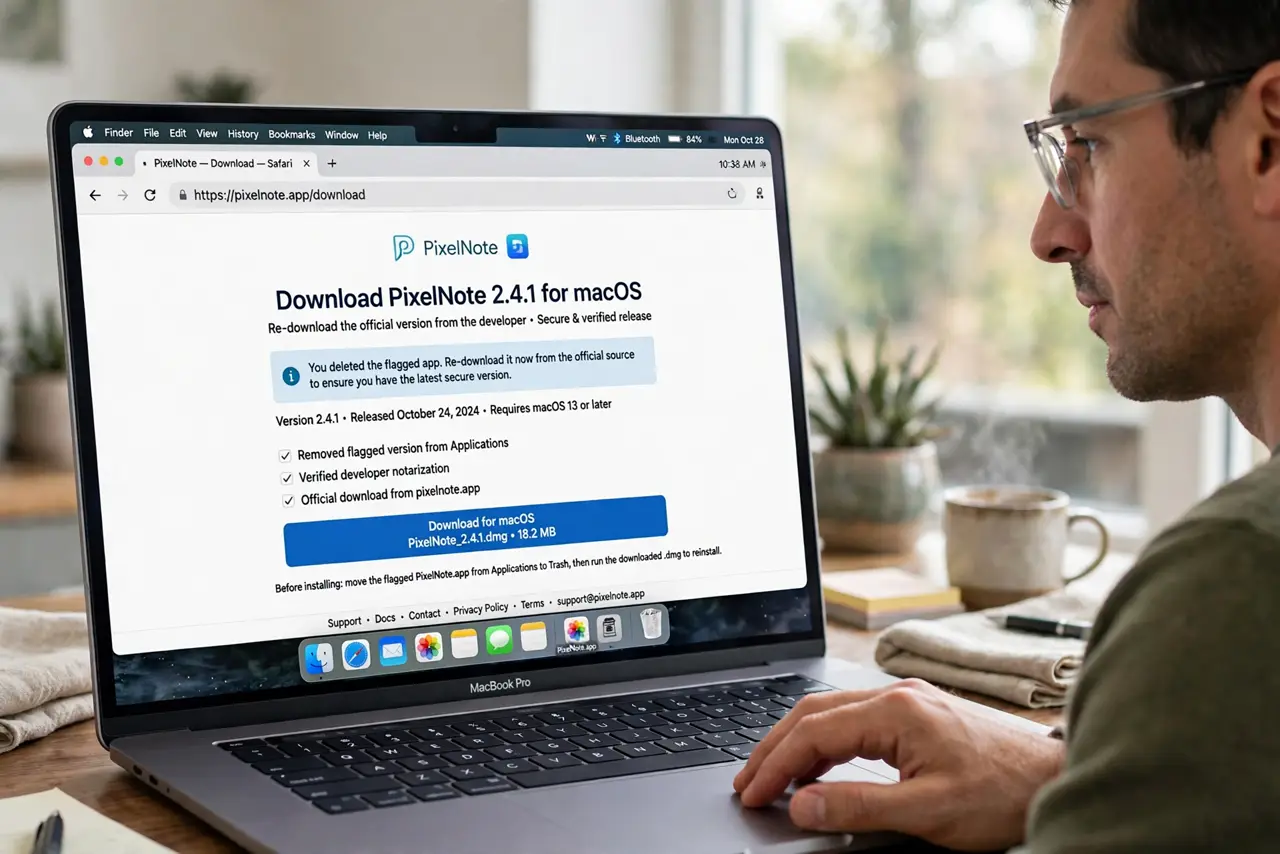
- Re-download from the official source. Delete the flagged app and download it again from the developer's website or the App Store. Interrupted downloads are the top cause of false 'damaged' flags.
- Right-click and choose Open. Instead of double-clicking, right-click the app and choose Open, then confirm. This one-time approval tells Gatekeeper you trust this specific app.
- Check where the app came from. Apps copied from a friend's Mac or a random disk image trigger this most. An app from its official source almost never shows the warning twice.
- Move it to Applications properly. Drag the app into the Applications folder rather than running it from the Downloads disk image. Gatekeeper treats a properly installed app more leniently.
- Clear the quarantine flag carefully. For an app you fully trust from a known developer, removing the quarantine attribute lets it open. Only do this for software you deliberately chose — never for random downloads.
- Check for an Apple silicon mismatch. An Intel-only app on a very new macOS can misreport as damaged. Check the developer's site for a native Apple silicon version before forcing anything.
What NOT to do
- Do not let macOS trash the app immediately. 'Move to Trash' is one option, not a verdict — investigate first, especially for paid software.
- Do not disable Gatekeeper system-wide. Turning off macOS's app verification to open one app removes protection against real malware.
- Do not download a 'fixed' copy from a random site. A repackaged app from an unofficial source is how actual malware arrives.
- Do not assume every warning means malware. Most 'damaged' flags are signature hiccups on legitimate apps, not infections.
Frequently asked questions
Why does my Mac say the app is damaged?
Gatekeeper found a broken code signature — usually a corrupted download, a bad move, or a cleaner app that touched the bundle.
Is 'app is damaged' a virus warning?
Not directly. It means macOS cannot verify the app, which is different from detecting malware — but only re-download from official sources.
Can I still use the app after the warning?
Yes, if you trust the source: right-click > Open to approve it once, or re-download a clean copy.