The New Siri on Mac
Siri on the Mac used to feel like a weaker cousin of the iPhone version — fine for timers, lost on anything complex. Apple Intelligence changed that: the new Siri understands context, follows up naturally, and hands off to smarter tools when needed. If it still feels limited, it is usually a setting, not the assistant. Here is how to get the good version.

TL;DR / Quick Fix
Quick fix: make sure Apple Intelligence is turned on in System Settings, then press and hold the Siri key to talk naturally — the new Siri follows context across questions. If it still feels limited, check that your Mac model supports it and that Siri language matches how you speak.
Follow these steps
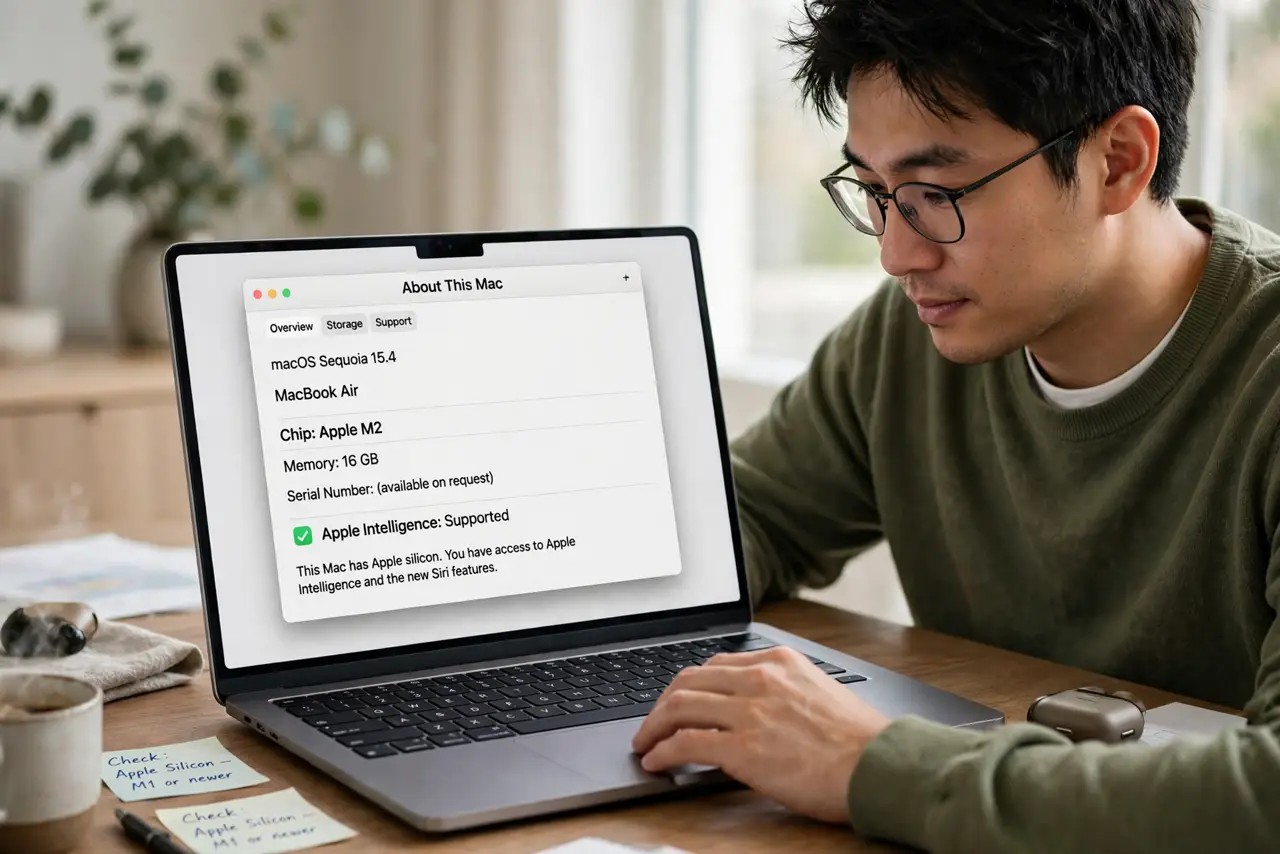
- Check your Mac supports Apple Intelligence. The new Siri needs Apple silicon — M1 or newer. On Intel Macs you still get the classic Siri, which is fine but will not gain the new tricks. Apple menu, About This Mac tells you the chip.
- Turn on Apple Intelligence. Go to System Settings, Apple Intelligence and Siri, and make sure Apple Intelligence is on. If it is off, you get the old experience even on a new Mac — this one toggle is the most common fix.
- Talk to it like a person. The new Siri keeps context: ask about a restaurant, then say book a table there at seven. It understands there. Short commands still work, but natural follow-ups are the upgrade — see the Siri basics if you want a refresher on the fundamentals.
- Use Type to Siri when talking is awkward. Turn on Type to Siri in Accessibility settings and double-press the Siri key to type your request. Same smarter assistant, no voice needed — handy in open offices.
- Let it hand off to ChatGPT when offered. For complex questions, the new Siri can ask ChatGPT for help, with your permission each time. You control whether this happens — it is off unless you say yes. Learn how the ChatGPT handoff works before enabling it.
- Check the language and voice. If Siri misunderstands you constantly, the language setting may not match your accent. Pick your actual language and try a different voice — comprehension varies more than people expect.
What NOT to do
- Do not expect the new Siri on an Intel Mac. Apple Intelligence is Apple-silicon-only; no setting changes that.
- Do not turn off Siri entirely out of frustration. The new version is a different assistant — try it with Apple Intelligence on first.
- Do not grant the ChatGPT handoff blindly. Read what it shares before enabling, and keep it off if you handle sensitive information by voice.
- Do not blame Siri for app limits. Some tasks still need the app itself — Siri opens the door, it does not redecorate the room.
Frequently asked questions
Why does my Siri still sound old?
Apple Intelligence is probably off, or your Mac is Intel. Check System Settings, Apple Intelligence and Siri — that one page answers it.
Is the new Siri always listening?
No. It listens only after you press the key or say the wake phrase, same as before. The smarts changed; the privacy model did not.
Does it work offline?
Basic commands like timers work offline. The new contextual answers need an internet connection — that has not changed.