Approve With Your Watch?
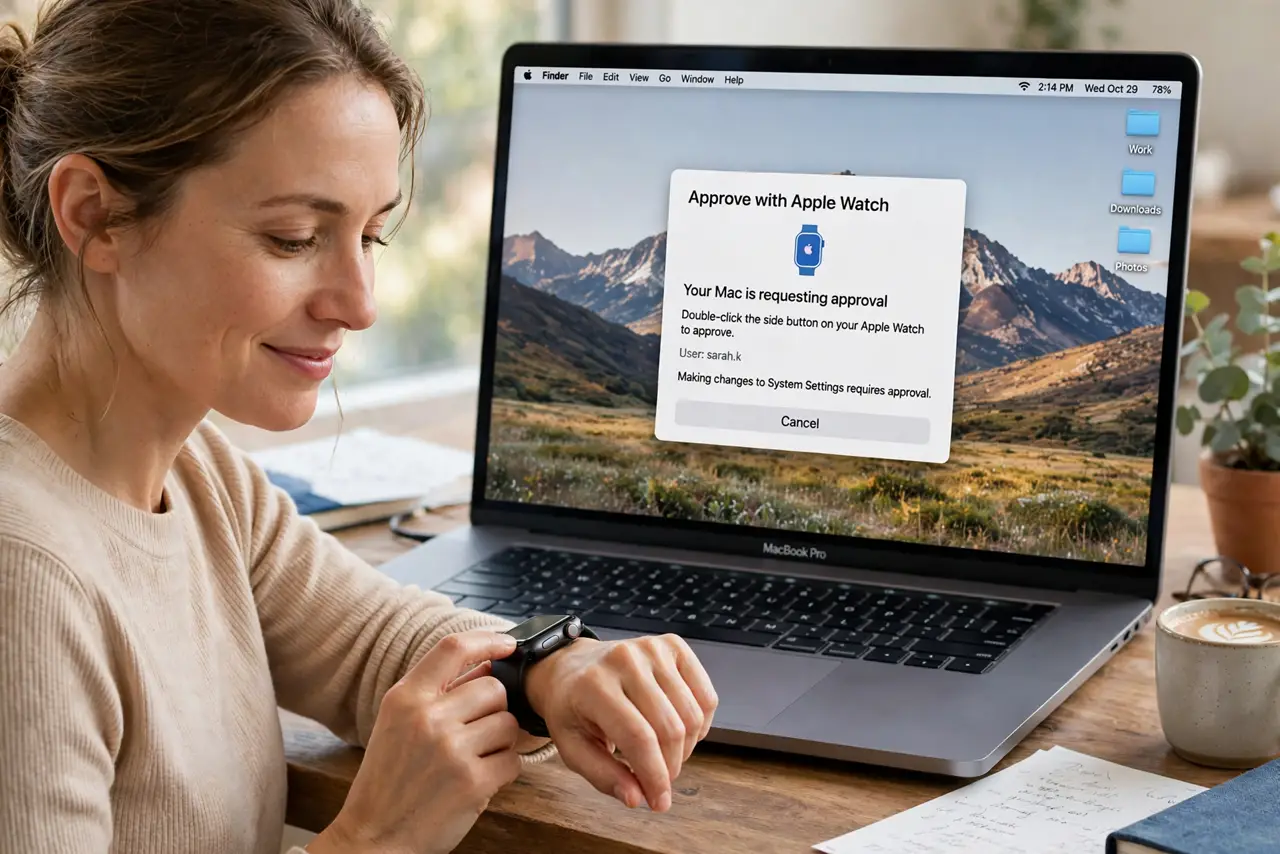
Your Apple Watch can do more than unlock your Mac — it can approve the annoying password prompts too. Installing an app, unlocking a settings pane, viewing saved passwords: instead of typing, you double-click the watch's side button and you are done. It is the same trusted-device setup as Auto Unlock, extended to everyday approvals.
TL;DR / Quick Fix
Quick fix: your Apple Watch can approve Mac password prompts — app installs, locked settings, saved passwords — with a double-click of the side button. It needs the same setup as Auto Unlock: same Apple Account, two-factor authentication, Wi-Fi and Bluetooth on, and the watch unlocked on your wrist.
Follow these steps
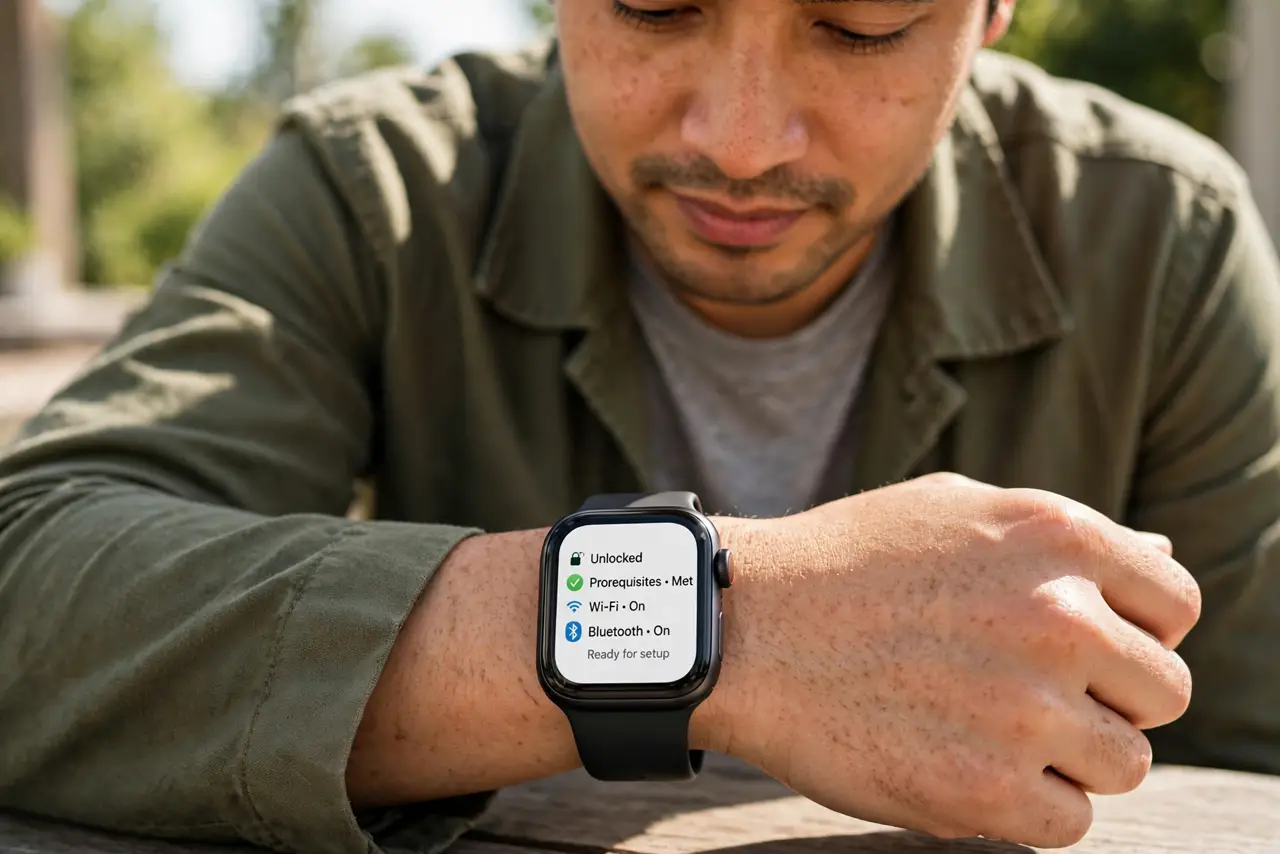
- Meet the prerequisites. This rides on the Auto Unlock setup: same Apple Account with two-factor authentication on both devices, Wi-Fi and Bluetooth on, watch unlocked on your wrist.
- Trigger a prompt that supports it. Try unlocking a locked System Settings pane or installing an app — a prompt appears on the Mac offering watch approval, and your watch taps your wrist.
- Double-click the side button. When the watch prompts you, double-click its side button to approve. It feels like Apple Pay because it is the same secure gesture.
- Know which prompts qualify. System installs, locked preference panes, Safari saved-password views, and unlocking secure notes all work. The very first login after a restart still needs the typed password — that never changes.
- Keep the watch close and unlocked. Approval fails if the watch is locked, off your wrist, or too far from the Mac. Wrist detection is the security anchor — no passcode, no approvals.
- Fix the silent failures. If prompts stop offering watch approval, toggle the watch off and on in System Settings > Touch ID & Password, and restart both devices. The unlock troubleshooting steps apply here too.
What NOT to do
- Do not approve prompts you did not trigger. If an approval request appears out of nowhere, decline it and investigate.
- Do not lend your unlocked watch to someone near your Mac. On your wrist and unlocked, it is a key to your approvals.
- Do not expect it on every password box. Third-party apps with custom login screens usually still want the typed password.
- Do not disable wrist detection. Without it the whole trust chain collapses and approvals stop working.
Frequently asked questions
Why did the watch approval option disappear?
Usually the watch locked (taken off wrist), Bluetooth dropped, or an update reset the pairing. Re-enable it in settings and check the watch is unlocked.
Is double-click approval as secure as typing?
Yes — it requires your unlocked watch on your wrist plus two-factor authentication on the account. It replaces typing, not security.
Can I approve iPhone prompts with the watch too?
No — this is a Mac feature. iPhone purchases and logins use Face ID, Touch ID, or the device passcode.