Get On-Screen Pointer Controls
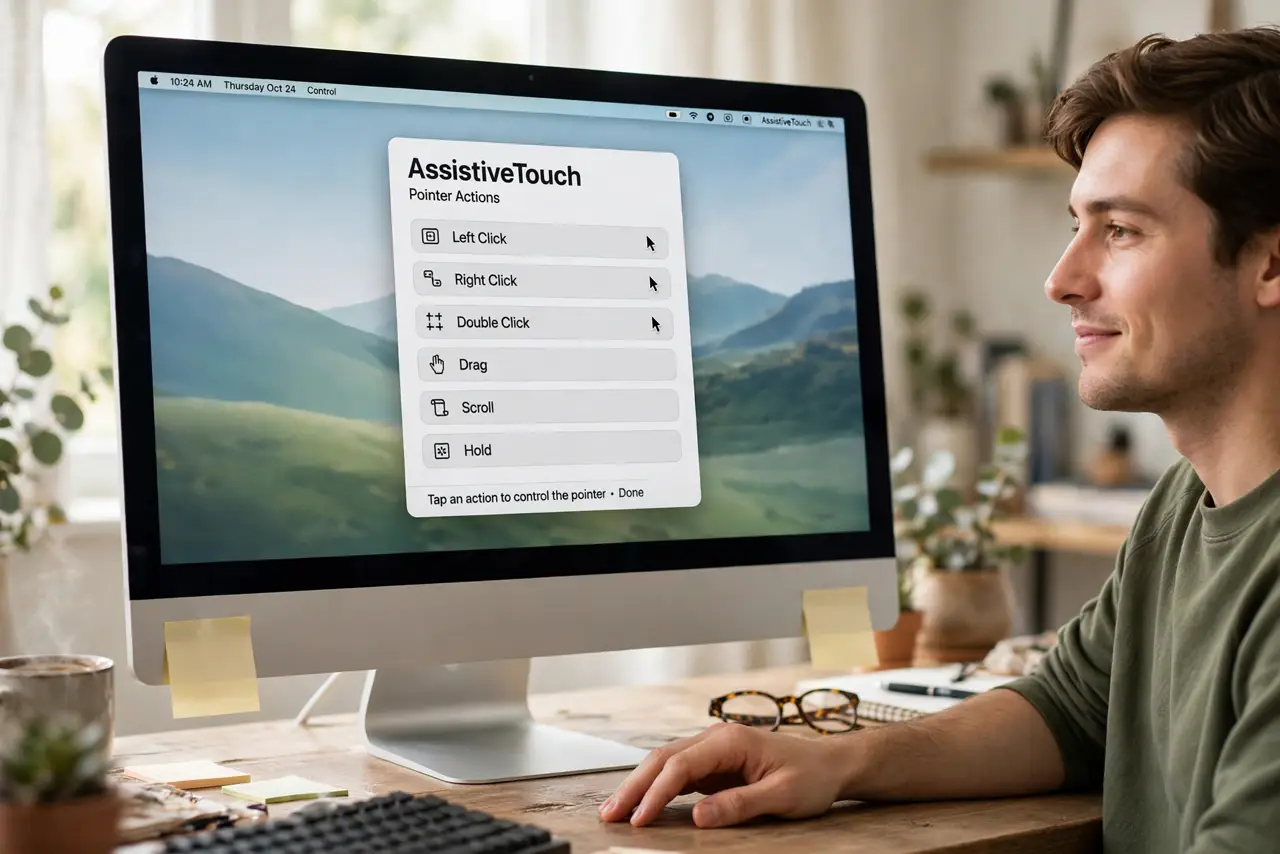
Hot corners, menu bar icons, window buttons — the screen's edges demand a long pointer journey that some hands cannot comfortably make. macOS AssistiveTouch puts a floating panel of pointer actions right where you are: clicks, drags, and corner gestures without the trek. Its cousins Dwell and Mouse Keys cover related needs.
TL;DR / Quick Fix
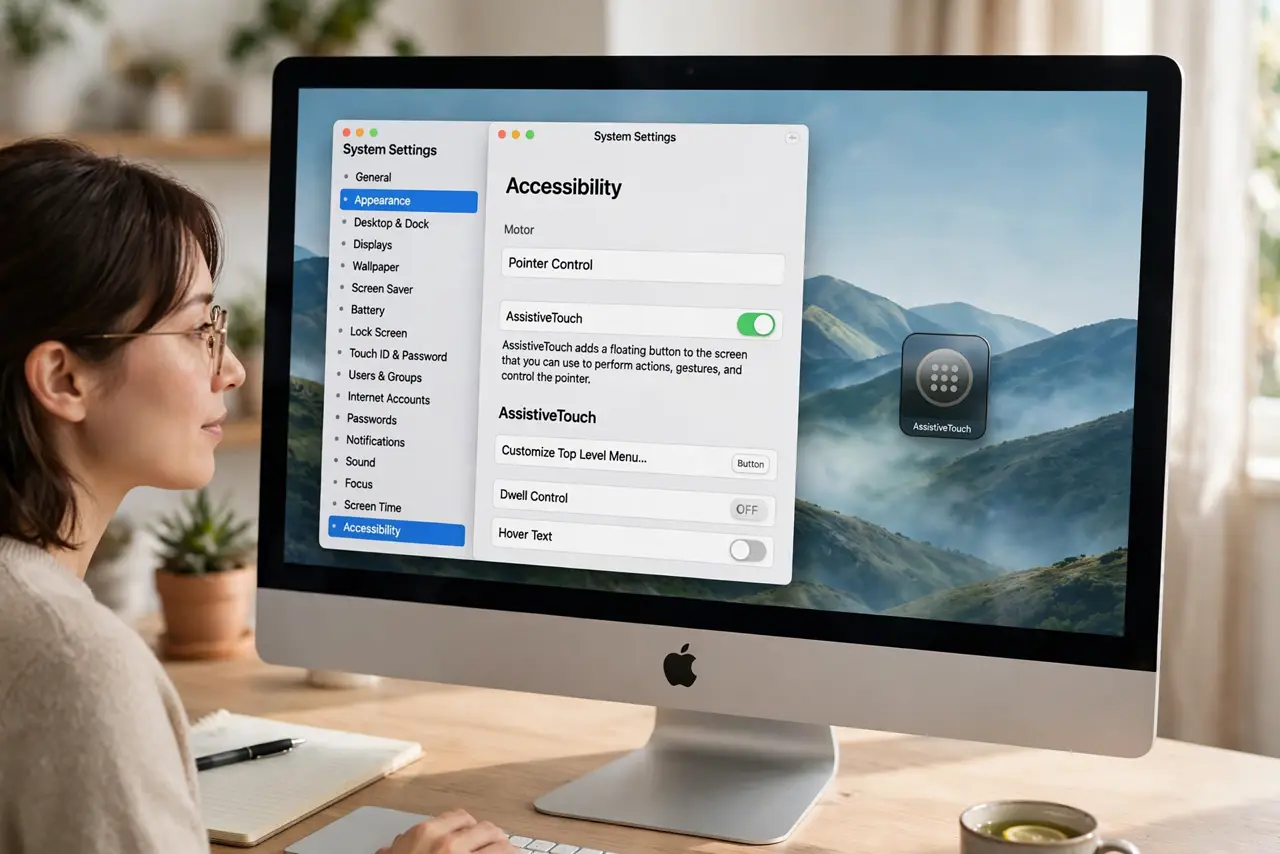
Quick fix: turn on AssistiveTouch in Settings > Accessibility > Pointer Control — a floating panel gives you clicks, drags, and corner actions without stretching across the screen. Customize its buttons for what you use most. It is also handy for anyone whose trackpad gestures are unreliable.
Follow these steps
- Enable AssistiveTouch. Go to System Settings > Accessibility > Pointer Control and turn on AssistiveTouch. A small floating panel appears — your new pointer companion.
- Open the panel options. Click the panel's menu button to see the action list: clicks, drags, scrolls, and device controls. Everything the pointer does, itemized.
- Customize the buttons. In the AssistiveTouch options, add the actions you actually use and remove the rest. A panel with your five actions beats a panel with fifteen strangers.
- Position the panel. Drag the panel to a screen edge or corner where it stays out of the way but within easy reach. It can also auto-hide until summoned.
- Use it for the hard reaches. Hot corners, menu bar extras, tiny window controls — trigger them from the panel instead of steering the pointer across the screen.
- Set a quick toggle. Assign the Accessibility shortcut to toggle the panel. On a shared Mac, each user gets their own setting — no surprises for others.
What NOT to do
- Do not leave the default fifteen-button panel. An uncustomized panel is clutter — five chosen actions beat fifteen random ones.
- Do not park it over your work. The panel floats above windows; a bad position covers exactly what you are doing.
- Do not forget it is per-user. Enable it in your account and it will not ambush someone else on the same Mac.
- Do not use it as a trackpad replacement for everything. It shines for hard reaches; the trackpad still wins for general mousing.
Frequently asked questions
Is this the same as iPhone AssistiveTouch?
Same family, Mac flavor — the iPhone version centers on touch gestures, the Mac version on pointer actions.
Can it do right-click?
Yes — add the secondary click action to the panel and it is one tap away.
Will it slow down my Mac?
No — it is a lightweight accessibility overlay with no measurable performance cost.