Fix Mac Brightness Keys That Do Nothing
Brightness keys that stop working are annoying, but the display itself is usually fine. The keys may be assigned to something else, the keyboard may need a reconnect, or a setting may block them. Test the slider first to separate keys from display.
TL;DR / Quick Fix
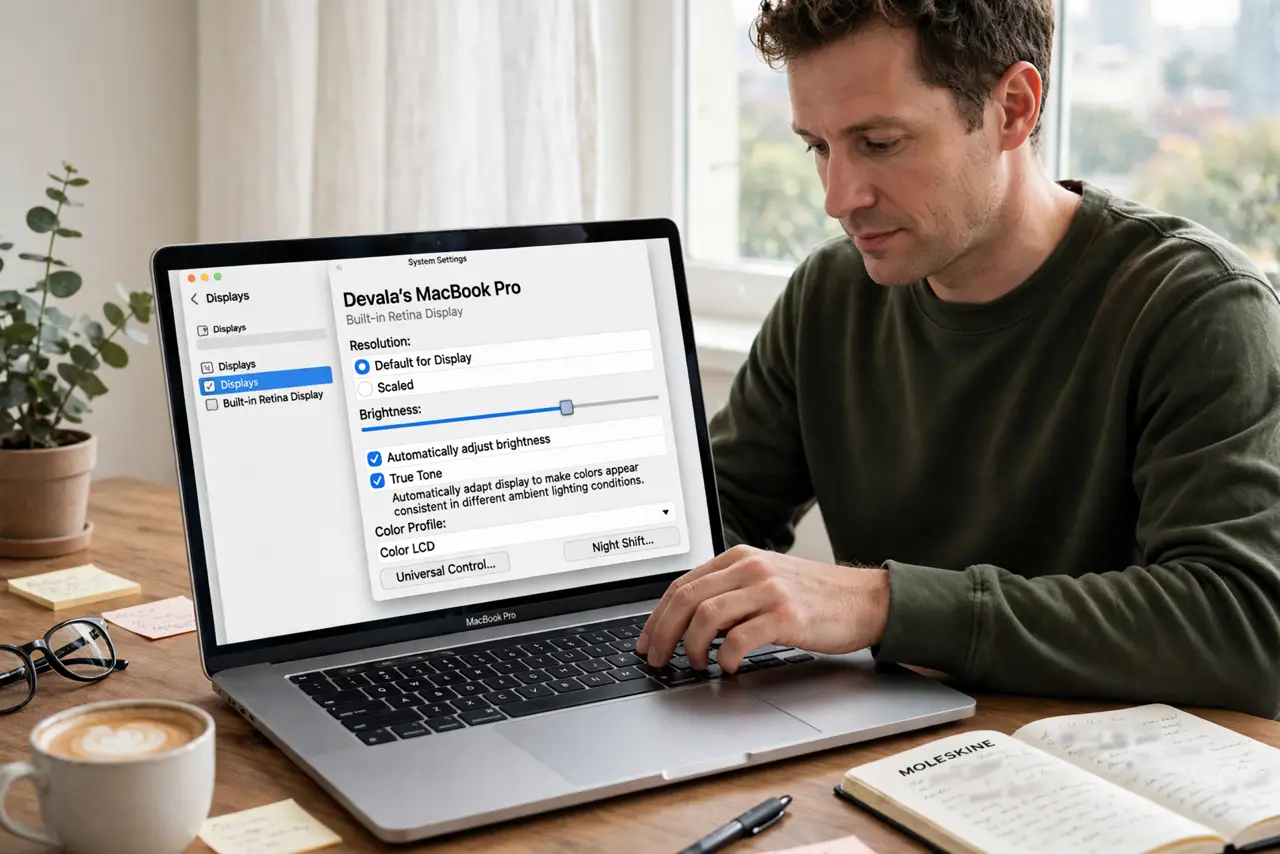
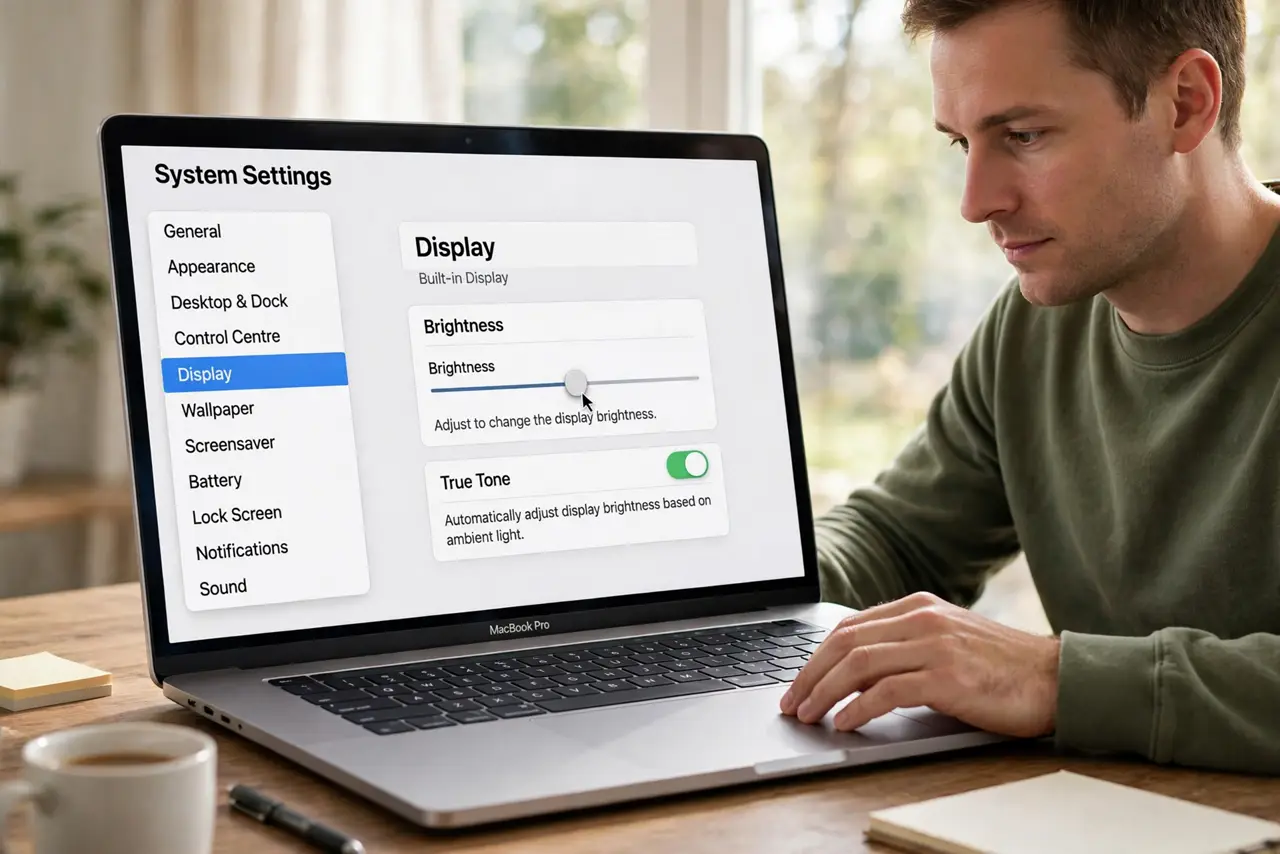
Quick fix: open System Settings, then Displays, and move the Brightness slider by hand. If the slider works, the display is fine and the keys are the problem. Then check Keyboard settings, reconnect the keyboard, and restart the Mac before you change any other setting.
Follow these steps
- Test the Brightness slider. Open System Settings, then Displays, and drag the Brightness slider. If the screen brightens and dims, the display works and only the keys need attention.
- Check function key settings. Open System Settings, then Keyboard, and check whether function keys act as standard function keys. If they do, you may need to hold Fn with the brightness key.
- Reconnect the keyboard. For an external keyboard, turn it off and on or unplug and reconnect it. For a built-in keyboard, restart the Mac to refresh the keyboard connection.
- Check for a conflicting app. Close apps that remap keys or control the display, such as keyboard customization tools. Test the brightness keys with those apps closed.
- Restart the Mac. Restart once and test the brightness keys at the desktop. A restart clears a stuck keyboard process that can swallow key presses.
- Test with another keyboard. Connect a different keyboard and try its brightness keys. If they work, the first keyboard is the problem, not the Mac.
What NOT to do
- Do not reset the Mac for dead brightness keys. The Displays slider, keyboard settings, and a restart cover the common causes safely.
- Do not press the keys harder. Extra force will not restore a key that is remapped or ignored by software, and it can damage the key.
- Do not install a brightness control app as a first fix. The built-in slider works, and extra apps can conflict with keyboard handling.
- Do not ignore a keyboard that fails in other ways too. If many keys fail together, the keyboard itself may need professional attention.
Frequently asked questions
Why do brightness keys fail but the slider works?
The keys are usually remapped, blocked by an app, or stuck in a keyboard process, while the display and its slider work normally.
Do I need Fn with the brightness keys?
Only if function keys are set to act as standard function keys. In that mode, hold Fn while pressing the brightness key.
What if no keyboard's brightness keys work?
Then the Mac side is more likely at fault. Restart, check Keyboard settings, and test the Displays slider again.