Clear Cache on Mac
Your Mac feels sluggish, an app misbehaves, and someone online said clear the cache. Caches are just temporary files apps keep to run faster — safe to delete, but only from the right places. Deleting the wrong folder causes real damage, so here is the safe way.
TL;DR / Quick Fix
Quick fix: clear app caches from ~/Library/Caches by deleting the folder of the misbehaving app, then restart it. Never touch /System/Library/Caches. For browsers, clear cache from the browser's own settings. When in doubt, restart first — it fixes more than cache-clearing does.
Follow these steps
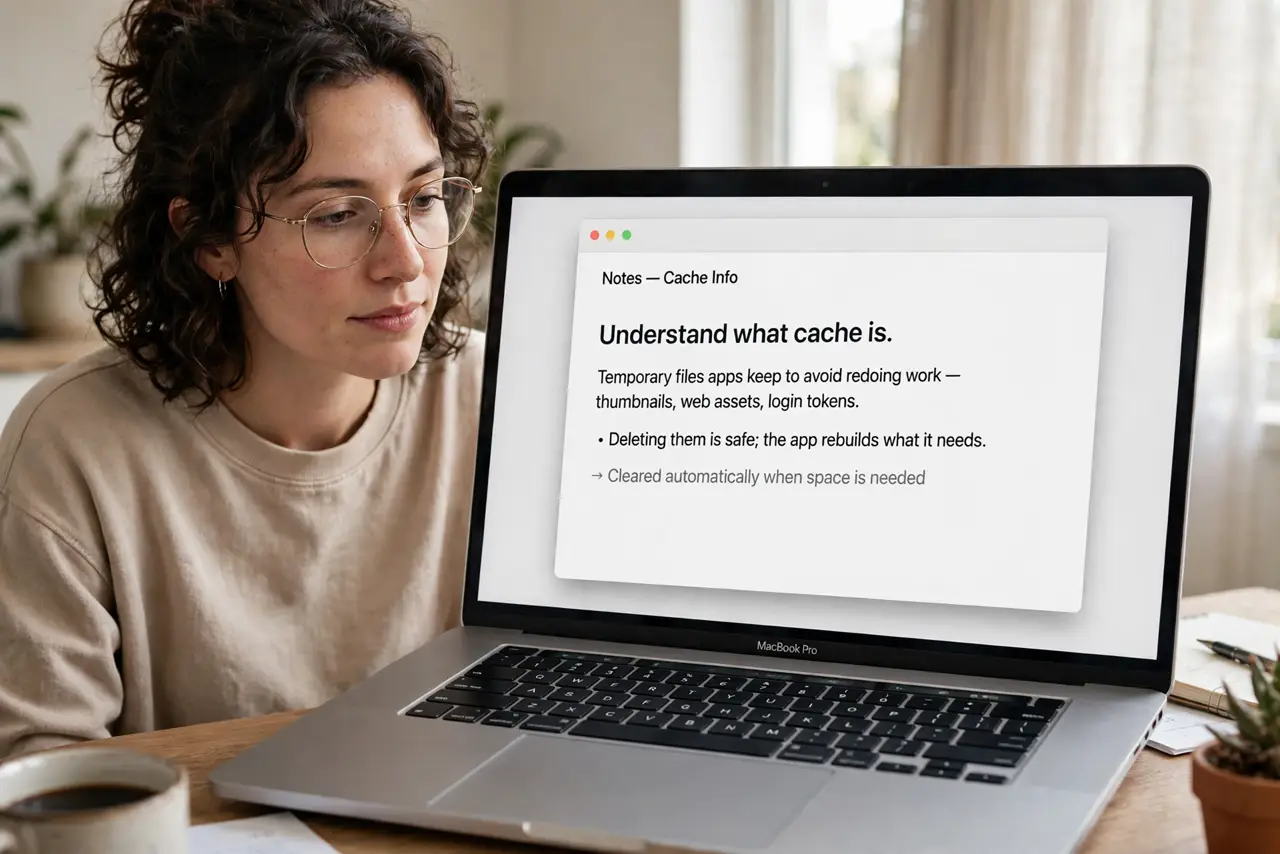
- Understand what cache is. Temporary files apps keep to avoid redoing work — thumbnails, web assets, login tokens. Deleting them is safe; the app rebuilds what it needs.
- Restart first. Half of 'clear the cache' advice is really 'restart the app' advice. Quit and reopen the misbehaving app before touching any folders.
- Clear browser cache properly. Use the browser's own settings — Safari, Chrome, and Firefox each have a clear-browsing-data option. Do not dig through folders for browser cache; see the safe cache-clearing guide.
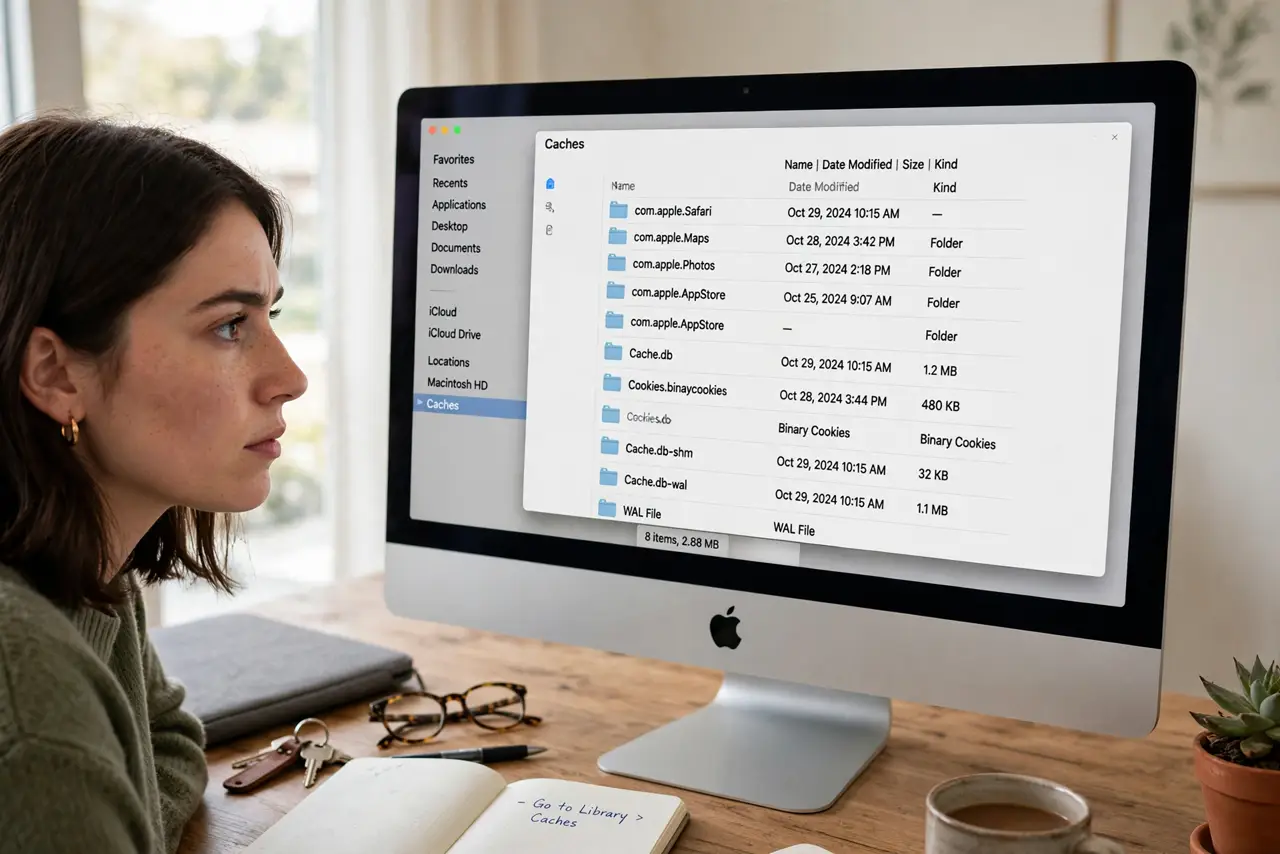
- Clear one app's cache in Finder. Go to ~/Library/Caches (hold Option while clicking Go in Finder), find the misbehaving app's folder, and delete just that folder.
- Never touch system caches. /System/Library/Caches is off-limits. Deleting system cache can break macOS badly — user caches are the only safe target.
- Restart the Mac after big clears. If you cleared several apps' caches, reboot. The system rebuilds what it needs cleanly on a fresh start.
What NOT to do
- Do not delete the entire Caches folder. Remove individual app folders — the folder structure itself should stay.
- Do not touch /System/Library/Caches. Ever. That is operating-system territory.
- Do not expect a speed miracle. Cache-clearing fixes misbehaving apps; it does not make an old Mac young again.
- Do not use aggressive cleaner apps. Many cause more problems than they solve — manual, targeted clearing is safer.
Frequently asked questions
Is it safe to delete cache files?
User cache files, yes — apps rebuild them. System cache files, no — leave those alone.
Will clearing cache log me out?
Sometimes, for that app or site. Cached login tokens may go with the cache — a minor inconvenience, not a disaster.
How often should I clear cache?
Only when troubleshooting a specific problem. Routine cache-clearing is unnecessary maintenance theater.