Calendar Travel Time Is Missing on Mac
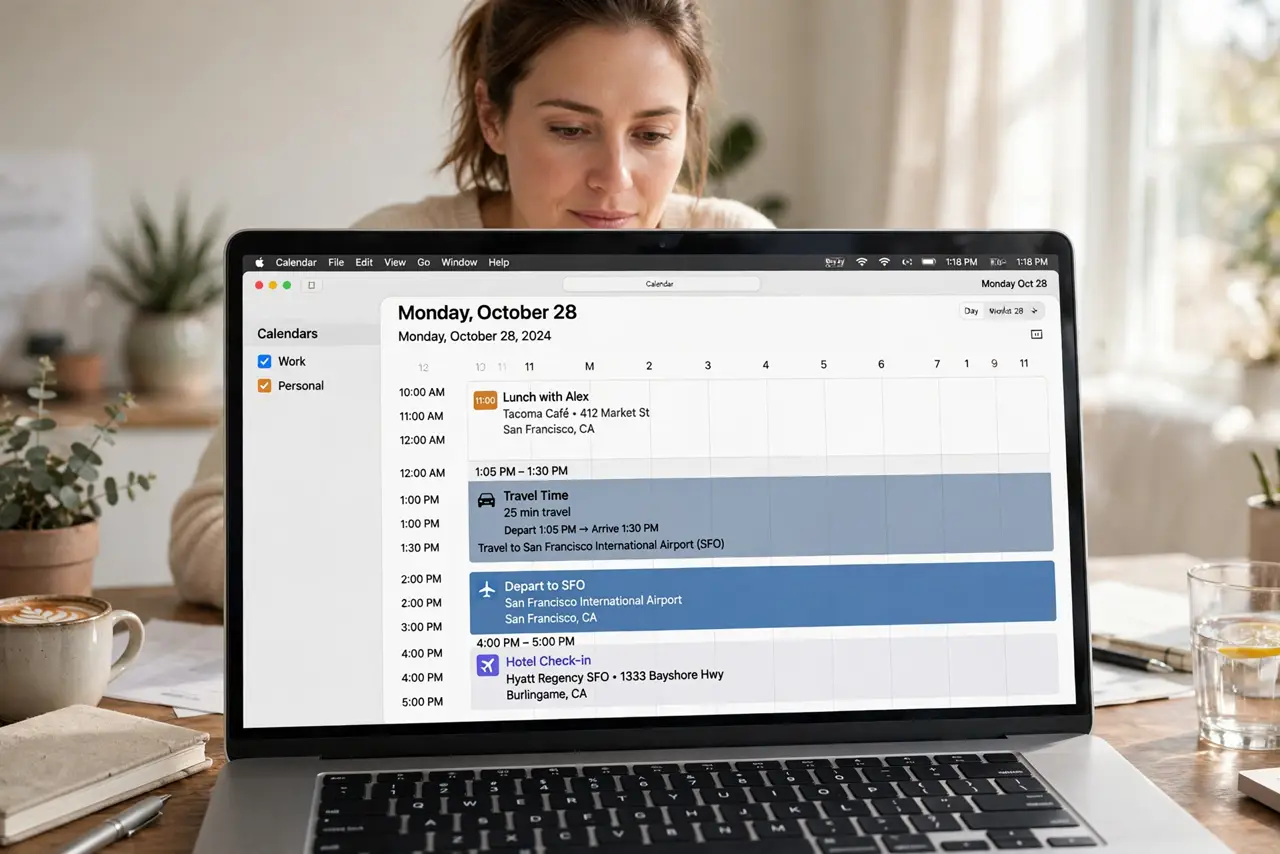
Travel time in Calendar only appears when the event has what Calendar needs to calculate it: a location and a travel time setting. When either is missing, Calendar silently skips the travel block instead of warning you.
TL;DR / Quick Fix
Quick fix: open the event, add a real location, and turn on travel time with your usual travel method. Then check that alerts are on, so the travel block shows in your day and warns you before you need to leave.
Follow these steps
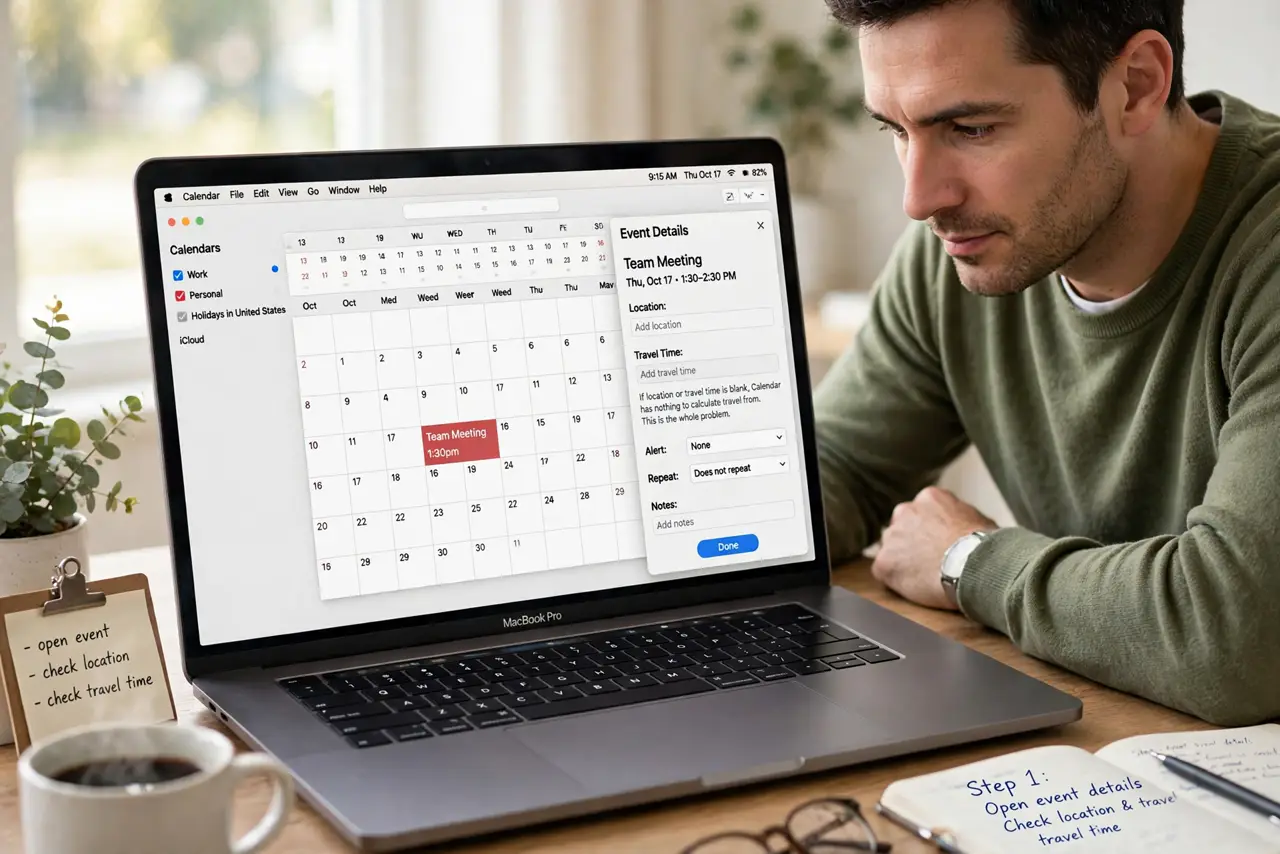
- Open the event details. Double-click the event and look at its location and travel time fields. If either is blank, Calendar has nothing to calculate travel from, and that is the whole problem.
- Add a real location. Type a proper address or place name, and pick the matching suggestion. A vague location like Office may not resolve well enough for Calendar to plan travel.
- Turn on travel time. Set travel time for the event and choose your usual method, such as driving or walking. Without this setting on, Calendar shows no travel block at all.
- Check the event duration. Confirm the event itself has the right start time. Travel time sits before the start, so a wrong start time makes the travel block look missing or misplaced.
- Check alerts for the event. Make sure an alert is set, ideally one tied to the time to leave. An alert is what turns a quiet travel block into a reminder you actually notice.
- Test with a new event. Create a test event with a location and travel time, then view your day. If the travel block appears there, your settings are fixed, and older events just need the same fields filled in.
What NOT to do
- Do not rely on travel time for a critical trip without checking it. Open the day view and confirm the block is there before you depend on it.
- Do not enter a location as free text nobody can resolve. Pick the suggested place, so Calendar can calculate a real route and time.
- Do not assume travel time updates itself if you move the event. Recheck the travel block after changing the time or location.
- Do not turn off all Calendar alerts to reduce noise. Without an alert, a travel block is easy to miss entirely.
Frequently asked questions
Why does travel time not show for my event?
Because the event is missing a resolvable location, or travel time was never turned on for that event.
Does travel time work for every event?
Only for events with a location Calendar can resolve and a travel time setting turned on.
Will travel time warn me to leave?
Yes, if an alert is set. The travel block plus an alert is what gives you a useful leave-now reminder.