Cam Link Not Recognized on Mac?
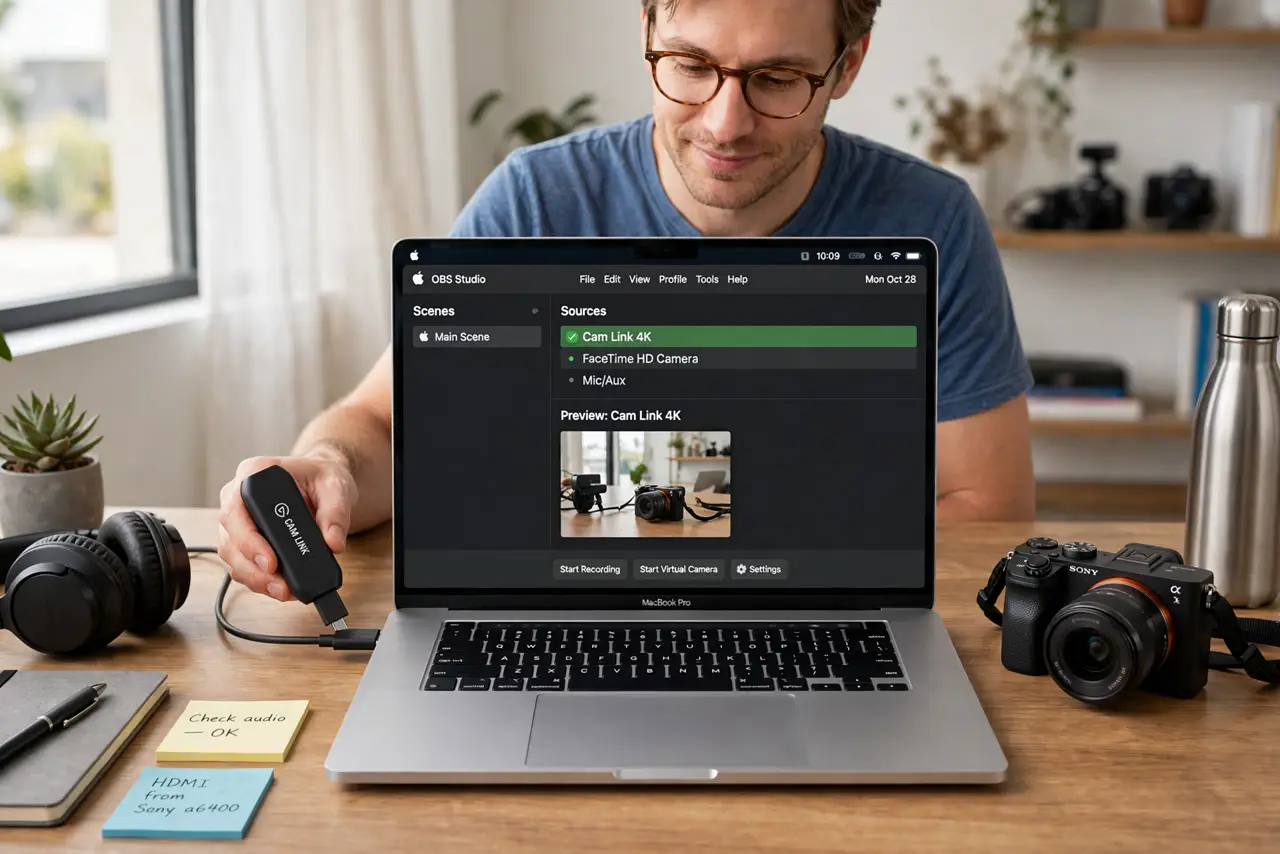
You plug the Cam Link in, open your streaming or video app, and the camera feed is nowhere — or the device does not appear at all. On Macs this is usually USB port pickiness, a hub problem, or the app lacking camera permission. Work the chain from cable to software and it shows up.
TL;DR / Quick Fix
A Cam Link the Mac does not see is a USB issue: plug it directly into the Mac (not a hub), try a different port, and use its cable. Check the app's camera permission in System Settings, Privacy and Security. The black-screen-in-calls guide covers problems; Continuity Camera needs no hardware.
Follow these steps
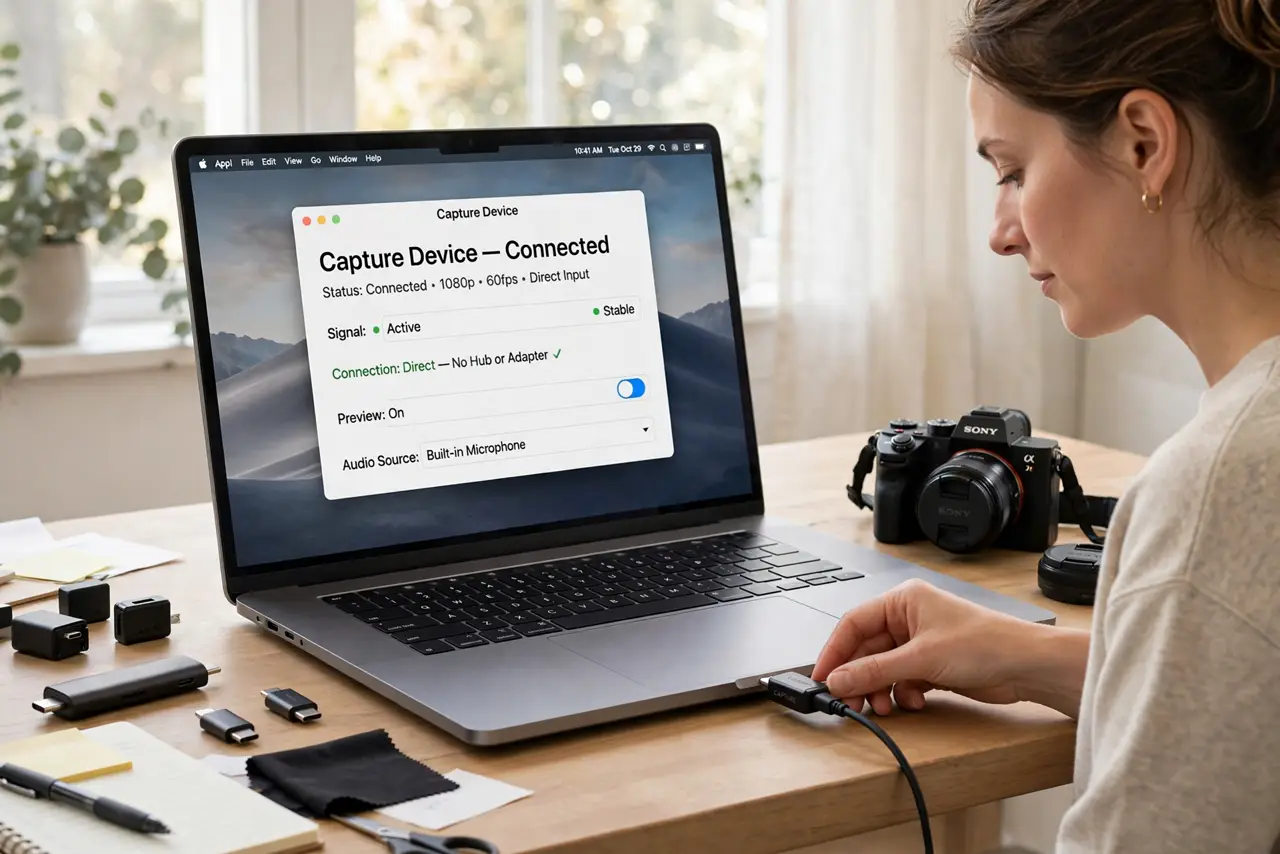
- Plug it directly into the Mac. Remove hubs, docks, and adapters from the chain temporarily. Capture devices are notoriously picky — direct connection eliminates the most common failure point.
- Try a different USB port. Mac USB ports can behave differently, especially across Thunderbolt and USB-A. Move the Cam Link to another port and wait a full ten seconds.
- Use the original cable. Swap in the cable that came with the device. Charge-only or worn cables pass power but fail at the high-bandwidth video signal.
- Check camera permission for your app. Open System Settings, Privacy and Security, Camera, and confirm your streaming or video app is allowed. macOS blocks camera access silently when permission is off.
- Confirm the camera itself outputs cleanly. Connect the camera to a TV or monitor directly. If the camera outputs nothing there, the problem is upstream of the Cam Link entirely.
- Update the capture software and macOS. Install the maker's latest capture utility and check for macOS updates. Driver-level fixes for capture devices ship in both places.
What NOT to do
- Do not daisy-chain through three adapters. Each link is a failure point — simplify to direct connection before any other troubleshooting.
- Do not assume the Cam Link is dead. Device failure is rare; ports, cables, hubs, and permissions cause the vast majority of 'not recognized' cases.
- Do not grant camera permission blindly to every app. Allow only the apps that need the feed — permission hygiene matters for a device pointed at you.
- Do not hot-swap repeatedly in frustration. Give each change ten seconds to register; rapid replugging confuses the USB subsystem further.
Frequently asked questions
Why does it work on Windows but not Mac?
Usually USB port or hub behavior differences, or macOS camera permissions. The hardware is fine — the Mac side of the chain needs the checklist above.
Can I use my iPhone instead of a camera?
Yes — Continuity Camera turns a nearby iPhone into a Mac webcam wirelessly, no capture device needed.
The feed shows but it is laggy — why?
High resolutions over a marginal USB connection cause lag. Drop to 1080p in the capture settings and ensure the direct-port connection.