Control Camera Access on Mac
That little green light next to your webcam flickers on and you wonder: which app just looked at me? On a Mac, every app must ask before using the camera — but old approvals linger and new apps ask casually. A two-minute audit puts you back in charge of who gets to see you.
TL;DR / Quick Fix
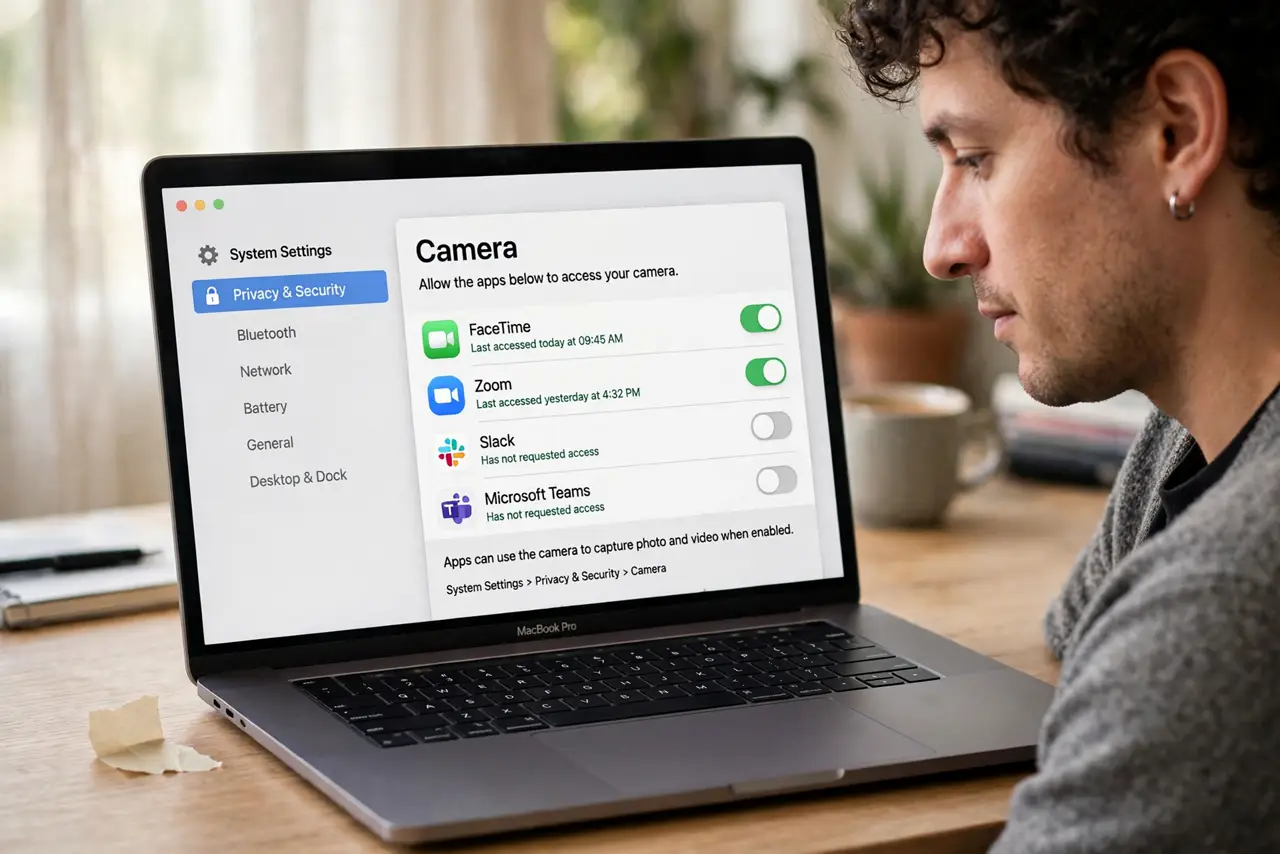
Quick fix: open System Settings, Privacy and Security, Camera, and turn off every app that has no business seeing you. The green indicator light means the camera is active — if it is on with no app open, check the list immediately. Denying camera access never breaks normal Mac use.
Follow these steps
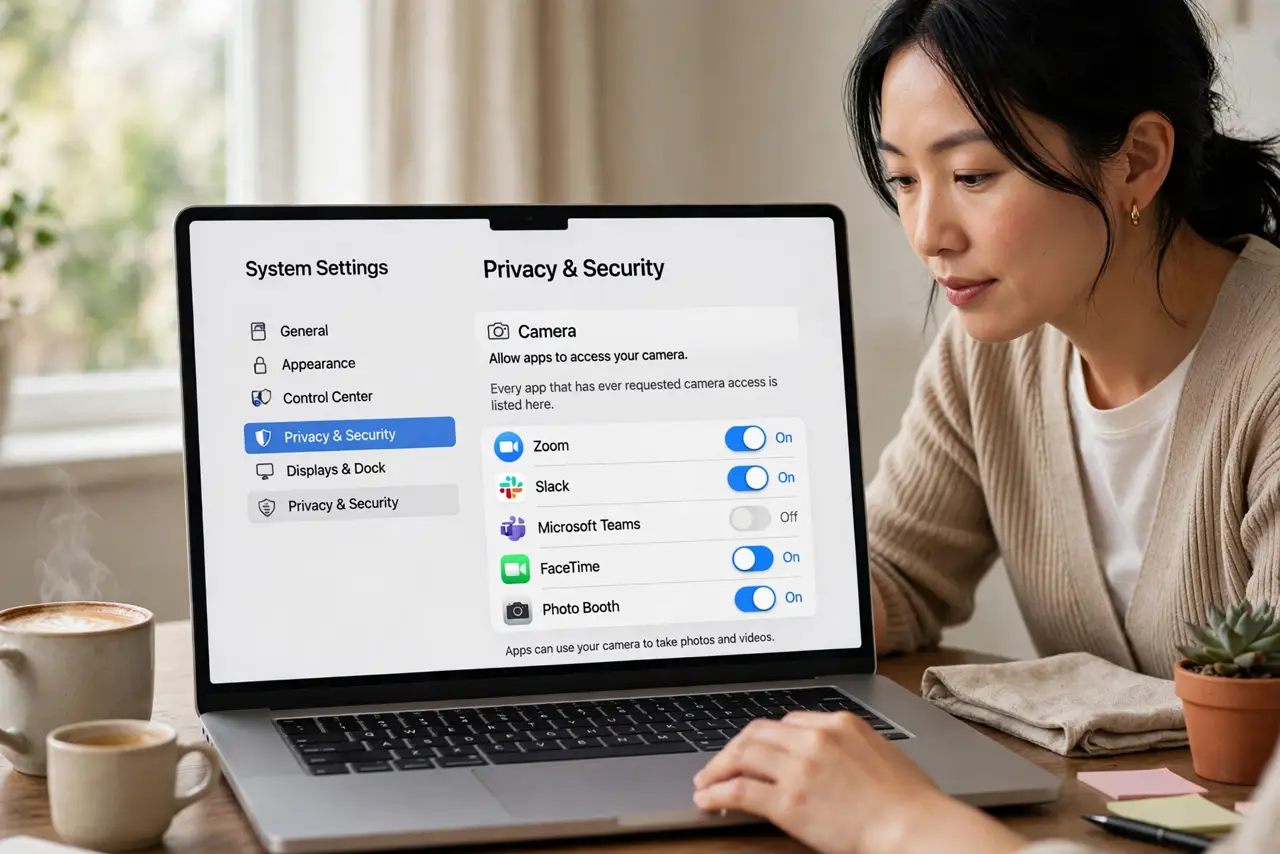
- Open the Camera privacy pane. Go to System Settings, then Privacy and Security, then Camera. Every app that has ever requested camera access is listed here.
- Revoke access app by app. Toggle off anything that does not need to see you — games, utilities, shopping apps. Video-call apps keep their access; everything else must justify itself.
- Watch the green indicator. The green light beside the camera is hardware-wired: it is on whenever the camera is active, no software can fake it off. Light on with no call open means investigating.
- Check screen recording too. An app denied the camera might still request screen capture, which can include video calls. Review screen recording permission in the same Privacy settings.
- Use a physical cover when idle. A sliding cover or a piece of tape is the ultimate permission — no software bypasses physics. Remove it only for calls.
- Re-audit after installing apps. New apps ask on first launch and people click Allow reflexively. Make the Camera pane part of your new-app routine.
What NOT to do
- Do not click Allow just to dismiss the prompt. Every casual approval is a future surprise when that green light appears.
- Do not assume the light means recording. It means the camera is active — which still deserves your attention, but is not proof of spying.
- Do not cover the camera with thick stickers on a MacBook. Bulky covers can damage the screen when the lid closes — use a thin slider.
- Do not ignore a light that stays on. If no app explains it, check Activity Monitor for camera-using processes and revoke aggressively.
Frequently asked questions
Can apps use my camera without the green light?
No. On modern Macs the indicator is hardware-linked to camera power — software cannot activate the camera without lighting it.
Will denying camera break FaceTime?
Only if you deny FaceTime itself. Denying other apps has zero effect on the apps you keep approved.
Should I worry about the microphone too?
Yes — audit it the same way in Privacy and Security, Microphone. An orange dot in the menu bar shows live microphone use.