Merge Duplicate Contacts
Every other contact appears twice — or three times — after years of iCloud, Google, and SIM imports stacking on top of each other. macOS has a built-in duplicate finder that merges them safely, and fixing the sync source stops them coming back. Here's the cleanup.
TL;DR / Quick Fix
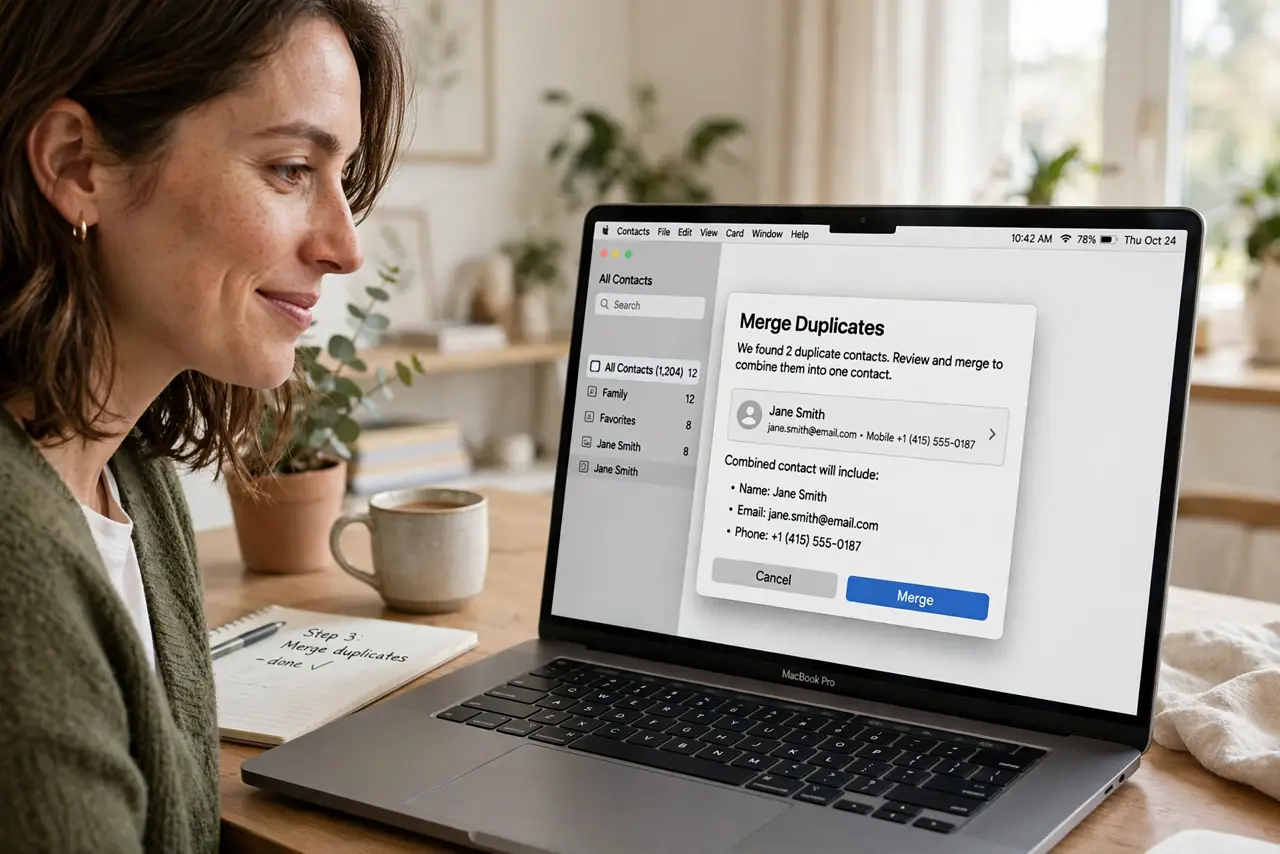
Quick fix: open Contacts, go to Card > Look for Duplicates, and merge what it finds. For iCloud-driven duplicates, check Settings > [your name] > iCloud and make sure Contacts syncs from one account only. Fix the source and the duplicates stop returning.
Follow these steps
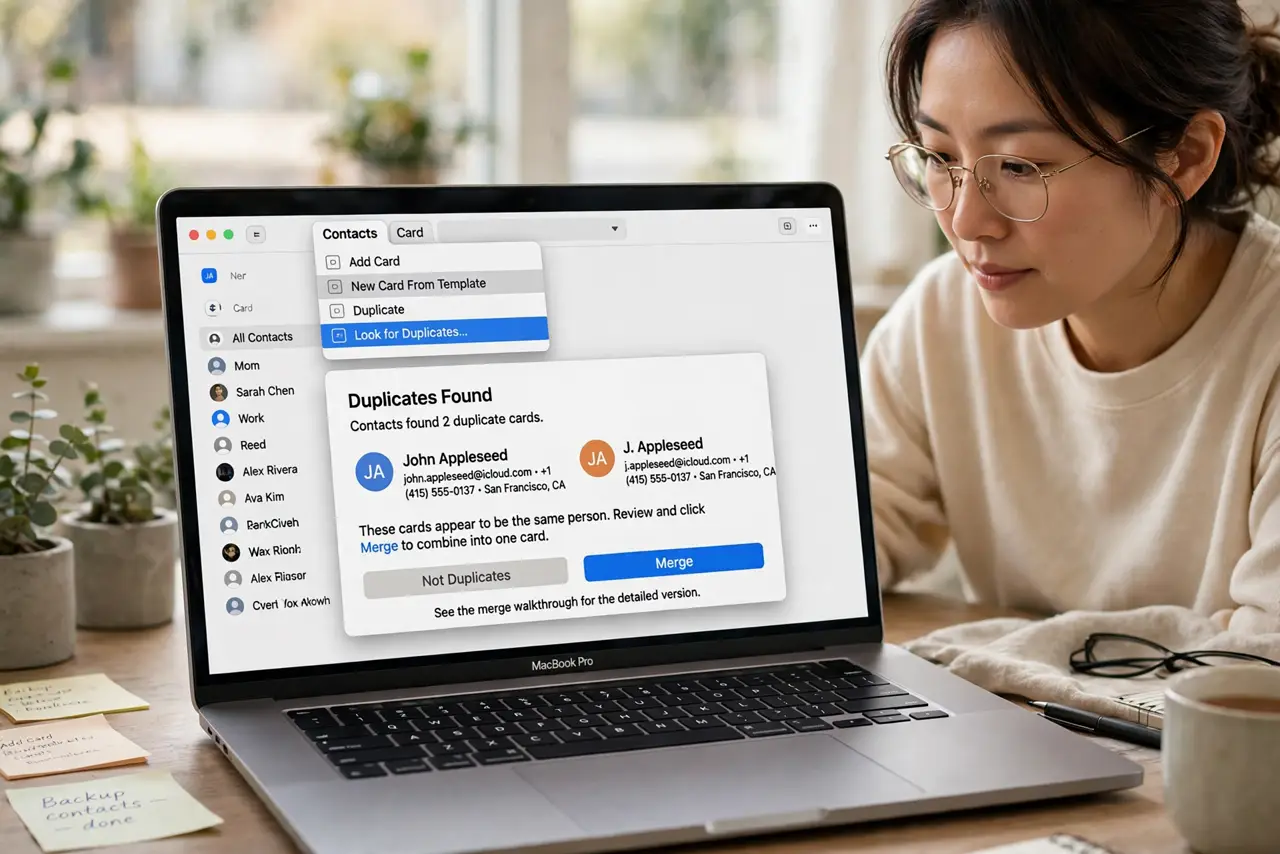
- Run the built-in duplicate finder. In Contacts, choose Card > Look for Duplicates. macOS shows matching cards — review and click Merge. See the merge walkthrough for the detailed version.
- Review before merging. The finder is conservative, but glance through the matches — especially contacts with similar names who are genuinely different people.
- Fix the sync source. Duplicates that return come from syncing the same contacts via two accounts (iCloud + Google, typically). Keep one source of truth; see duplicates after sync.
- Check iCloud specifically. On Mac: System Settings > [your name] > iCloud > Contacts. On iPhone: the same path — see iCloud sync duplicates. Disable the redundant account's contacts.
- Clean the stragglers manually. The finder misses odd cases (different name spellings). Sort by name, scan visually, and merge or delete the leftovers by hand.
- Back up first. File > Export > Contacts Archive before bulk merging. If a merge goes wrong, you restore in seconds — cheap insurance.
What NOT to do
- Do not merge blindly at scale. Similar names can be different people — a quick review pass prevents merging your client into your cousin.
- Do not delete duplicates without checking. One 'duplicate' may hold the only copy of a phone number; merge preserves data, delete destroys it.
- Do not ignore the returning duplicates. Merging without fixing the sync source is mopping while the tap runs — fix the source.
- Do not sync contacts through three services. iCloud *or* Google *or* the SIM — pick one canonical source and disable the rest.
Frequently asked questions
Why do duplicates keep coming back?
Two accounts syncing overlapping contacts — the classic iCloud-plus-Google pileup. Disable one source's contacts sync; see the sync problem.
Will merging lose phone numbers?
No — merging combines fields from both cards. Deleting is what loses data, which is why you merge, review, and back up first.
Can I undo a merge?
Yes if you exported an archive first — restore it. Without a backup, you'd rebuild manually, which is why step 6 exists.