Stop Mac Dark Mode Changing by Itself
A Mac that flips between Light and Dark mode on its own is almost always following the Auto appearance setting, which tracks the time of day. That is normal behavior for Auto, but it surprises people who want one look all day. Set it manually instead.
TL;DR / Quick Fix
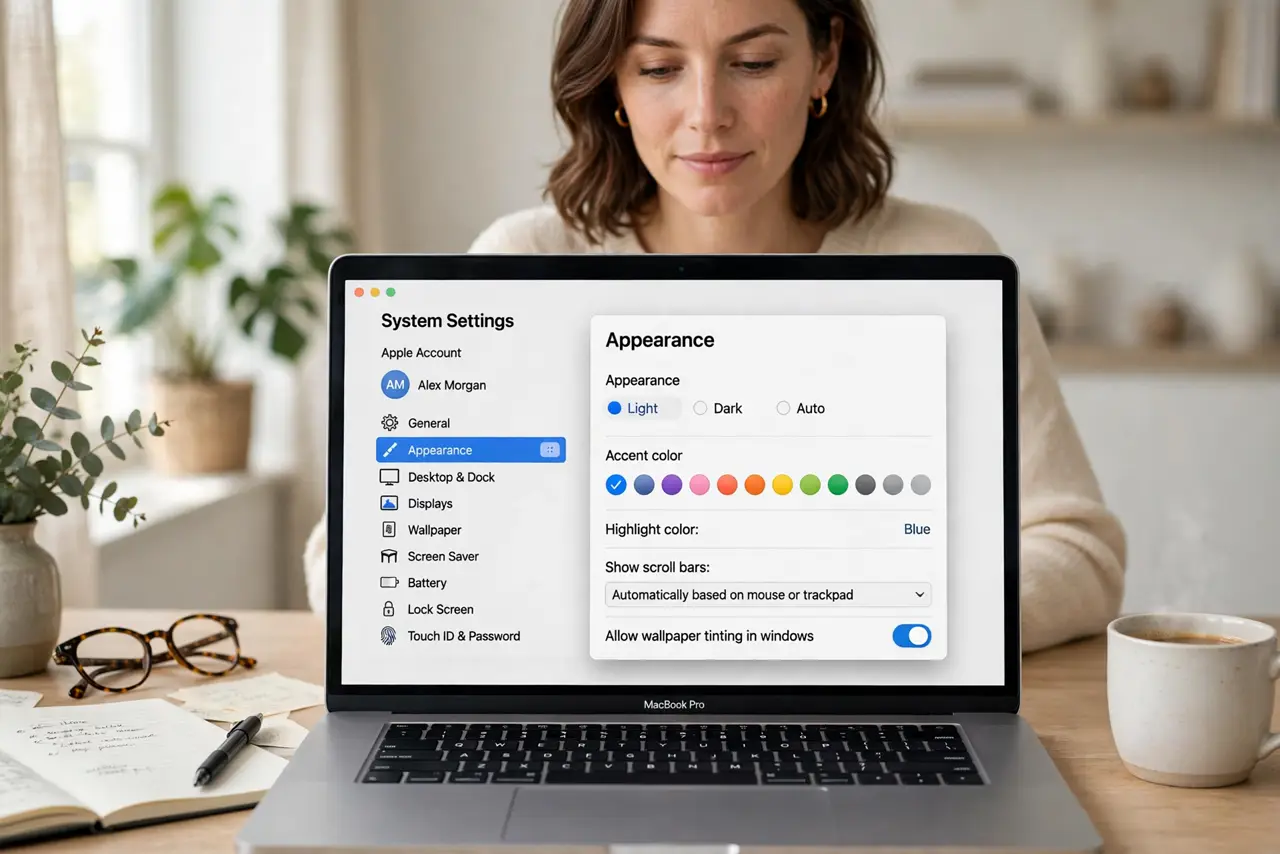
Quick fix: open System Settings, then Appearance, and choose Light or Dark instead of Auto. Then check Night Shift, which can also warm the screen and look like a mode change. Restart once and confirm the appearance stays where you set it.
Follow these steps
- Open Appearance settings. Click the Apple menu, then System Settings, then Appearance. This page controls whether macOS uses Light, Dark, or Auto mode.
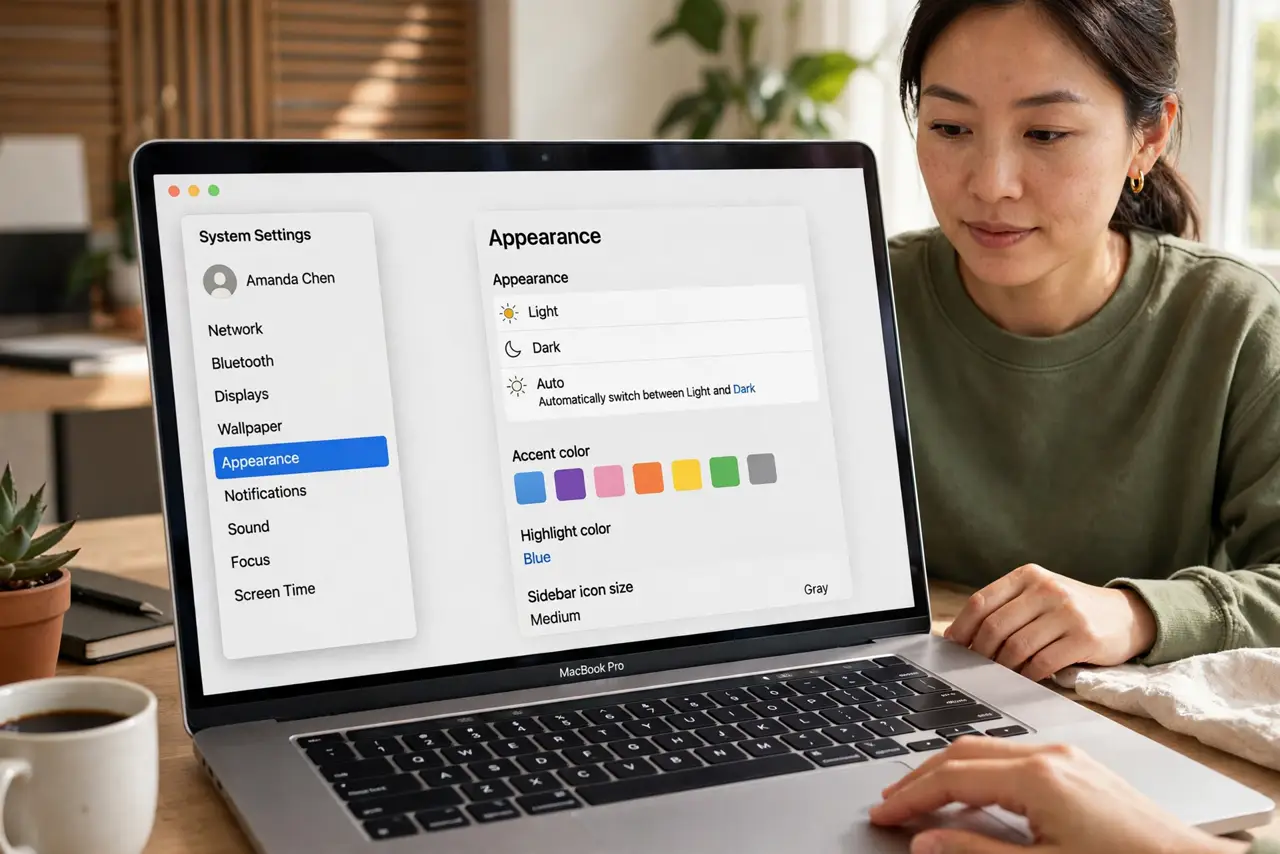
- Choose Light or Dark manually. Select Light or Dark instead of Auto. Auto switches with the time of day, so a manual choice stops the daily flip.
- Check Night Shift separately. Open Displays, then Night Shift, and check whether it is on. Night Shift warms colors at night and can look like a Dark Mode change when it is not.
- Check wallpaper settings. If you use a dynamic wallpaper, it can change with the time of day too. Choose a still wallpaper if the shifting background bothers you.
- Restart and confirm the choice. Restart the Mac and check Appearance settings again. A manual Light or Dark choice should survive a restart without flipping.
- Check for a schedule or automation. If the mode still flips, check for a shortcut, automation, or third-party app that changes appearance on a schedule, and turn it off.
What NOT to do
- Do not reset appearance settings in every app. The system Appearance setting controls most apps, so fix it there first.
- Do not confuse Night Shift with Dark Mode. Night Shift warms colors, while Dark Mode changes window and menu colors, and they have separate settings.
- Do not install an appearance manager app for this. A manual Light or Dark choice in System Settings does the job without extra software.
- Do not assume an update broke your Mac. Auto appearance switching with time of day is intended behavior, not a fault.
Frequently asked questions
Why does my Mac switch to Dark Mode at night?
Appearance is probably set to Auto, which uses Light during the day and Dark at night based on the time.
Is Night Shift the same as Dark Mode?
No. Dark Mode changes window and menu colors to dark. Night Shift only warms the screen color to reduce blue light.
Will my choice survive a restart?
Yes. A manual Light or Dark choice stays until you change it again or an automation overrides it.