One App Stays Light in Mac Dark Mode
Dark Mode turns most of the Mac dark, but one app can stay bright white. That app usually has its own appearance setting, or it has not picked up the system change yet.
TL;DR / Quick Fix
Quick fix: open the bright app and check its own settings or Appearance menu for a Light or Dark choice. If it has none, quit and reopen the app, then check for an update that adds Dark Mode support and enjoy a consistent dark look across your apps.
Follow these steps
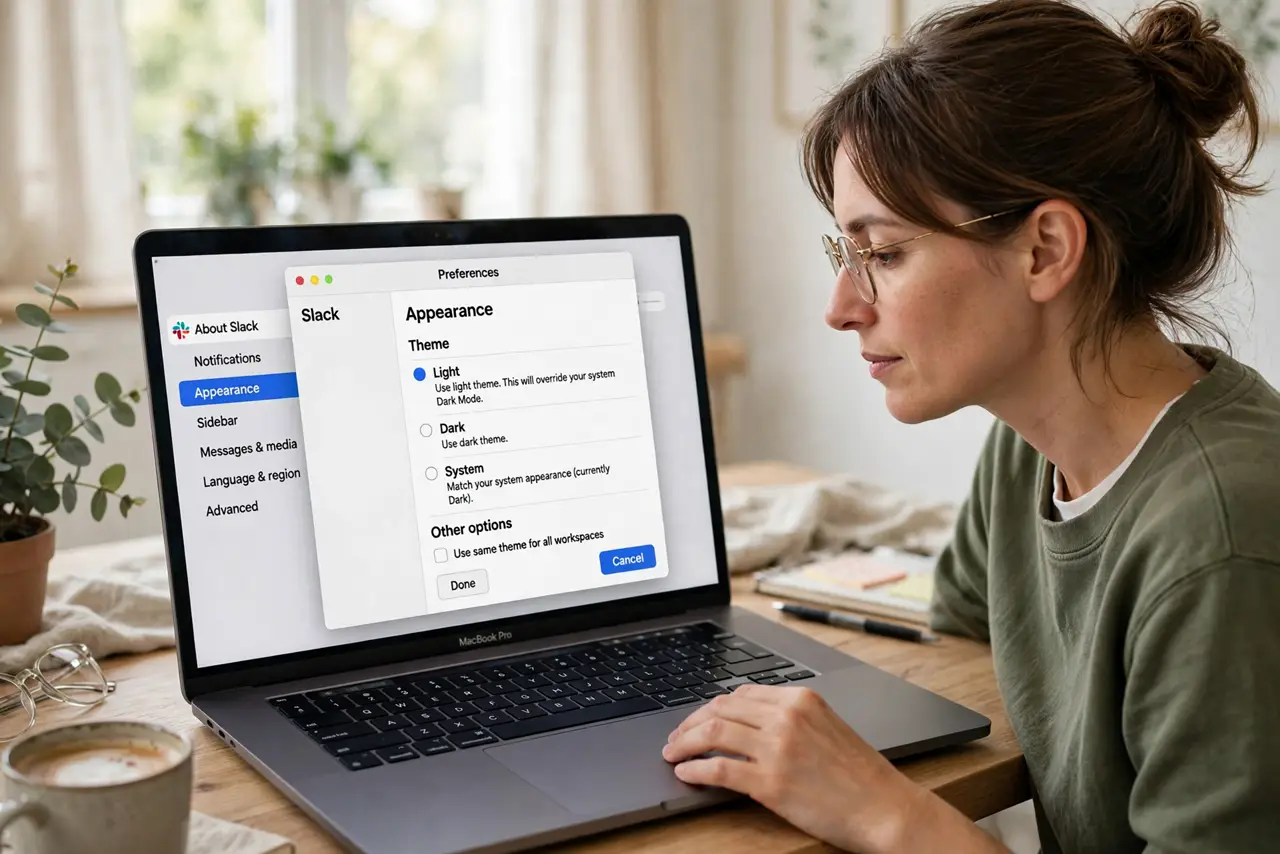
- Check the app's own appearance setting. Open the app that stays light and look in its Settings or Appearance menu. Many apps let you pick Light, Dark, or System, and a Light choice there beats the system Dark Mode setting.
- Set the app to follow the system. If the app offers a System or Automatic option, choose it. That tells the app to match the Mac, so it turns dark when the Mac does and light when the Mac does.
- Quit and reopen the app. If the app should already be dark, quit it fully and reopen it. Some apps only read the system appearance when they start, so a running app can stay light after you switch.
- Check the macOS appearance setting. Open System Settings, then Appearance, and confirm Dark is selected. If the Mac is set to Auto, the app may simply be showing the current light phase of the day.
- Update the app. Open the App Store and check for an update for that app. Older versions of some apps have no Dark Mode at all, and the fix arrives with a newer version.
- Restart the Mac if one app still refuses. Save your work and restart once. A restart clears a stuck appearance state and forces every app to read the system setting fresh on launch.
What NOT to do
- Do not reinstall the app first. A reinstall rarely adds Dark Mode, and you risk losing the app's local data for a setting the app already controls.
- Do not change the whole Mac to Light Mode to match one app. Fix the one app's setting instead, so the rest of the system stays dark as you like it.
- Do not assume every app supports Dark Mode. Some older or simpler apps are light only, and no system setting can force them dark.
- Do not edit system files to force an app dark. That can break the app or the system, and an app update is the safe route to real Dark Mode support.
Frequently asked questions
Why does only one app stay light?
That app has its own appearance setting set to Light, or it only reads the system appearance when it launches.
The app has no Dark Mode option. What then?
It may not support Dark Mode yet. Check for an update, and use the app in Light Mode until the developer adds support.
Does quitting the app really help?
Yes, for apps that read appearance at launch. Quitting and reopening forces the app to pick up the current system setting.