Show Your Desk on Calls
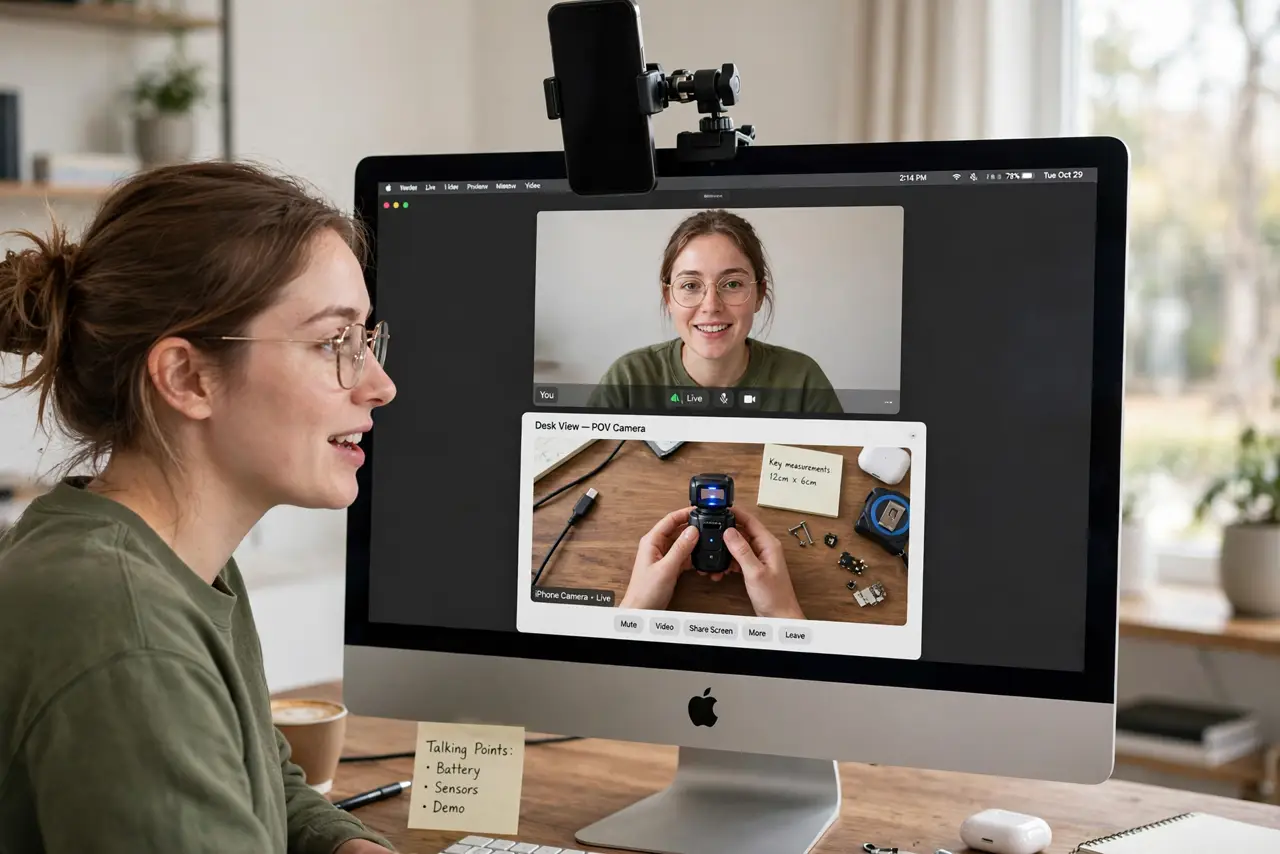
Holding a book, a gadget, or a sketch up to your webcam on a Mac always looks terrible — shaky, backwards, and half out of frame. Your Mac and iPhone can do better: Continuity Camera turns your iPhone into a high-quality webcam, and its Desk View mode shows your face and an overhead shot of your desk at the same time. Set it up once, and demoing physical items becomes the easy part of the call. If your calls also suffer from bad lighting, fix that too.
TL;DR / Quick Fix
Quick fix: on a Mac, use your iPhone as a webcam with Desk View to show your desk and your face together. Switch on the overhead view, mount the phone above the desk edge, and check the framing in the preview before the meeting starts.
Follow these steps
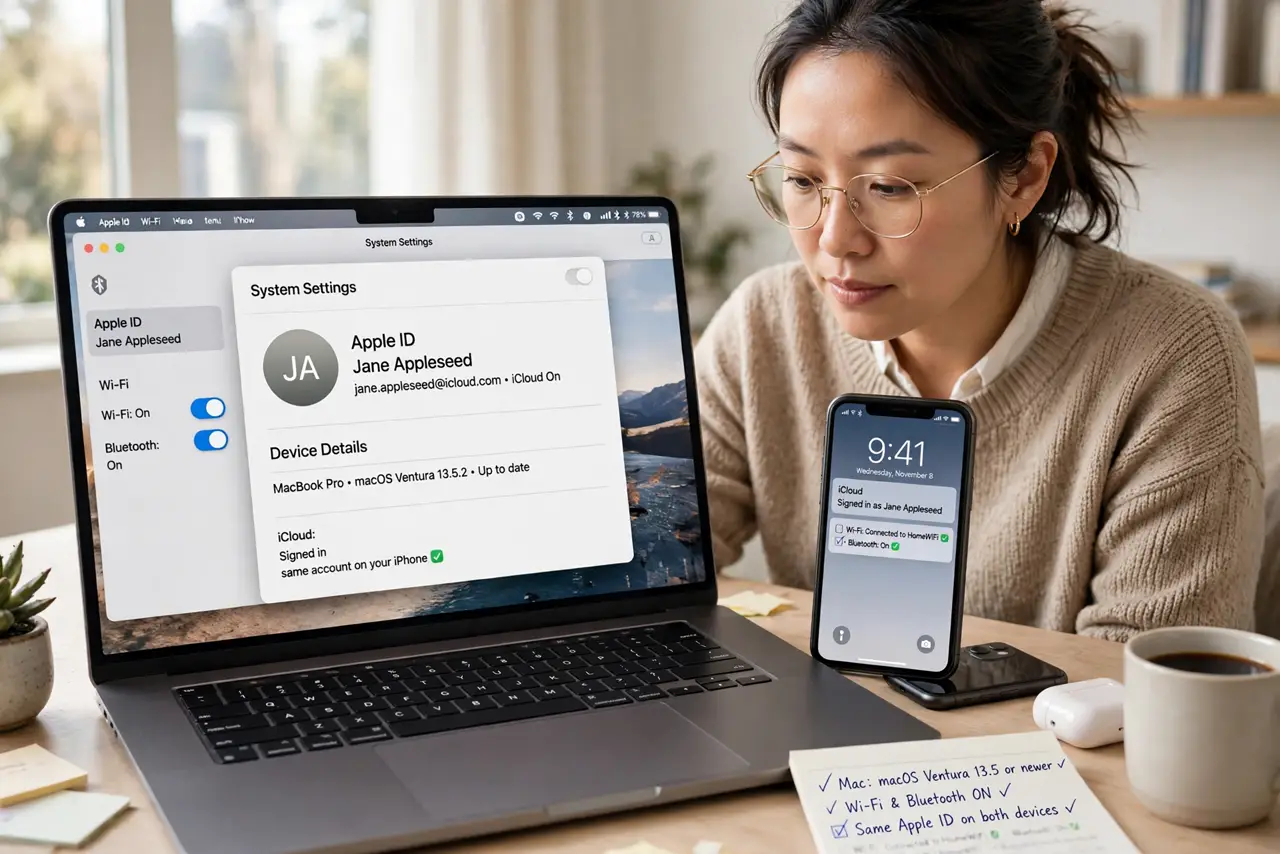
- Check your Mac and iPhone are ready. You need a Mac running macOS Ventura or newer and an iPhone 11 or newer, with Wi-Fi and Bluetooth on and both signed into the same Apple ID. No extra app or cable is required — the connection happens over your local network.
- Mount the iPhone above your desk. Clip the phone to the top of your monitor or a small tripod so its rear camera looks down at your desk. The overhead angle is what makes the demo readable; a phone lying flat on the desk films nothing useful.
- Select the iPhone as your camera. In your video call app — FaceTime, Zoom, or Teams — open the camera menu and choose your iPhone. The first connection takes a few seconds; after that it appears like any other webcam.
- Turn on Desk View. With the iPhone camera active, look for the Desk View option in the video effects or camera menu. It splits the feed: your face on top, the overhead desk view below, automatically straightened and cropped.
- Frame the demo area before anyone joins. Lay out the item on the desk and check the overhead preview. Keep the item inside the marked desk area, clear clutter around it, and make sure your hands will not cover it while you talk.
- Speak to the camera, demo to the desk. Look at the screen when you explain, then glance down at the item when you handle it. The audience sees both — you just narrate what your hands are doing in the desk view.
What NOT to do
- Do not hold items up to the built-in webcam. It is shaky, mirrored, and out of focus — Desk View exists precisely to replace this.
- Do not mount the phone where it can slide off mid-call. A falling phone ends the demo; a cheap mount or tripod prevents it.
- Do not skip the test call. Framing, focus, and lighting look different live — check them alone before the real meeting.
- Do not leave notifications visible on the iPhone. It is acting as your camera now, so silence it or enable Do Not Disturb first.
Frequently asked questions
Do I need any app or cable for this?
No. Continuity Camera works over Wi-Fi and Bluetooth with the same Apple ID on both devices. Just bring the iPhone near the Mac and select it as the camera in your call app.
Does Desk View work in Zoom and Teams?
Yes — once the iPhone is selected as the camera, the Desk View effect is available in most major call apps, since it is handled by macOS rather than the app.
My iPhone does not appear as a camera option. What now?
Make sure both devices use the same Apple ID, Wi-Fi and Bluetooth are on, and the phone is nearby and unlocked. If it still hides, check that the call app has camera permission.