Dictate on Mac
Your hands ache, the email is long, and the thought of typing it all makes you sigh. Your Mac can type for you — press a shortcut, speak naturally, and watch the words appear. Dictation is built in, free, and surprisingly accurate, yet most Mac owners never turn it on. Here is the setup and the speaking habits that make it work.
TL;DR / Quick Fix
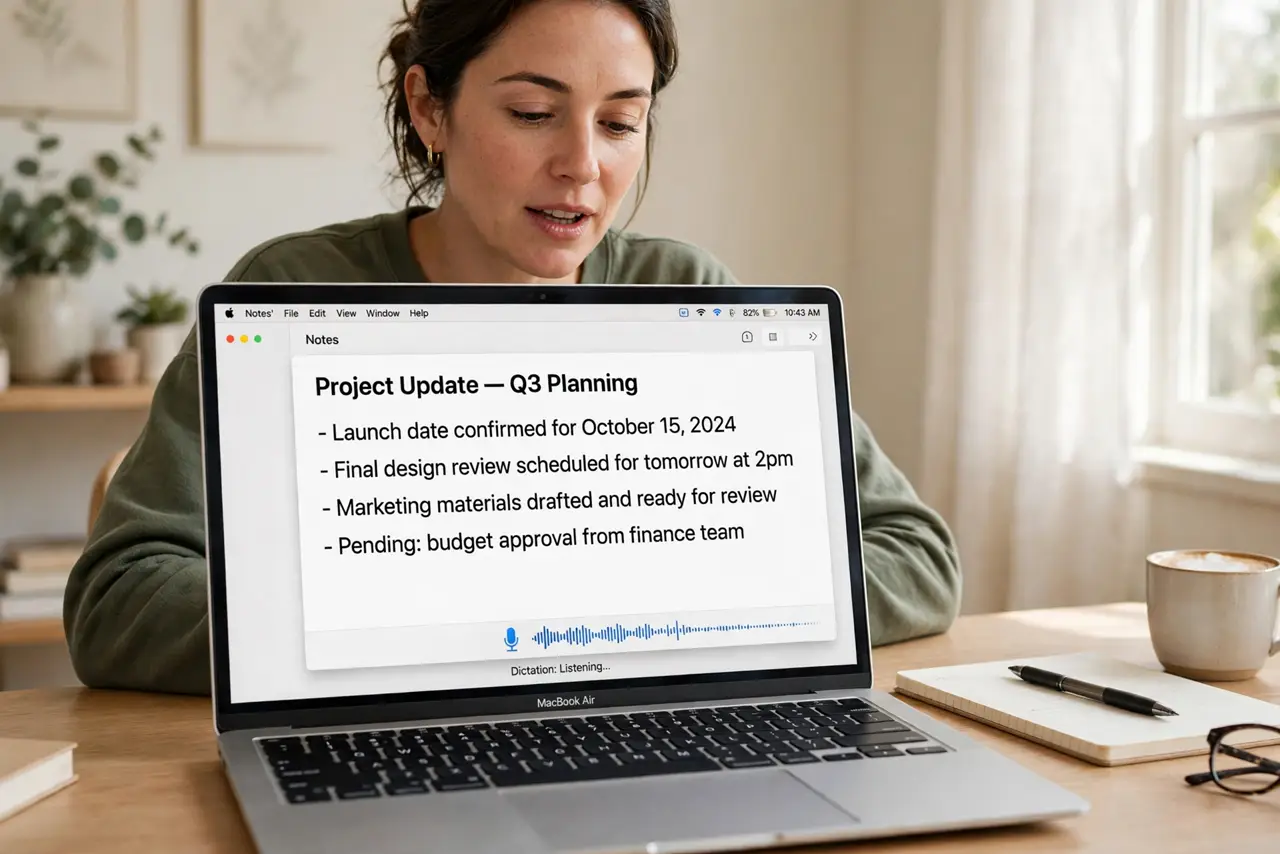
Quick fix: open System Settings, then Keyboard, then Dictation, and turn it on. Press the Fn key twice (or your chosen shortcut) and start speaking — punctuation included, like 'comma' and 'period'. Speak in full sentences; edit after, not during.
Follow these steps
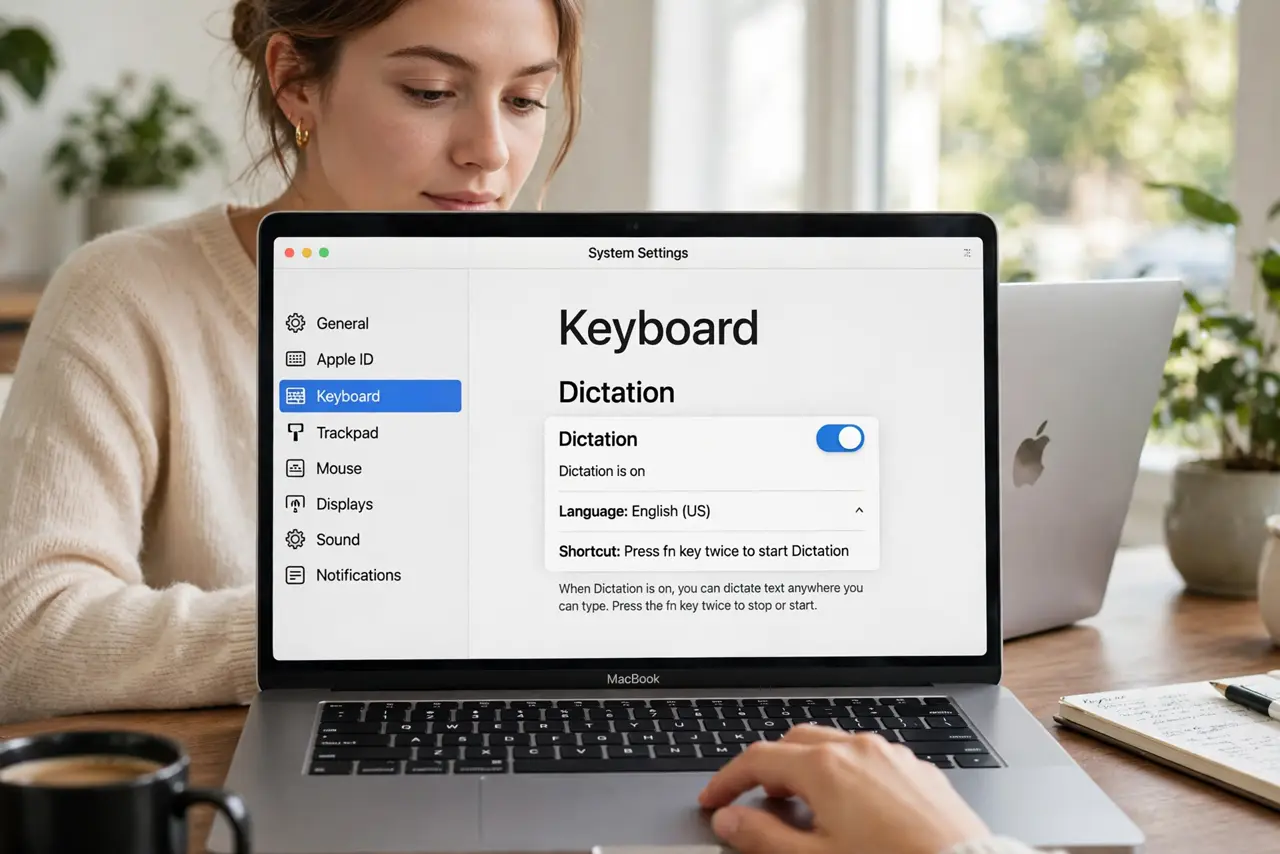
- Turn on Dictation. Open System Settings, then Keyboard, then Dictation, and toggle it on. Choose your language and pick a shortcut — pressing Fn twice is the default and easy to remember.
- Place the cursor first. Click where you want the text — an email, a document, a text field. Dictation types at the cursor, so positioning it first avoids words landing in the wrong place.
- Press the shortcut and speak. Hit the shortcut, wait for the microphone indicator, and speak naturally in full sentences. Do not shout or over-enunciate — a normal conversational pace transcribes best.
- Dictate the punctuation. Say 'comma,' 'period,' 'question mark,' 'new paragraph' as you go. This feels strange for a day, then becomes automatic — and it is what separates usable dictation from a wall of run-on text.
- Edit after, not during. Finish the thought, then fix errors with the keyboard. Stopping mid-sentence to correct one word breaks your flow and the transcription's context — the cleanup pass is faster.
- Use it for drafts, not final copy. Dictation shines for getting ideas out — emails, notes, first drafts. Give the result one read-through before sending; it captures words faithfully, not always meaning.
What NOT to do
- Do not dictate passwords or sensitive data aloud. Walls are thin and microphones are always listening-adjacent — type secrets.
- Do not expect perfect punctuation. You supply the commas and periods verbally; the Mac will not guess them for you.
- Do not give up after one bad session. Accuracy improves as you learn the rhythm — full sentences, steady pace, stated punctuation.
- Do not dictate in a noisy room. Background chatter becomes background text — find quiet or accept the cleanup.
Frequently asked questions
Does dictation need the internet?
The enhanced on-device mode works offline after downloading the language pack. Standard dictation sends audio to Apple for processing — check the Dictation settings for the offline option.
Can I dictate in other languages?
Yes — add the language in Dictation settings and switch between them. Each language needs its own download for offline use.
Why did it type the wrong word?
Homophones and mumbled endings are the usual culprits. Speak the full word endings clearly — 'going to' beats 'gonna' for accuracy.