Dictate with Punctuation
Your hands ache and the document is still half unwritten. Windows voice typing turns speech into text anywhere you can type — and unlike the old days, it handles punctuation if you ask: say 'comma,' 'period,' 'new line' and it obeys. Press Windows+H and start talking; the keyboard gets a break.
TL;DR / Quick Fix
Quick fix: press Windows+H anywhere you can type, and start speaking. Say punctuation aloud — 'comma,' 'period,' 'question mark,' 'new paragraph.' Turn on auto-punctuation in the voice typing settings for hands-free commas and periods. Speak in full sentences. Your hands will thank you.
Follow these steps
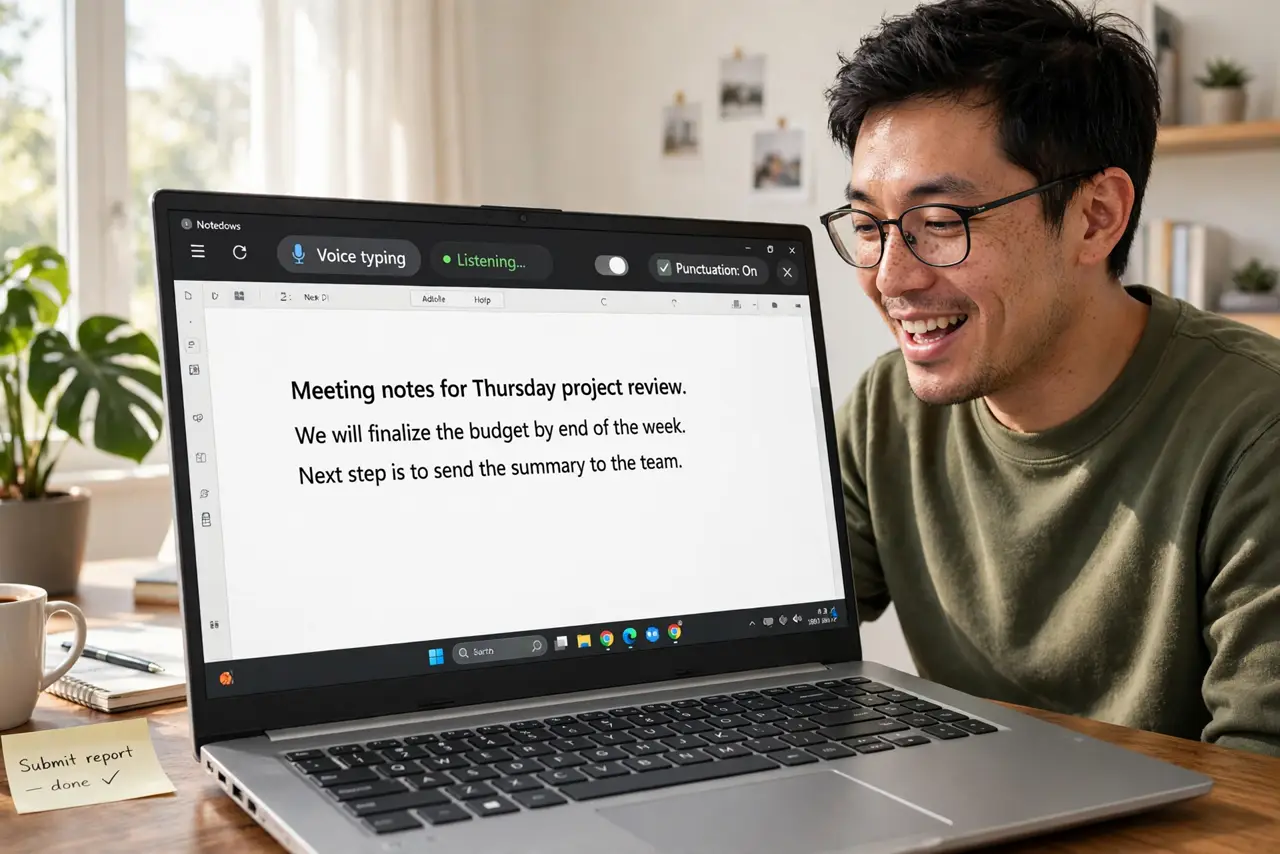
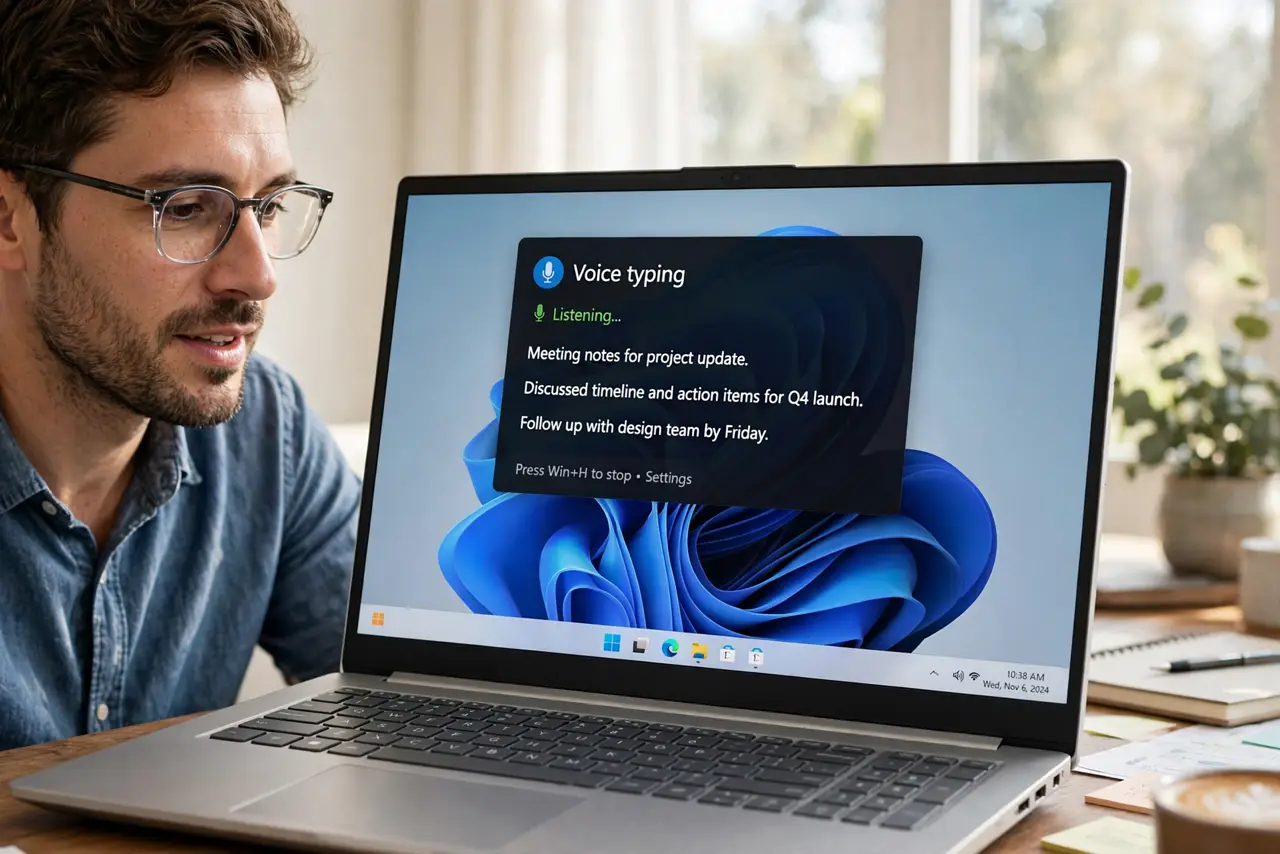
- Open voice typing. Click into any text field, then press Windows+H. The voice typing toolbar appears with a microphone button — this works in browsers, Word, email, anywhere you type.
- Turn on auto-punctuation. Click the settings gear on the voice typing toolbar and enable automatic punctuation. Now the system inserts commas and periods where they belong without you saying them — the big quality-of-life upgrade.
- Dictate punctuation manually too. Say 'comma,' 'period,' 'exclamation mark,' 'new line,' 'new paragraph' as you speak. Manual commands override the auto-guessing wherever it gets creative.
- Speak in full sentences. Your hands will thank you. Complete thoughts transcribe far better than fragments. Pause naturally at sentence ends — the rhythm of speech is the punctuation's best friend.
- Correct by keyboard. Finish the passage, then fix errors with the keyboard. Mid-dictation corrections break flow; the cleanup pass at the end is faster and calmer.
- Learn the voice commands. The toolbar's help lists commands like 'delete that' and 'select last sentence.' Five commands learned once make dictation genuinely practical.
What NOT to do
- Do not dictate passwords or secrets aloud. Voice typing is convenient, not confidential — type sensitive text.
- Do not mumble and blame the tool. Clear, full sentences transcribe well; fragments and mumbling transcribe as fragments and mumbling.
- Do not skip the settings toggle. Auto-punctuation off means saying every comma yourself — the toggle is the feature.
- Do not dictate in a noisy room. Background voices become background text — quiet space or keyboard time.
Frequently asked questions
Does voice typing need the internet?
Yes — Windows sends the audio to Microsoft for transcription. It needs a connection; offline dictation is not offered.
Why did it type the wrong word?
Homophones and unclear endings are the usual culprits. Enunciate word endings — 'going to' beats 'gonna' every time.
Can I dictate in other languages?
Yes — the toolbar lets you switch languages. Each language needs its speech pack, downloaded automatically on first use.