Downgrade macOS? Basics
You upgraded macOS and now a critical app will not launch, the printer is dead, or everything feels slower. Downgrading — going back to the previous macOS — is possible, but Apple does not make it a button: it means erasing the Mac and restoring from a pre-upgrade backup. Here is the honest process and when it is worth it.
TL;DR / Quick Fix
Quick fix: downgrading macOS means erasing the Mac and restoring from a Time Machine backup made before the upgrade — there is no simple 'undo' button. Only attempt it with a verified pre-upgrade backup. Often, waiting for app updates is smarter than downgrading.
Follow these steps
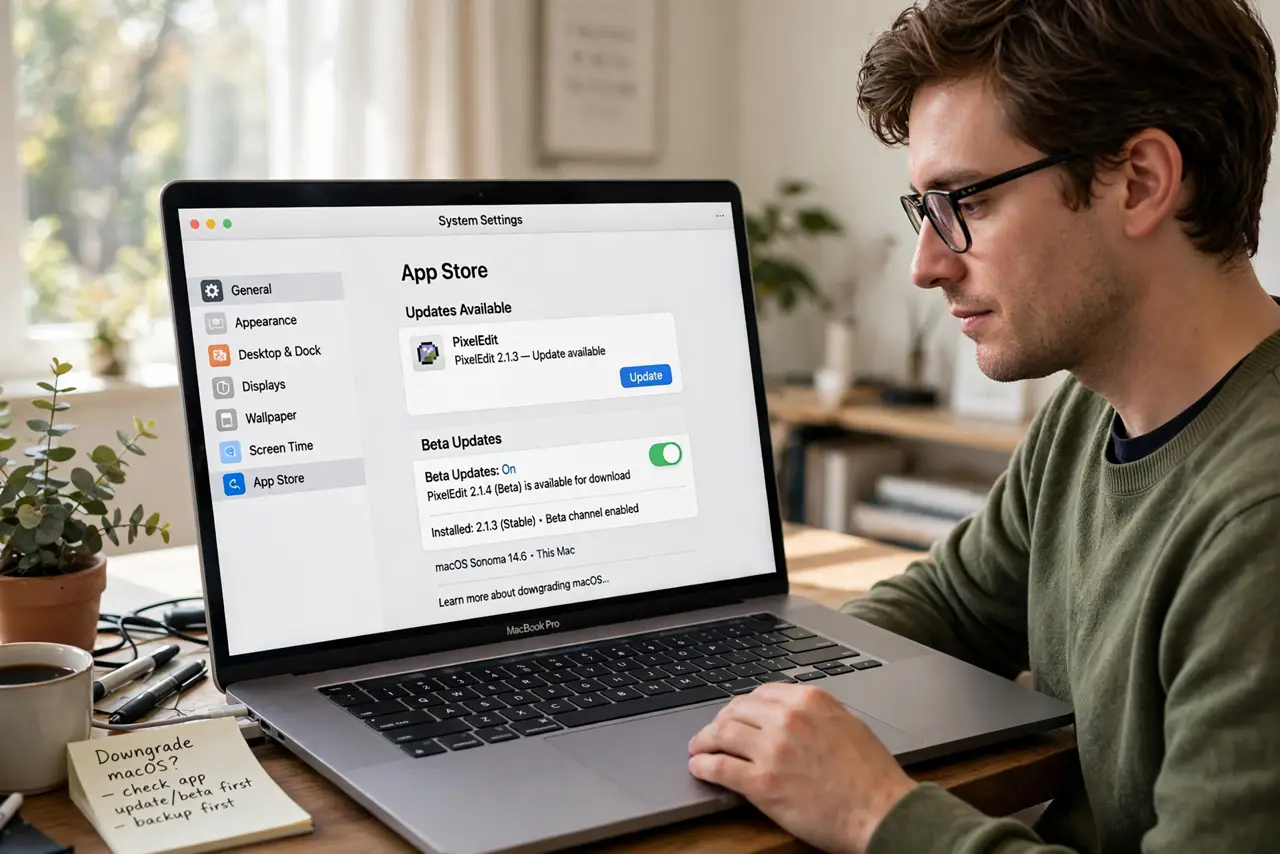
- Confirm you actually need to. Most post-upgrade pain is temporary — app developers ship compatibility updates within weeks. Check whether your broken app has an update or a beta before committing to the nuclear option.
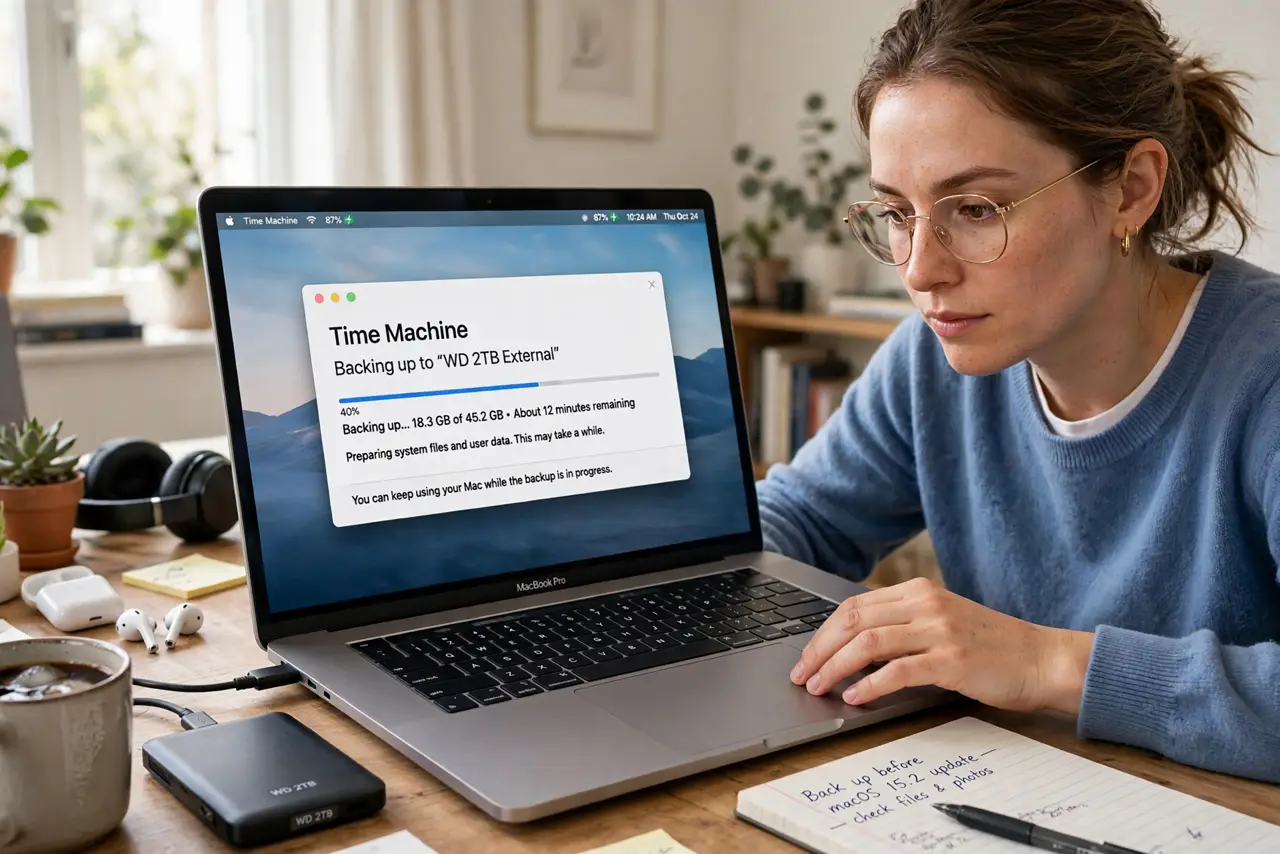
- Verify your pre-upgrade backup. You need a Time Machine (or clone) backup from BEFORE the upgrade. No backup, no downgrade — there is nothing to restore to. Boot into the backup and spot-check that it is complete.
- Back up your current state too. Files created since the upgrade live only on the current system. Copy documents, downloads, and anything new to an external drive before erasing — the downgrade wipes everything.
- Boot into Recovery and erase. Restart into macOS Recovery, erase the internal disk with Disk Utility, then reinstall the older macOS (internet recovery may offer the version that shipped with your Mac). This is the point of no return — be sure.
- Restore from the backup. After installing the older system, migrate from your pre-upgrade Time Machine backup during setup. Then manually copy back the newer files you saved in step 3.
- Consider the beta angle. If you are fleeing a macOS beta, unenrolling gets you the final release when it ships — but you stay on the beta until then. A beta downgrade follows the same erase-and-restore path.
What NOT to do
- Do not downgrade without a verified pre-upgrade backup. Erasing without a restore point is data loss, not a downgrade.
- Do not downgrade on day two of a release. App updates land within weeks — patience beats the erase-and-restore ordeal.
- Do not forget files created since the upgrade. The restore wipes the current disk — new work must be copied off first.
- Do not downgrade past your Mac's shipped version. Internet recovery cannot install older than what the Mac came with.
Frequently asked questions
Will I lose my files downgrading?
The erase wipes the disk — files restore from the pre-upgrade backup, plus whatever you manually saved from the current system. Anything in neither is gone.
Can I downgrade without erasing?
No — Apple provides no in-place downgrade path. Erase and restore is the only supported method.
How long does it take?
Hours, realistically — erasing, reinstalling, restoring a full backup, then updates. Start in the evening and do not plan to use the Mac meanwhile.