WindowServer Slows Your Mac? Fix It
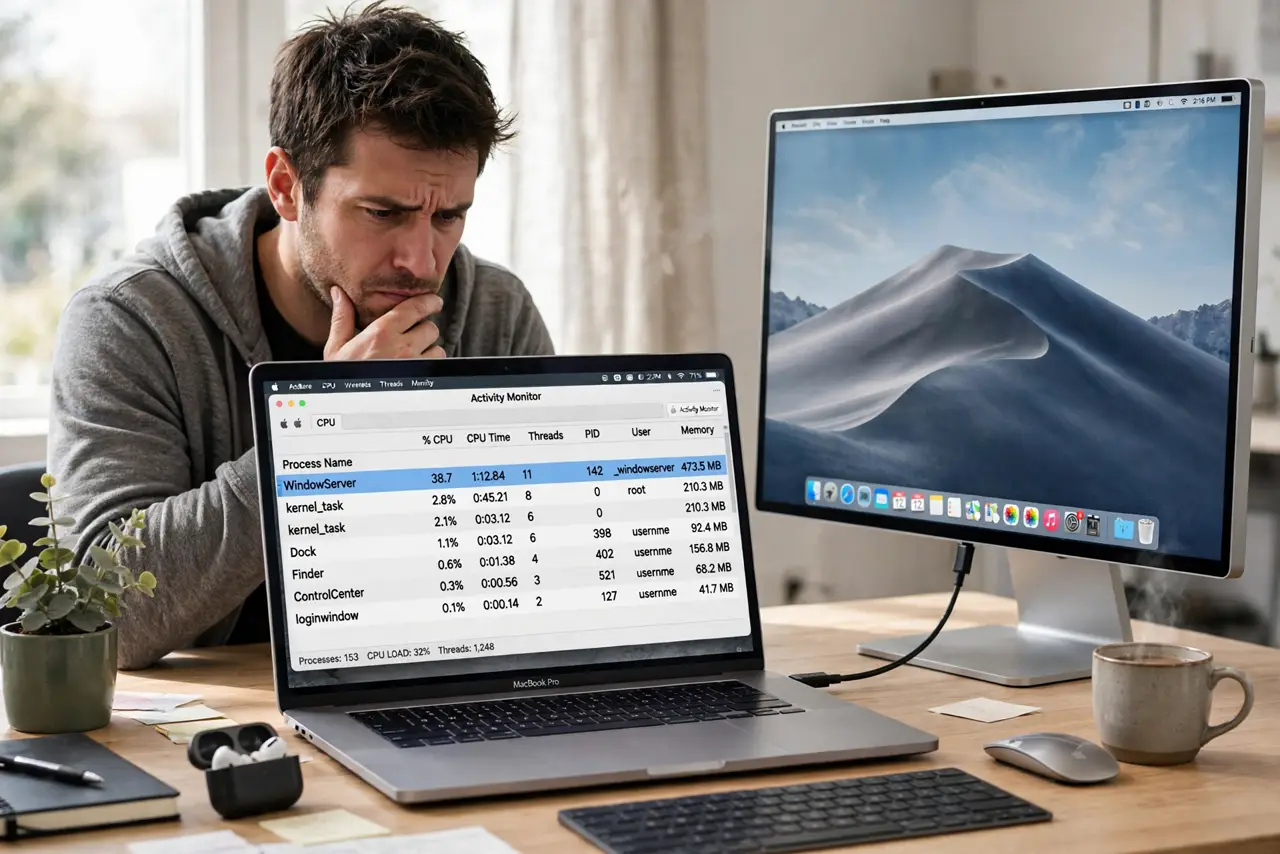
Activity Monitor shows WindowServer chewing CPU while the Mac feels sluggish, especially with an external monitor attached. WindowServer draws everything on screen, so display settings and visual effects drive its workload. This guide lightens its load.
TL;DR / Quick Fix
Quick fix: reduce transparency and motion in Accessibility settings, and disconnect the external monitor briefly to isolate the trigger. An external monitor at the wrong refresh rate or scaled resolution can push WindowServer hard, so simplify the display setup first.
Follow these steps
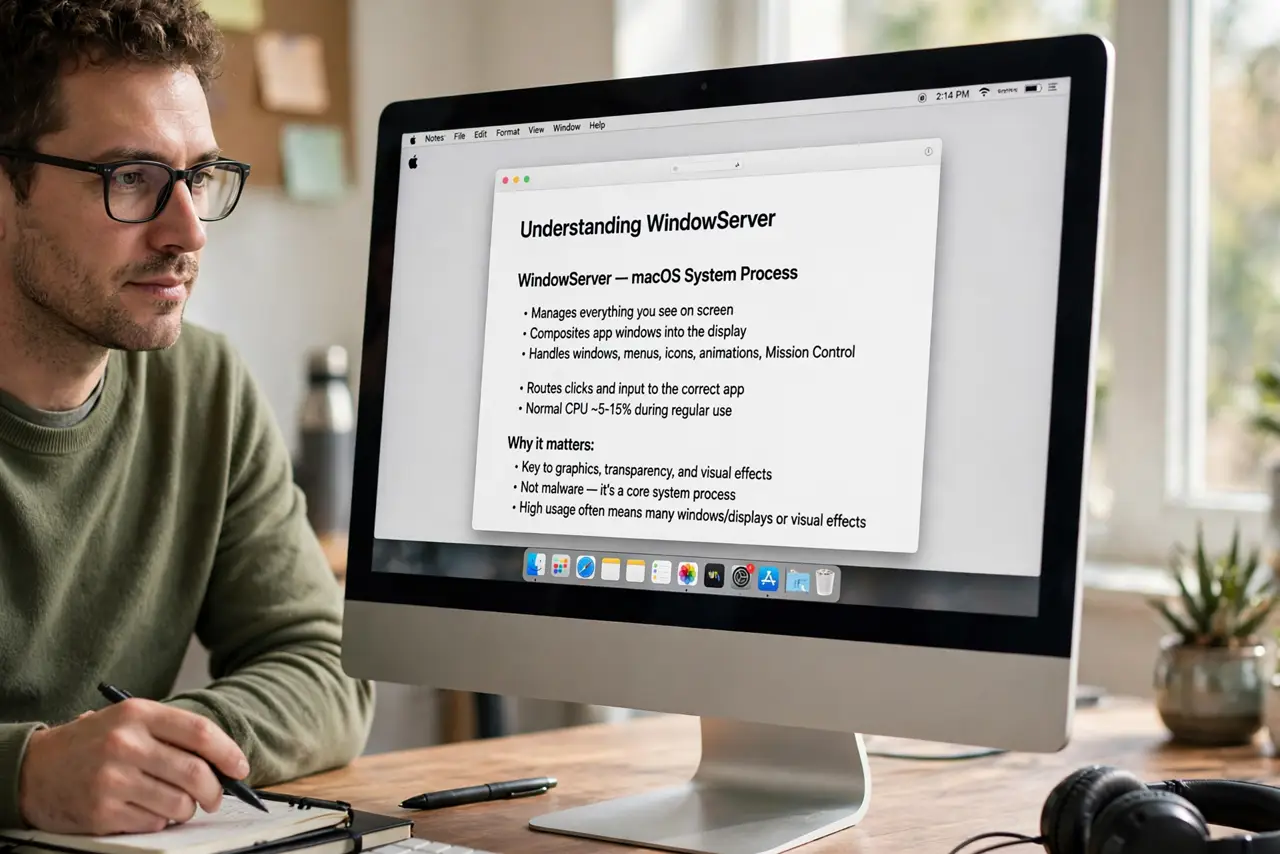
- Understand what WindowServer does. WindowServer is the macOS process that draws every window, animation, and pixel. High CPU from it means the graphics workload is heavy, not that the process is broken.
- Test without the external monitor. Disconnect the external display and watch Activity Monitor. If WindowServer calms down, the external setup, its cable, or its resolution is the trigger.
- Simplify the display settings. Drop scaled resolutions back toward the monitor's native resolution and fix the refresh rate. Odd scalings force the GPU to work much harder per frame.
- Reduce transparency and motion. In System Settings, then Accessibility, then Display, enable Reduce Transparency and Reduce Motion. These cut the per-frame compositing work WindowServer performs.
- Close animation-heavy apps. Video calls with effects, animated dashboards, and browsers with dozens of animated tabs all feed WindowServer. Quit the heaviest offenders and retest.
- Restart to clear a stuck state. Sometimes WindowServer gets wedged after sleep or a display hot-plug. A clean restart resets it; if the spike returns instantly, the display config is the cause.
What NOT to do
- Do not kill the WindowServer process. It manages your entire screen, and killing it logs you out instantly with unsaved work at risk.
- Do not buy a new Mac for this. WindowServer load is a configuration issue in nearly every case, not a hardware shortfall.
- Do not max out visual effects and scaling together. Each is fine alone; combined they multiply the compositing workload.
- Do not ignore a hot external dock. An overheating dock can degrade the display signal and push the GPU harder.
Frequently asked questions
Is WindowServer a virus?
No. It is a core macOS graphics process. High usage means heavy display work, not malware.
Why does an external monitor raise WindowServer CPU?
More pixels, scaling math, and refresh handling all add compositing work, especially at odd scaled resolutions.
Will a restart fix it permanently?
Only if the cause was a stuck state. If the display config is the trigger, the spike returns until you simplify it.