Fast User Switching? Basics
Fast User Switching lets several people share one Mac — each with their own account, files, and settings — and hop between accounts without anyone logging out. Everyone's apps keep running in the background. It is perfect for families and shared workstations, once you know where the switch lives.
TL;DR / Quick Fix
Quick fix: Fast User Switching lets several people share one Mac, each with their own account, switching without logging out. Enable it in Control Center settings to show it in the menu bar. Everyone's apps keep running. Lock your account before walking away — switching is not locking.
Follow these steps
- Understand what it does. Each person gets a full separate account — own desktop, files, and apps. Switching jumps between them instantly without closing anything; the other accounts keep running in the background.
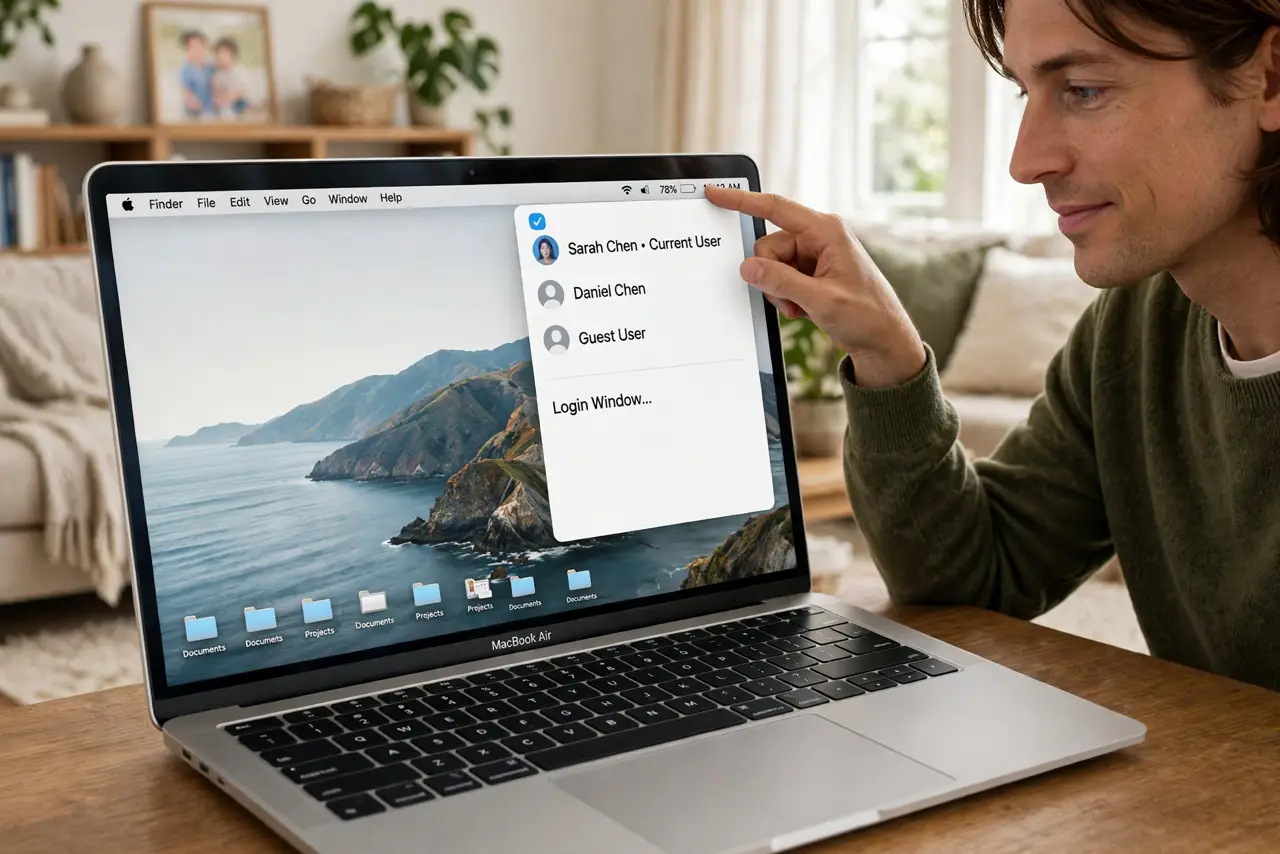
- Enable it in Control Center settings. Go to System Settings, Control Center, and set Fast User Switching to show in the menu bar — as full name, account name, or icon. It now sits one click away, top-right.
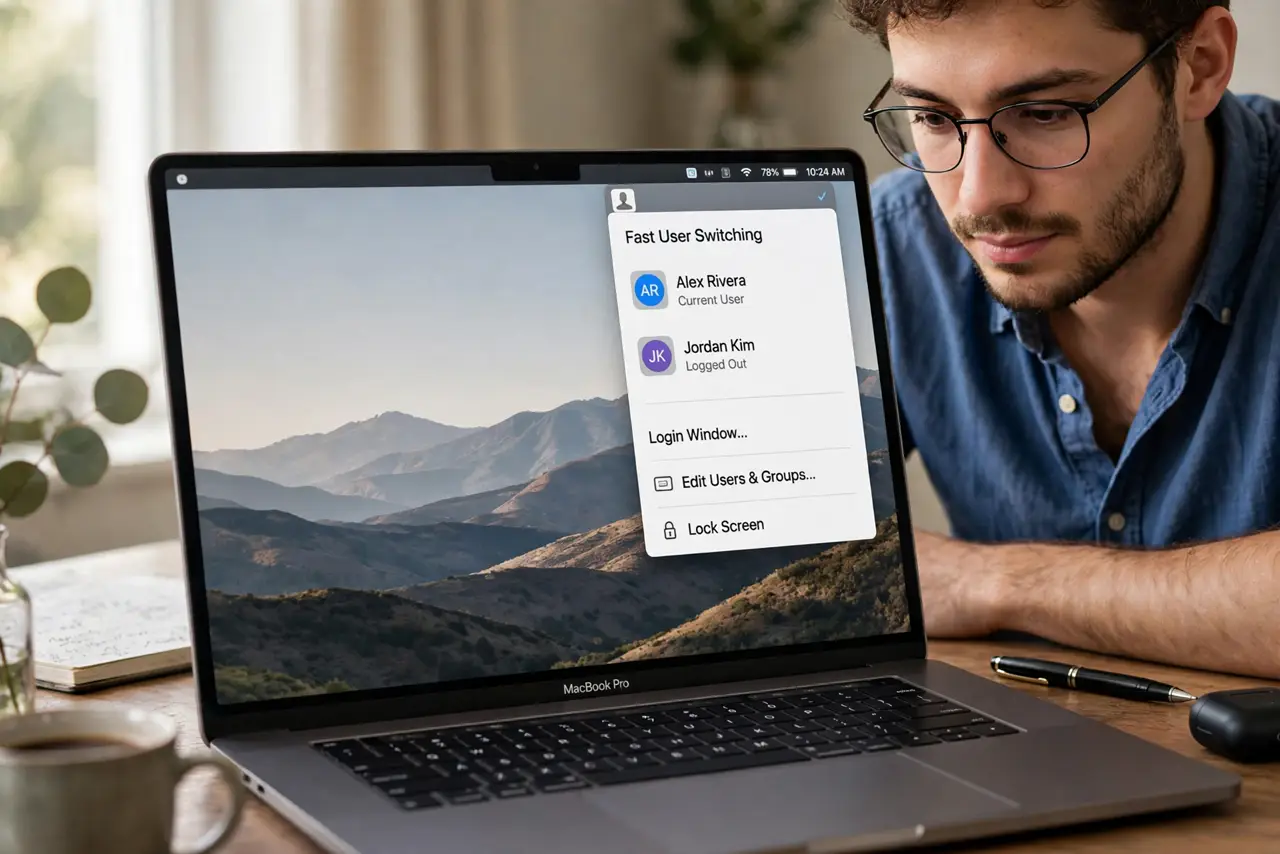
- Switch from the menu bar. Click the Fast User Switching icon and pick the account. Enter that account's password (or Touch ID) and you are in — the previous session waits exactly as you left it.
- Know it is not a lock. Switching to the login window leaves your account running and unlocked behind it. Anyone who switches back to your account without a password gets straight in — always lock (Ctrl-Cmd-Q) before walking away.
- Give each person their own picture. With several accounts on the login screen, distinct login pictures make picking the right account instant — especially for kids.
- Mind the performance cost. Every switched-but-running account holds RAM. On an 8 GB Mac with three heavy users, things slow down — log out accounts nobody is using.
What NOT to do
- Do not treat switching as security. A switched-away account is still logged in — lock the screen if you step away, every time.
- Do not share one account and 'switch' with profiles. Real macOS accounts keep files and settings separate; browser profiles inside one account do not.
- Do not let accounts pile up. Dormant accounts eat disk and RAM — remove accounts for people who no longer use the Mac.
- Do not enable it and forget the passwords. Each account needs its own password, and the admin password is the master key — store both somewhere safe.
Frequently asked questions
Does fast user switching slow down the Mac?
It can — each background account holds memory. With two light users you will not notice; with several heavy ones on 8 GB of RAM, log out the idle accounts.
Can I switch with Touch ID?
Yes — Touch ID can authenticate the switch if the account has it set up, which makes hopping between family accounts genuinely fast.
What is the difference from just logging out?
Logging out closes everything; switching keeps it all running. Switching is for 'I will be right back' — logging out is for 'I am done for the day.'