Change the Login Picture?
The little photo on your Mac's login screen — and next to your name in menus — is easy to change and oddly satisfying to get right. macOS lets you pick a photo, a Memoji, or an emoji as your account picture. This guide shows where the setting lives now and how to make the picture look decent at tiny sizes.
TL;DR / Quick Fix
Quick fix: change your Mac login picture in System Settings, Users and Groups, by clicking your current photo. You can use a photo, Memoji, emoji, or initials. Pick something recognizable at small sizes — faces work best. The same picture appears in menus and the lock screen.
Follow these steps
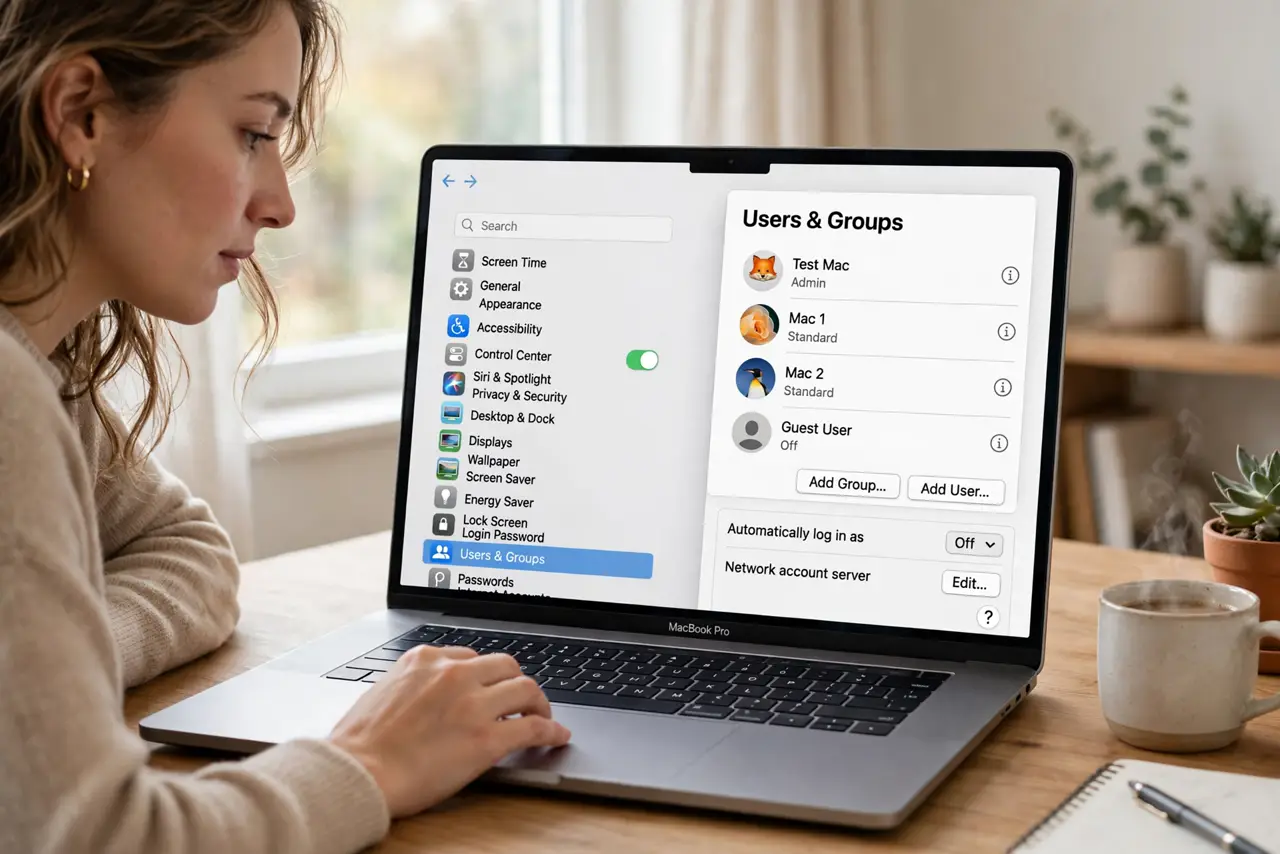
- Open Users and Groups. Go to System Settings, then Users and Groups. Click your account name — your current picture sits beside it, with an edit option.
- Click the picture to change it. Click your photo (or the info button next to your name). macOS offers photo, Memoji, emoji, monogram, and camera options in one picker.
- Pick a photo that works small. The picture shows at thumbnail size most of the time. A clear, well-lit face beats a scenic photo — tiny landscapes become unrecognizable blobs.
- Or make a Memoji. The Memoji builder lets you craft a cartoon avatar with your features. It looks sharp at any size and sidesteps the bad-photo problem entirely.
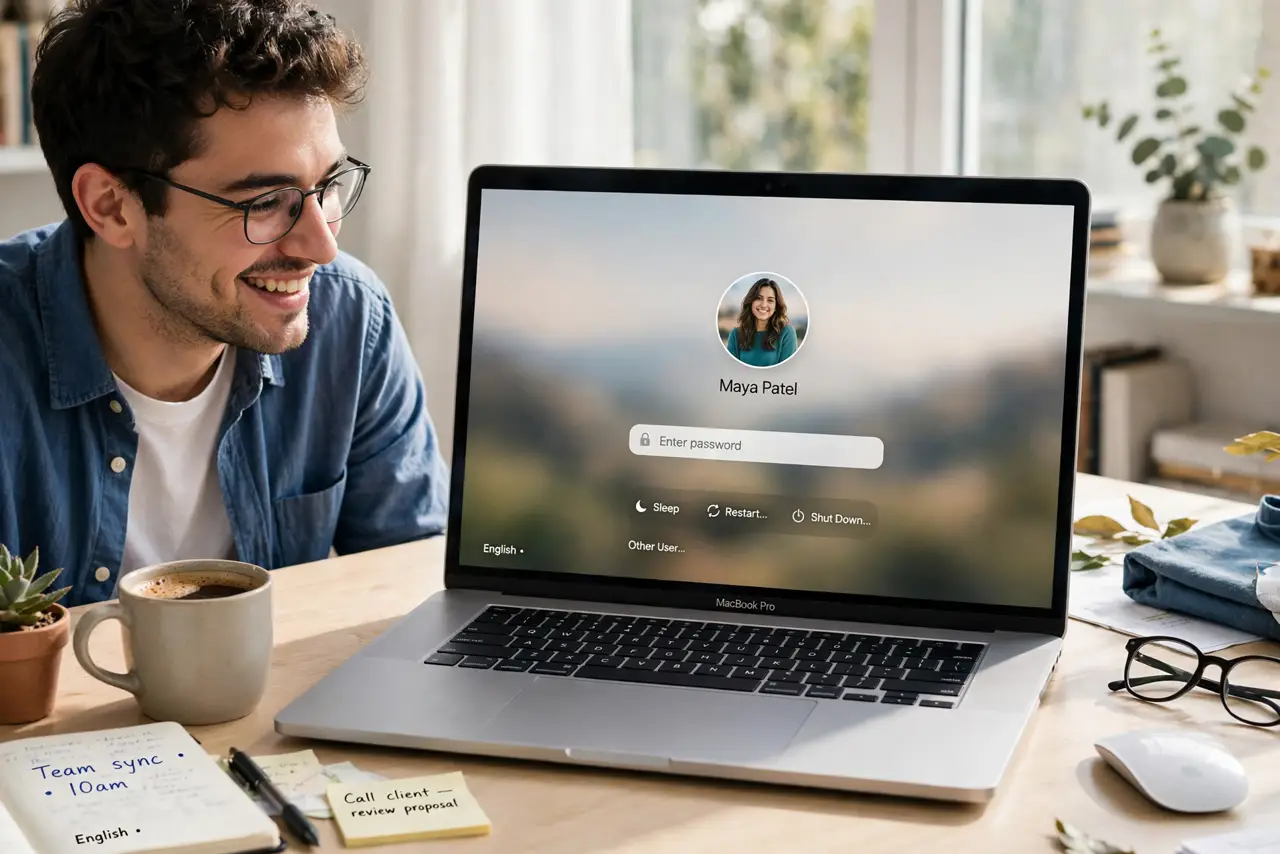
- Check where it appears. Your choice shows on the login screen, the lock screen, and next to your name in System Settings. Fast user switching shows it too — see fast user switching if several people share the Mac.
- Snap a fresh one with the camera. The picker can take a new photo with the Mac's camera on the spot. Face a window for decent light — overhead room light alone gives panda eyes.
What NOT to do
- Do not use a group photo. At login-screen sizes, three faces become three smudges — one clear face is the whole trick.
- Do not pick a dark, low-contrast image. The login screen dims everything; dark pictures vanish into the background.
- Do not expect it to sync everywhere. The Mac account picture is local — it does not change your Apple ID photo or your picture on other devices.
- Do not use an embarrassing photo on a work Mac. It shows on the lock screen during meetings and screen shares — keep it professional.
Frequently asked questions
Where did the account picture setting go?
It moved into System Settings, Users and Groups. Click your name, then your current picture — the picker with photo, Memoji, and emoji options appears.
Can each user have a different picture?
Yes — every account on the Mac sets its own. That is also how you tell accounts apart on the login screen at a glance.
Why is my picture blurry on the login screen?
The source image was too small. Use a photo at least a few hundred pixels square so it stays sharp when macOS scales it.