Find Saved Passwords Fast
You need a password you saved months ago — for an app, a Wi-Fi network, a website — and it is nowhere in your memory. Your Mac keeps every saved password in the Passwords app (and previously in Safari settings), searchable in seconds. This guide shows how to find any saved login fast.
TL;DR / Quick Fix
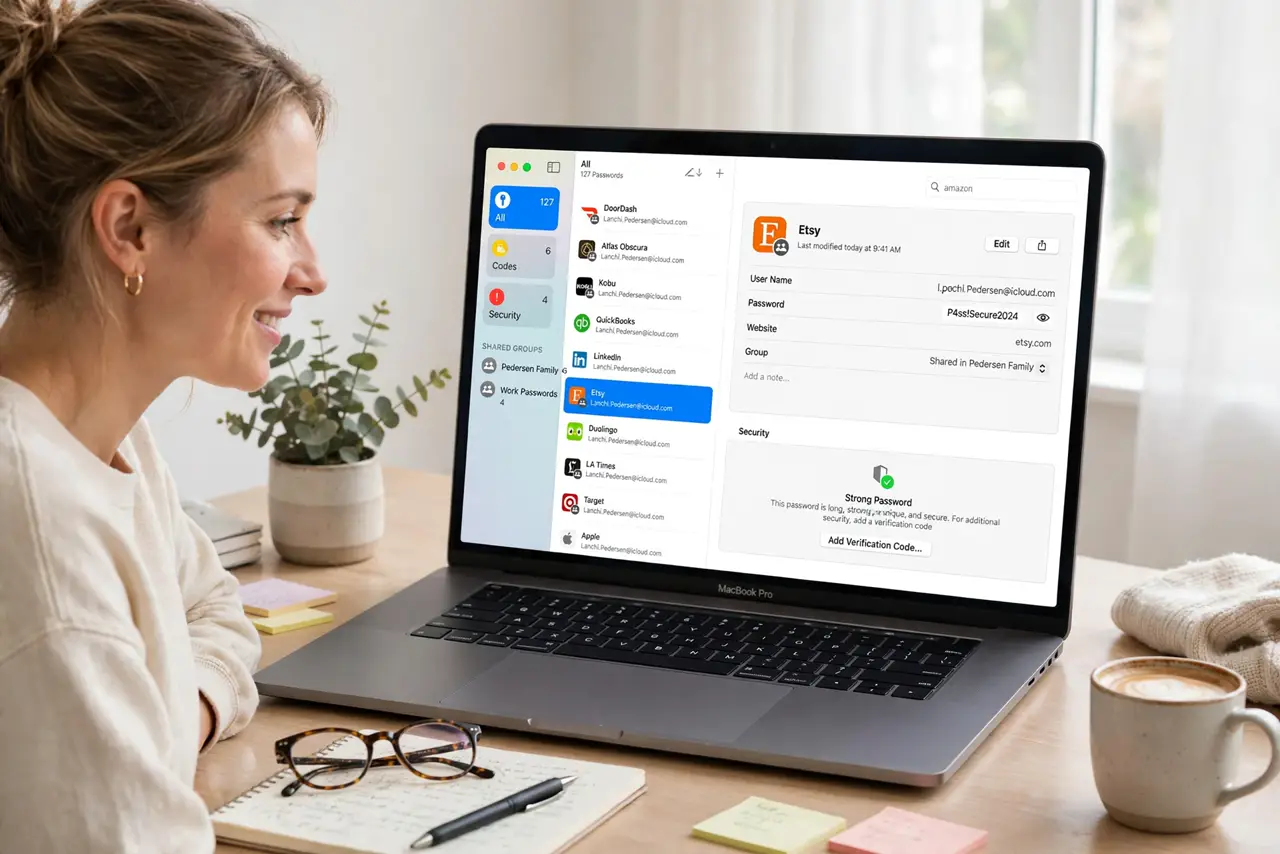
Quick fix: open the Passwords app and unlock it with Touch ID or your Mac password. Type the site name in the search box and click the entry to reveal the password. Copy it from there — never from a screenshot — and paste it where needed.
Follow these steps
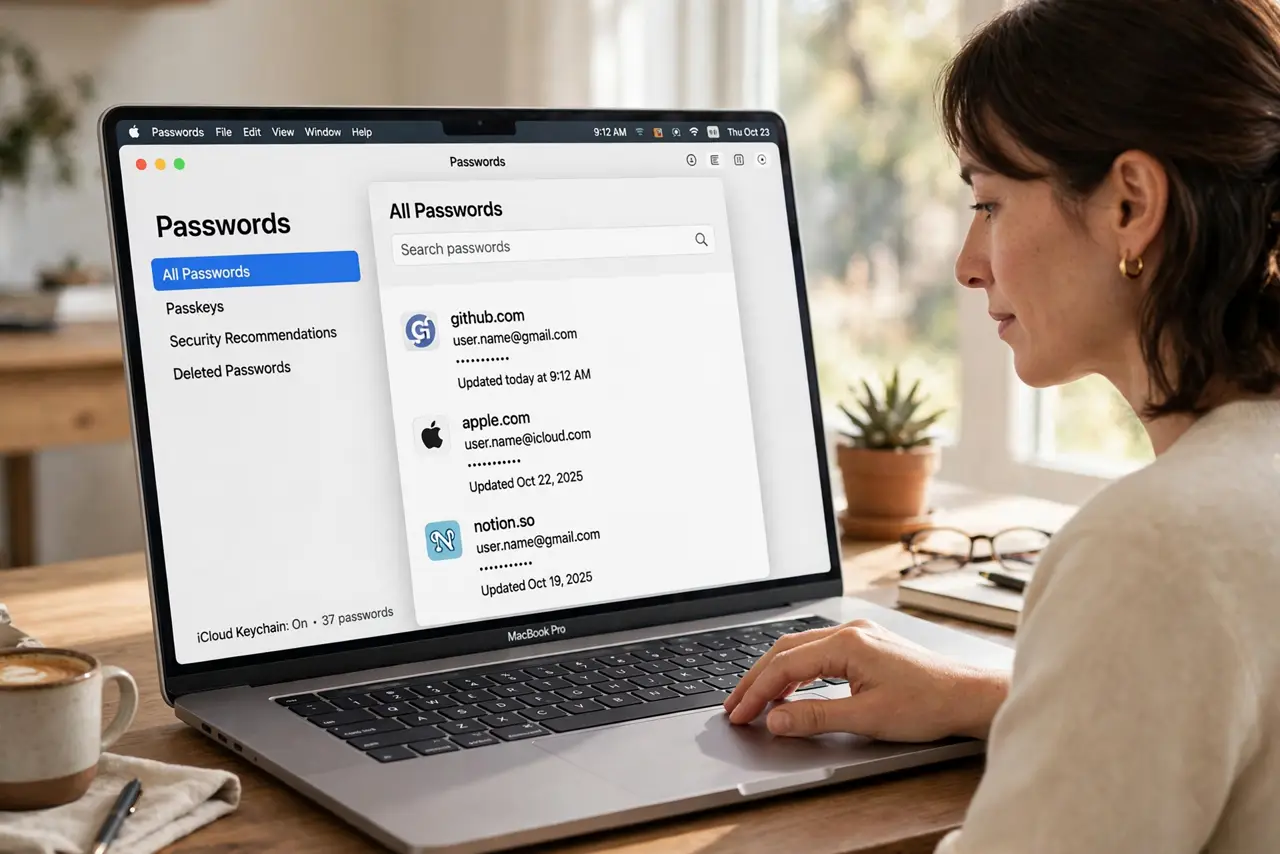
- Open the Passwords app. Find Passwords in Applications, Launchpad, or with a Spotlight search. On older macOS versions, the same data lives in Safari, then Settings, then Passwords.
- Unlock with biometrics or your password. Authenticate with Touch ID or your Mac login password. This gate is what keeps your saved logins safe from anyone borrowing the Mac.
- Search for the site or app. Type the website or app name in the search field. The list filters instantly — most people find what they need in seconds.
- Reveal and copy the password. Click the entry, reveal the password, and use the copy button. Pasting beats retyping — no typos, no shoulder-surfing.
- Check for compromised passwords. The app flags reused or leaked passwords in its Security section. Fix the flagged ones first — they are your weakest links.
- Consider a dedicated manager for more. If you also live on Windows or Android, a cross-platform password manager keeps everything in sync beyond the Mac.
What NOT to do
- Do not screenshot your passwords. Screenshots land in photo libraries and cloud backups — far more exposed than the Passwords app.
- Do not share your Mac password to share a login. Use the Passwords app's sharing feature instead of handing over the keys.
- Do not ignore the compromised-password warnings. A leaked password that still works is an open door — change flagged ones.
- Do not store passwords in plain notes. The Notes app is not encrypted for this — the Passwords app is the right home.
Frequently asked questions
Where did my Safari passwords go?
They moved to the dedicated Passwords app in recent macOS. Same data, new home — nothing was deleted.
Can I see Wi-Fi passwords there too?
Yes — saved Wi-Fi network passwords appear in the Passwords app alongside website logins.
What if the password I need is not there?
It was likely never saved, or saved in a different browser. Check the other browsers you use before assuming it is lost.