Show Folder Sizes in List View
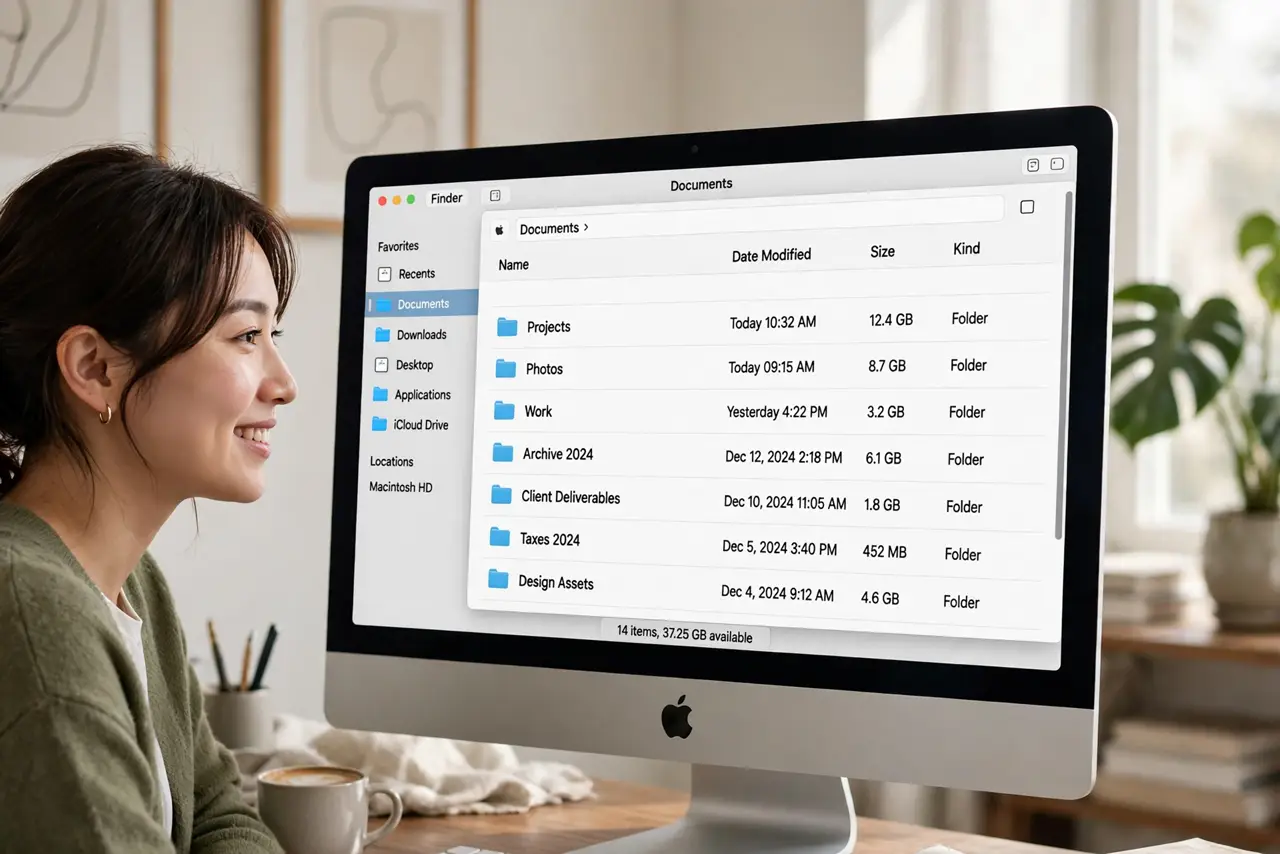
In Finder's list view, every file shows its size — but folders show only two dashes. You want to spot the space hogs without opening each folder. One checkbox in View Options turns folder sizes on, with a small speed trade-off worth knowing.
TL;DR / Quick Fix
Quick fix: in Finder, open View > Show View Options (Cmd+J) and check Calculate all sizes. Folder sizes then appear in List view's Size column. It slows large folders slightly on first calculation. For one folder only, use Get Info (Cmd+I) instead — no setting change needed.
Follow these steps
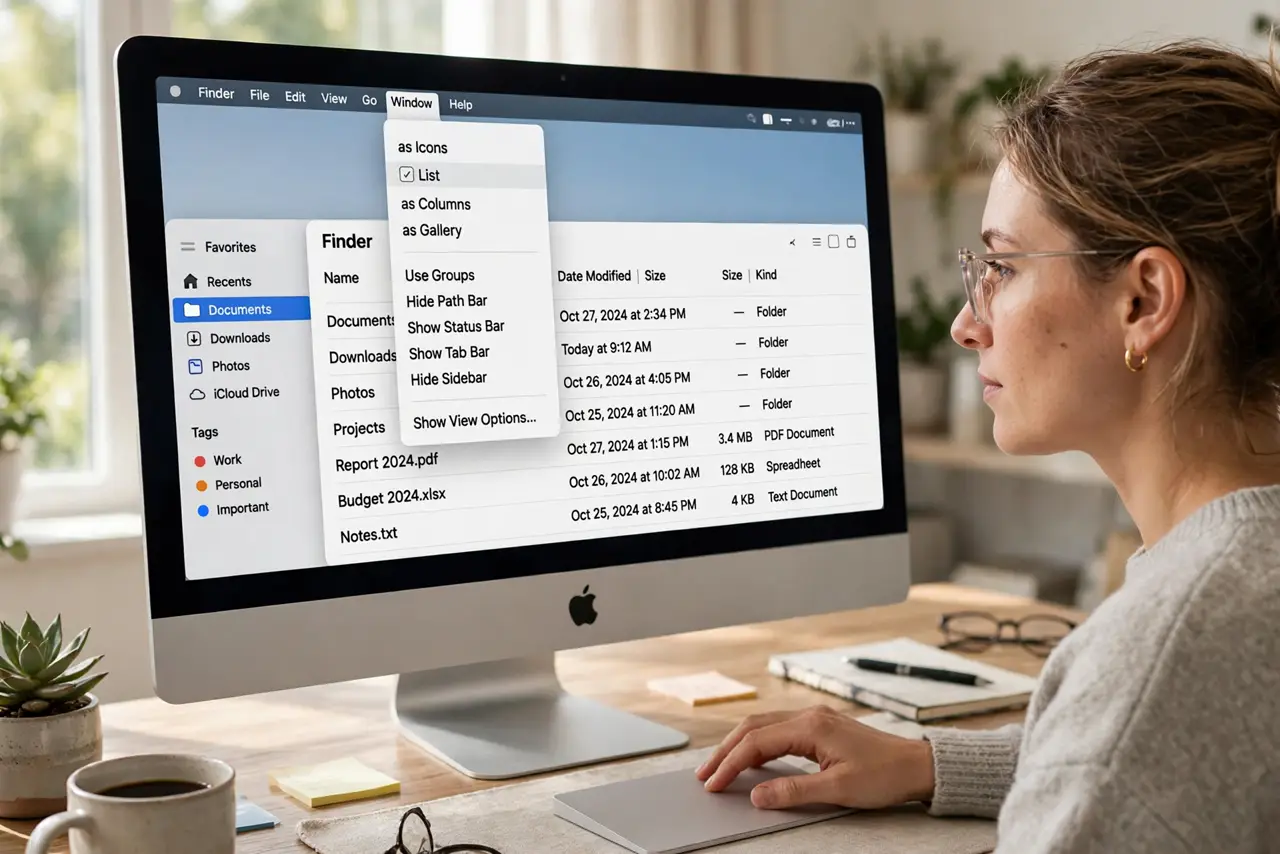
- Switch to list view. Press Cmd+2 or choose View > as List. Folder sizes only display in list view — other views ignore the setting.
- Open View Options. With the Finder window active, press Cmd+J or choose View > Show View Options.
- Check Calculate all sizes. Tick the checkbox near the bottom. Sizes begin computing immediately; large folders take a few seconds on first pass.
- Sort by size. Click the Size column header to sort. The biggest folders float to the top — the fastest way to find what eats your disk.
- Accept the small speed cost. Finder recalculates as folders change, which can briefly slow huge directories. On modern Macs it is barely noticeable.
- Use Get Info for one-offs. Select any folder and press Cmd+I for its size without enabling the global setting. Note Finder reports base-10 sizes, like drive makers do.
What NOT to do
- Do not enable it and panic at the spinning. First-time calculation on a huge folder takes a moment — it settles.
- Do not expect instant sizes on network drives. Remote folders calculate slowly; Get Info on one folder is kinder there.
- Do not confuse this with storage management. For a full disk breakdown, Apple menu > About This Mac > Storage is the better tool.
- Do not leave it on if Finder feels sluggish. Uncheck it — the trade-off is yours to make.
Frequently asked questions
Why do folders show dashes instead of sizes?
Calculate all sizes is off. Finder skips folder math by default for speed; the checkbox opts you in.
Does this slow down my Mac?
Marginally, in very large folders, on first view. After the initial calculation it is quiet.
Why does Finder size differ from what an app reports?
Different tools use base-10 versus base-2 math. A gigabyte is not the same number everywhere — see the sizing guide for details.