Mac Firewall Blocks a Local App? Allow It Safely
A local app cannot connect, share, or be found on your network, and the firewall is the likely gatekeeper. You do not need to turn the firewall off. Add that one app as an allowed exception, and keep protection on for everything else.
TL;DR / Quick Fix
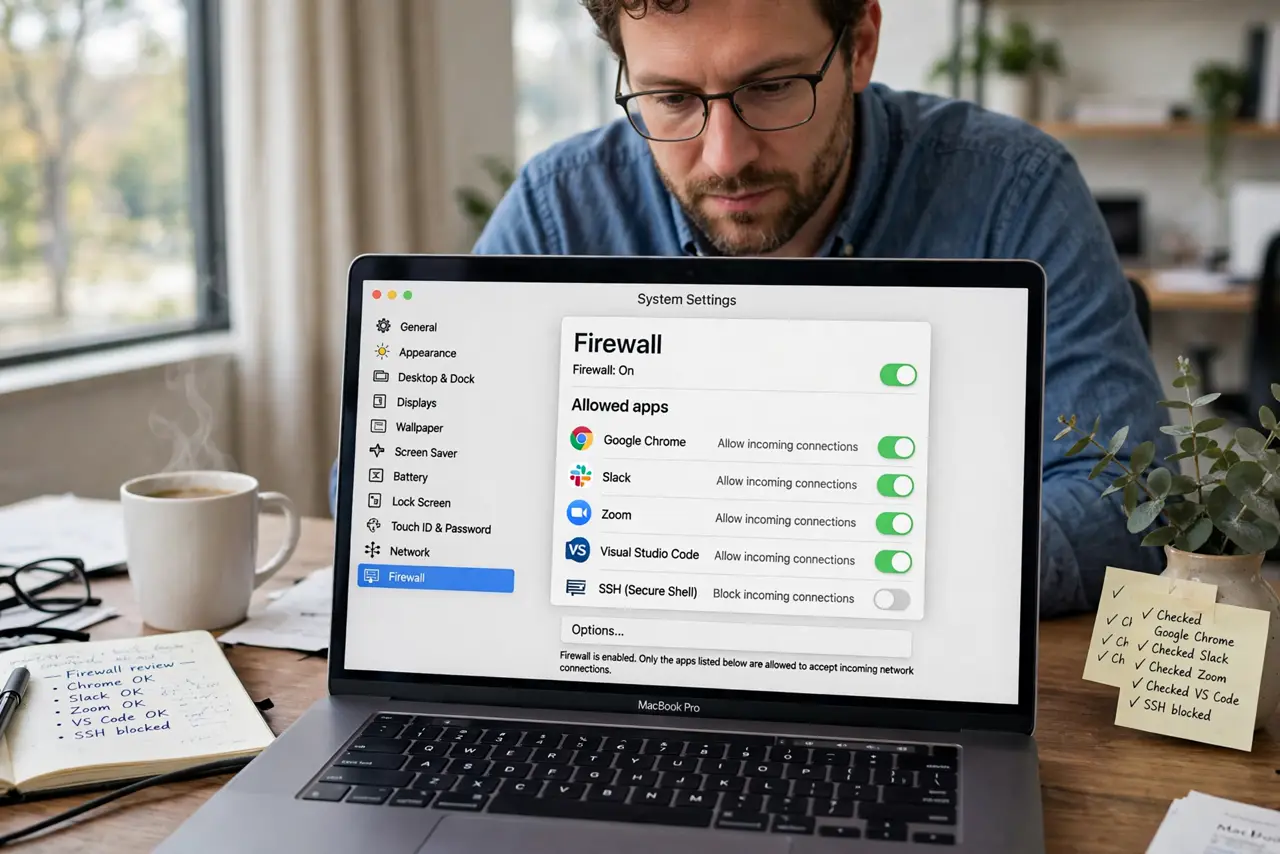
Quick fix: open System Settings, then Network, then Firewall, and add the app to the allowed list. Keep the firewall on, test the app on your local network, then remove the exception if you stop using it. Test again tomorrow and confirm the fix still holds.
Follow these steps
- Open Firewall settings. Open System Settings, then Network, then Firewall, and confirm the firewall is on. Note the current setting before you change anything.
- Add the specific app. Click Options or the app list, then add only the app that needs local access. Adding one app is safer than opening broad ports or ranges.
- Allow incoming connections for that app. Set that app to Allow incoming connections, while leaving other apps on their existing settings. Do not set all apps to allow.
- Test on your local network. Open the app and test the local feature that failed, such as sharing or discovery. Test with the firewall still on, so the test is honest.
- Check the network type. Confirm you are on your trusted home network, not public Wi-Fi, when you test local access. Local sharing should stay off on public networks.
- Remove the exception when done. If you stop using the app or feature, remove its firewall exception. A clean allowed list is easier to audit and safer over time.
What NOT to do
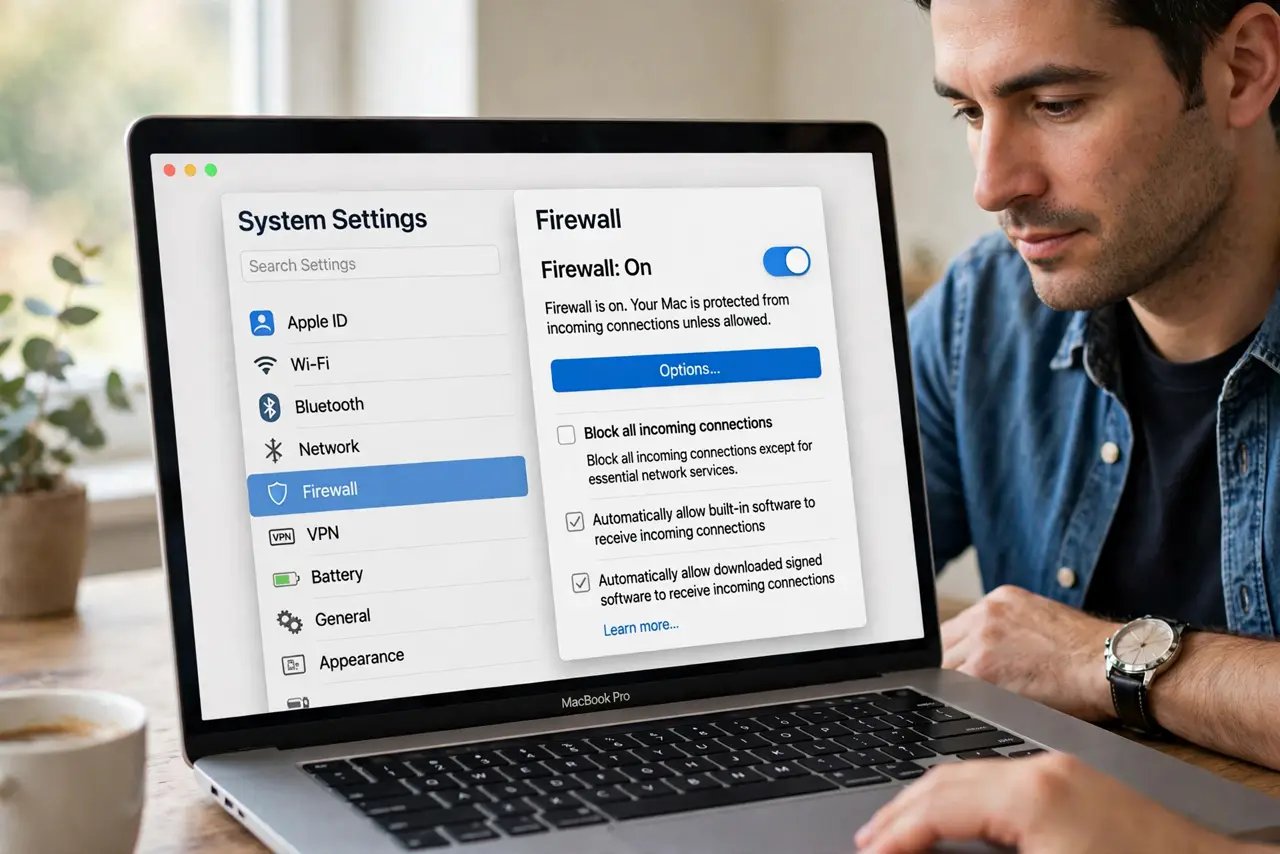
- Do not turn the firewall off to fix one app. Turning it off removes protection for every app, not just the one you need.
- Do not allow all incoming connections. Broad allowances defeat the firewall purpose and expose apps you never intended to share.
- Do not add an app you do not recognize. Only allow apps you installed deliberately and trust for local access.
- Do not test local sharing on public Wi-Fi. Local exceptions should be tested and used on a trusted home network only.
Frequently asked questions
Will allowing one app weaken my Mac?
Only slightly, for that app alone. Keeping the firewall on for everything else preserves most protection.
Why does the firewall block local apps?
It blocks incoming connections by default, and local sharing needs an incoming connection to work.
Should I allow the app on public Wi-Fi too?
No. Use local sharing on trusted home networks, and keep it off when you are on public Wi-Fi.