Schedule a Focus Mode
You sit down for deep work and the pings begin — group chats, news alerts, email badges, each one a tiny derailment. macOS Focus modes silence the noise, and scheduling turns them on automatically: Work mode at 9, Personal at 6, Sleep at 11. Set the schedule once and the boundaries enforce themselves.
TL;DR / Quick Fix
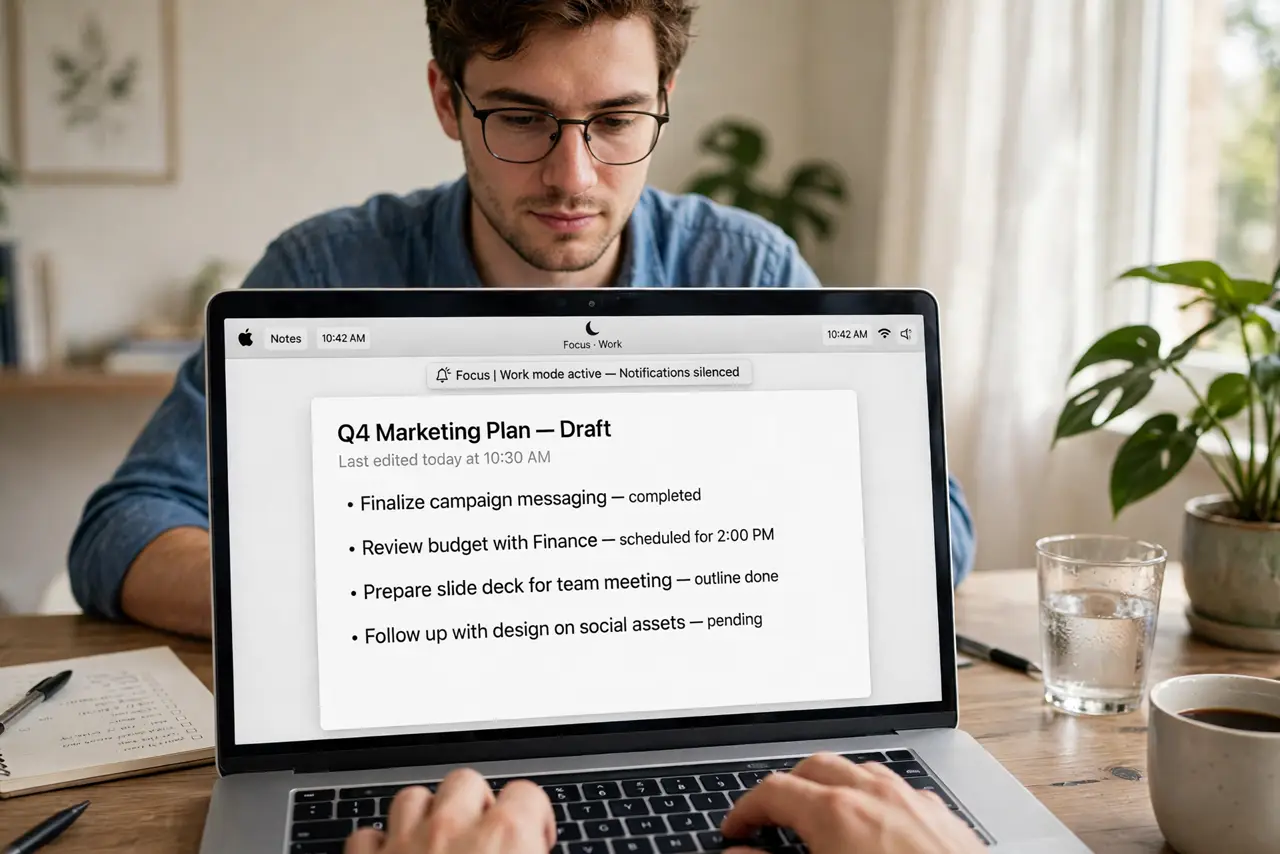
Quick fix: open System Settings, then Focus, pick or create a mode like Work, and add a schedule — weekdays 9 to 5. Choose which people and apps break through. The mode activates itself daily; you just work. Set it once and forget it.
Follow these steps
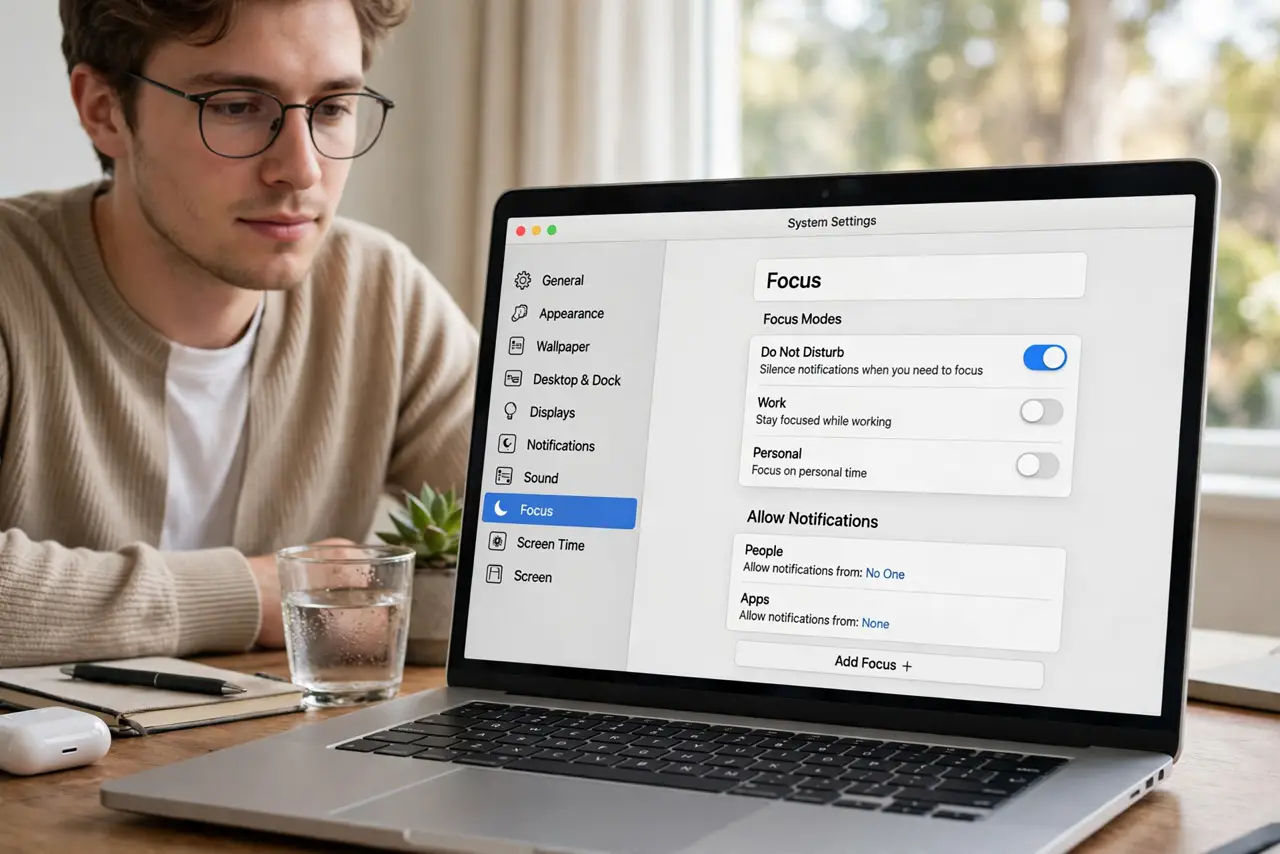
- Open Focus settings. Go to System Settings, then Focus. You will see Do Not Disturb, Work, Personal, and Sleep — Apple's starter set. Pick the one matching your need or create a custom mode.
- Customize the mode. Choose which people and apps can break through — your partner and the calendar, not the group chat. Set the home screen and lock screen look if you like visual cues.
- Add a schedule. Click Add Schedule and set the time or location trigger — weekdays 9 AM to 5 PM for Work, for example. Time, location, or app-launch triggers all work; time is the most reliable.
- Set an auto-reply. Turn on auto-reply so messengers tell people you are in Focus. One polite 'I will respond later' beats twenty apologetic catch-ups.
- Sync across devices. With Share Across Devices on, the schedule fires on your iPhone and iPad too. One schedule, every screen silenced — the boundary actually holds.
- Review after a week. Check what broke through that should not have, and what got silenced that mattered. One tuning pass turns a good schedule into an invisible one.
What NOT to do
- Do not schedule Focus and allow everything through. A Work mode that pings for every app is a label, not a boundary — curate the exceptions.
- Do not forget the schedule on weekends. A weekday-only schedule is the point — set the days, not just the hours.
- Do not use one mode for everything. Work, Personal, and Sleep have different exception lists — separate modes, separate rules.
- Do not skip the auto-reply. Silence without explanation reads as ignoring people; the auto-reply keeps relationships smooth.
Frequently asked questions
Will I miss emergency calls?
No — repeated calls from the same person within minutes break through, and you can allow specific contacts always. Emergencies still reach you.
Does Focus block alarms?
No. Alarms, timers, and emergency alerts always sound — Focus silences notifications, not the clock.
Can apps trigger Focus automatically?
Yes — set an app trigger so opening your code editor or writing app enables Work mode. Location triggers work too, like silencing at the office.