What Is Gatekeeper?
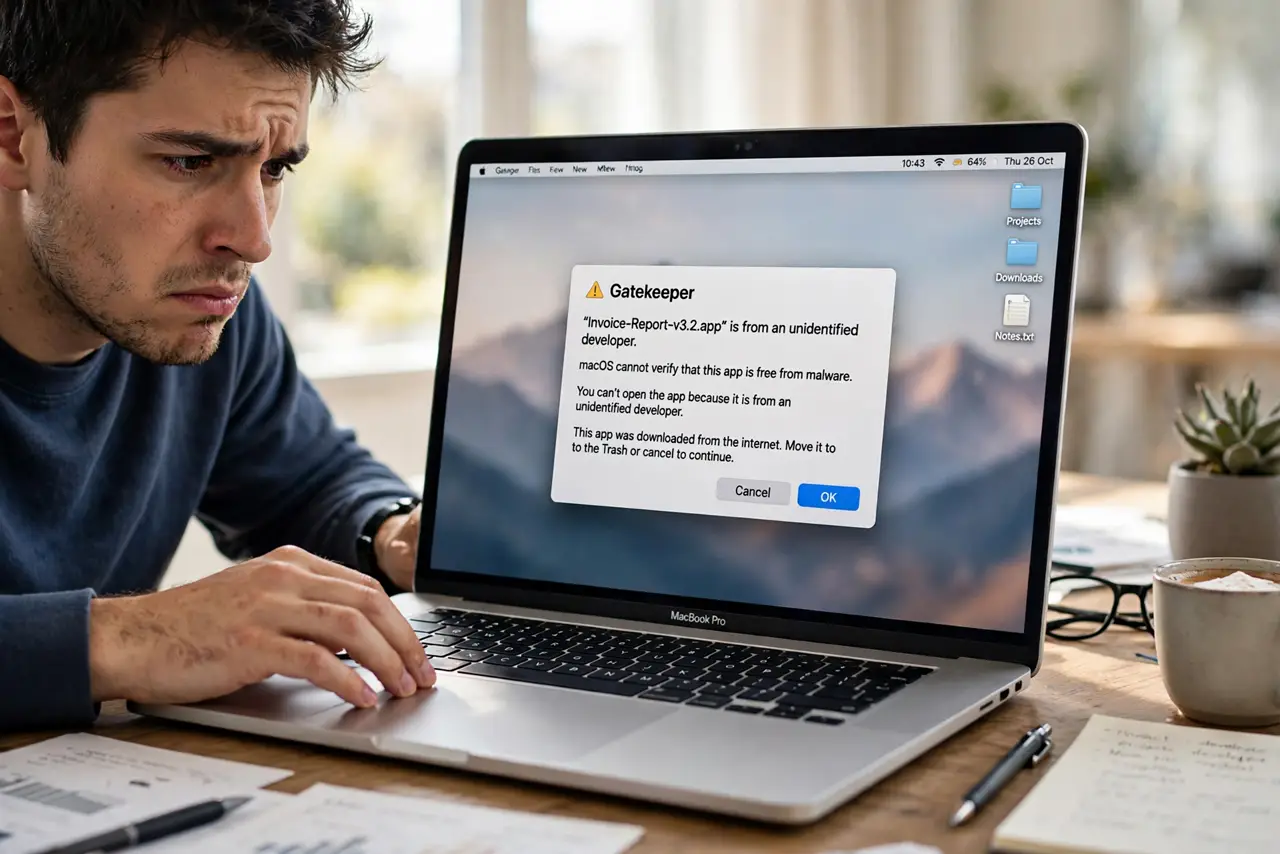
You downloaded an app from a developer's website, double-clicked it, and macOS refused: 'cannot be opened because it is from an unidentified developer.' That is Gatekeeper, the Mac's bouncer, checking IDs at the door. Understanding what it does — and the safe way past it for apps you trust — ends the frustration without weakening your security.
TL;DR / Quick Fix
Quick fix: Gatekeeper is the Mac security check that blocks apps from unidentified developers — the 'cannot be opened' warning is it doing its job. To open a trusted app anyway, right-click it and choose Open, then confirm. Never disable Gatekeeper; that removes a layer of protection for zero benefit.
Follow these steps
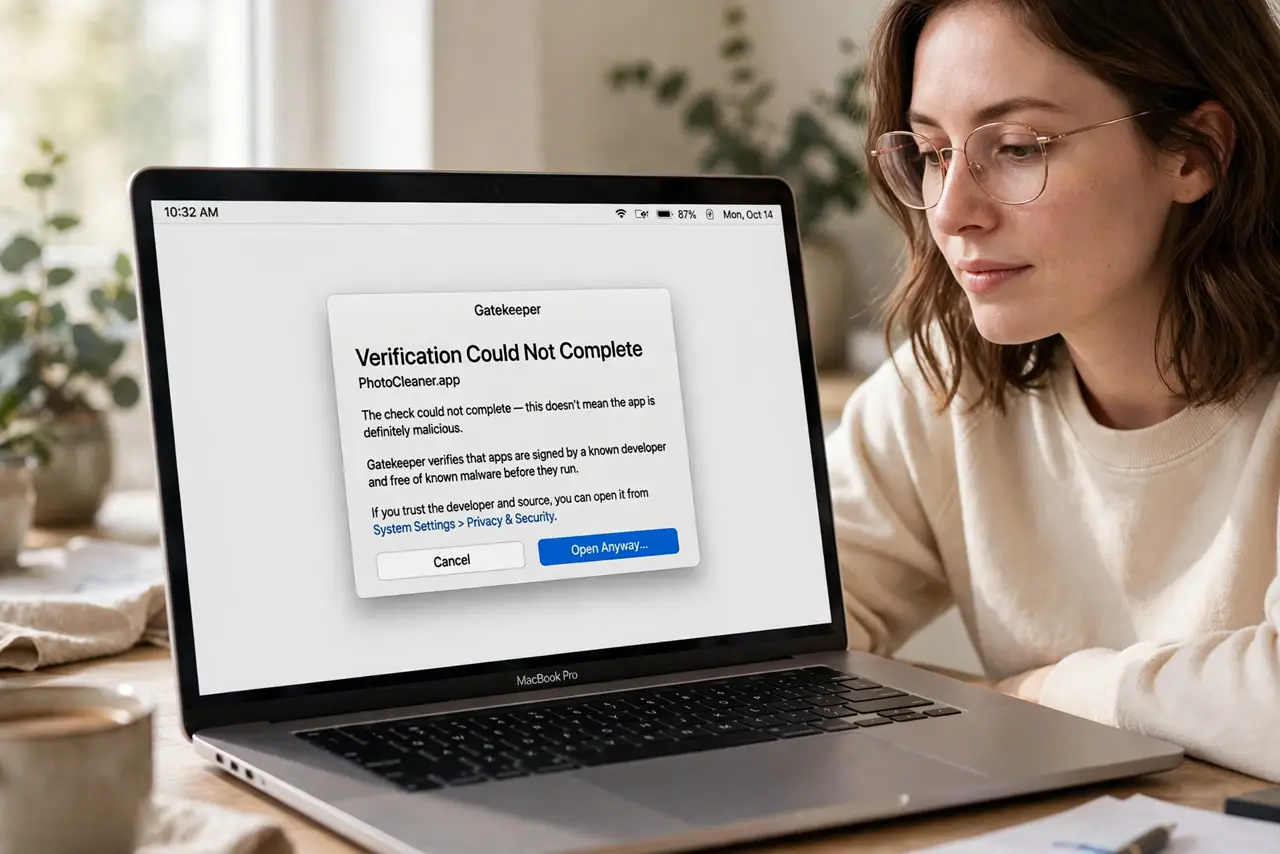
- Understand what Gatekeeper checks. It verifies that apps are signed by a known developer and free of known malware before they run. The warning means the check could not complete — not that the app is definitely malicious.
- Open a trusted app the safe way. Right-click (or Control-click) the app, choose Open, then click Open in the dialog. This approves that specific app once — Gatekeeper remembers your choice.
- Check the app's source first. Only bypass the warning for software from the developer's official site or a source you trust. Random download links and email attachments deserve the block.
- Keep Gatekeeper enabled. In System Settings, Privacy and Security, leave app installation set to App Store and identified developers. Disabling it removes protection against real malware for no benefit.
- Know when Apple blocks anyway. If macOS says the app 'will damage your computer,' that is a malware signature match — do not override it. Delete the file and get the app from a clean source.
- Update instead of bypassing. If a trusted app triggers warnings repeatedly, check for a newer version. Developers sign updates properly, and the warning often disappears on its own.
What NOT to do
- Do not disable Gatekeeper in Terminal to avoid warnings. You trade a two-click approval for permanent exposure to unsigned malware.
- Do not override the 'will damage your computer' warning. That is a confirmed malware match, not a false positive to argue with.
- Do not download the 'fixed' version from a forum link. If the official app is blocked, the fix comes from the developer, not a stranger's re-upload.
- Do not assume App Store apps are the only safe ones. Plenty of legitimate developers distribute directly — the right-click Open method exists for exactly them. See Gatekeeper blocked a legitimate app for the common cases.
Frequently asked questions
Is Gatekeeper the same as antivirus?
No. Gatekeeper checks an app's identity at first launch; it does not scan continuously. macOS has separate background malware protection too.
Why do some trusted apps still trigger it?
Usually an expired developer certificate or a download that got modified in transit. Re-downloading from the official site often fixes it.
Can I turn Gatekeeper off temporarily?
You can, but there is rarely a reason — the right-click Open approval handles legitimate cases without lowering system-wide protection.