Fix Permissions in Get Info
You own the file, you're the admin, and macOS still says you don't have permission. The Sharing & Permissions section at the bottom of Get Info is where macOS decides who can do what — and where those decisions go wrong after migrations, restores, and drive moves.
TL;DR / Quick Fix
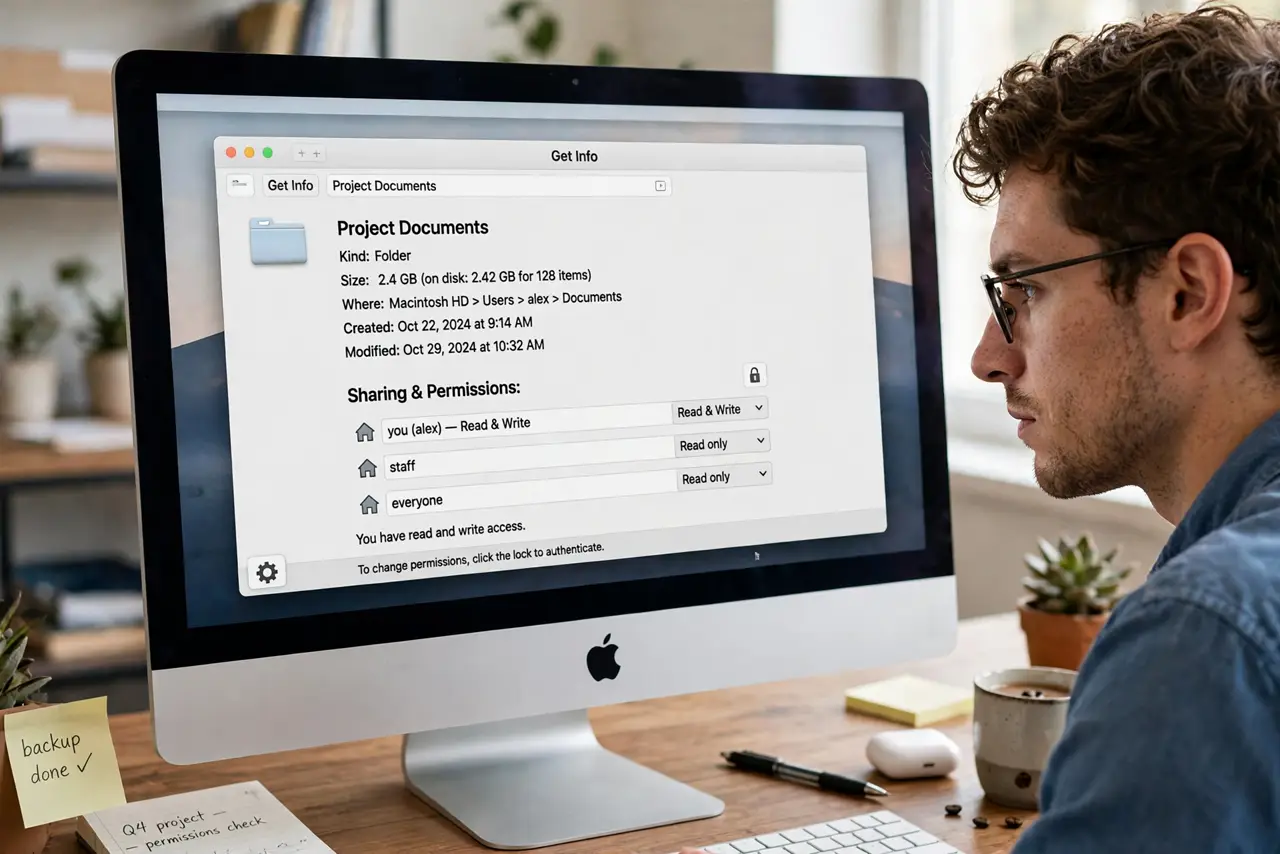
Quick fix: select the file, press Cmd+I, and expand Sharing & Permissions at the bottom. Give yourself Read & Write access, click the gear icon, and choose 'Apply to enclosed items' for folders. Authenticate with your password when asked to confirm.
Follow these steps
- Open Get Info and scroll down. Cmd+I on the file or folder, then expand 'Sharing & Permissions' at the very bottom. This is the access control list in plain view.
- Unlock the padlock. Click the padlock at the bottom-right and enter your admin password. Nothing below is editable until you do.
- Give yourself Read & Write. Find your username in the list and set its Privilege to Read & Write. 'Read only' explains most mysterious refusals.
- Apply to enclosed items for folders. Click the gear icon > 'Apply to enclosed items' to push the fix into every file inside. One folder, one fix, everything inside healed.
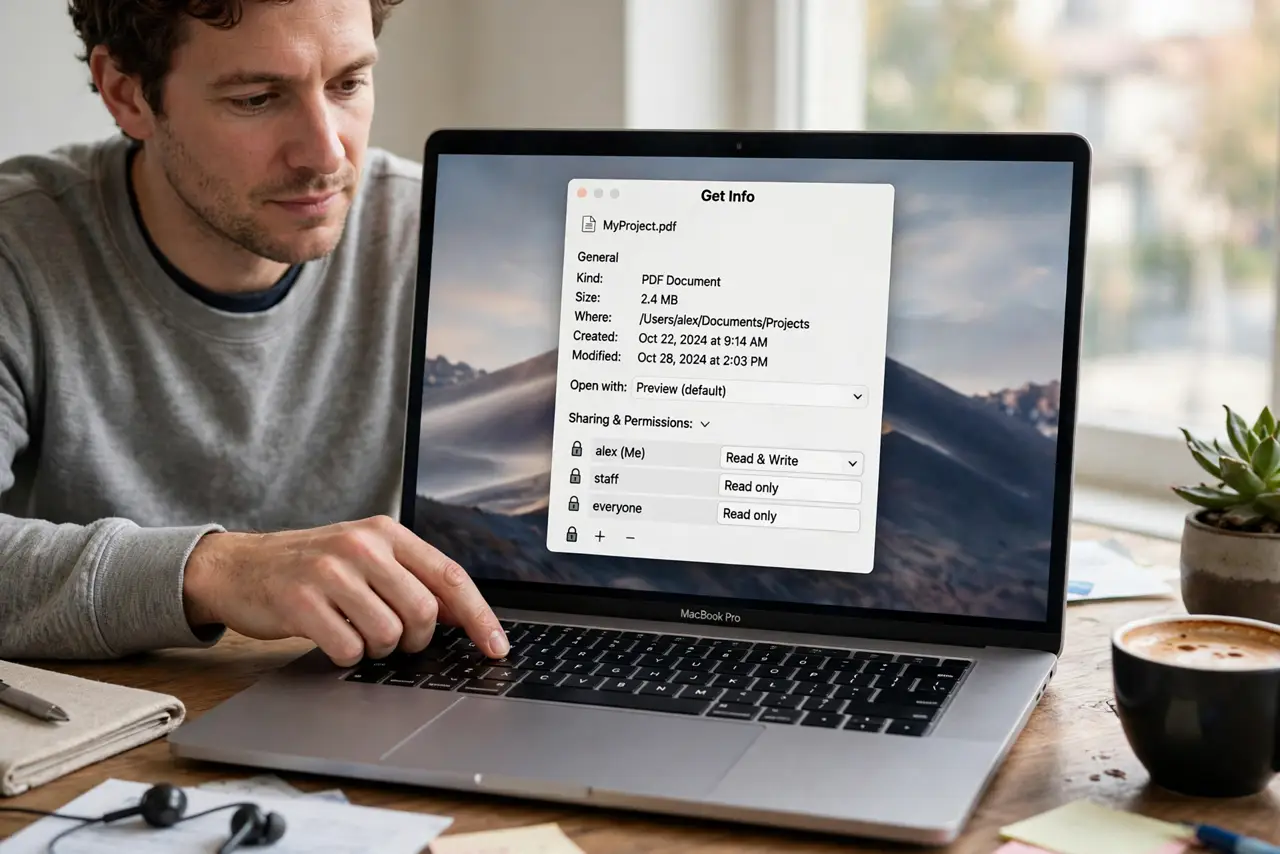
- Add yourself if you're missing. Click + under the list, pick your user, and grant Read & Write. After a migration, the old account's name lingers while yours is absent — this is the fix.
- Know when it's actually a lock. If permissions look right but the file still refuses, check the Locked flag at the top of the same Get Info window — the two issues masquerade as each other.
What NOT to do
- Do not set everything to Read & Write for 'everyone.' That's a security hole, not a fix — grant access to your user, not the world.
- Do not apply permission changes to system folders. Fix your own files; leave /System and /Library to macOS.
- Do not ignore the padlock. Changes made without unlocking silently fail — if nothing sticks, you forgot to authenticate.
- Do not confuse this with teammate sharing settings. Local permissions and network share permissions are separate layers.
Frequently asked questions
Why do permissions break after migrating to a new Mac?
The files remember the old Mac's user ID, which doesn't match your new account. Applying your ownership fresh — steps 3–5 — reconciles them.
What does 'Apply to enclosed items' actually do?
It copies the folder's permission entries down into every file and subfolder inside, replacing their individual settings. It's the bulk fix for a whole tree.
I have Read & Write but still can't save — why?
The app may be saving through a different path, or the file is locked. Check the lock flag before going deeper.