Handoff Copies but Will Not Paste on Mac
Universal Clipboard copies on one device and pastes on another, but it needs Handoff, Bluetooth, Wi-Fi, and the same iCloud account on both ends. When copying works but pasting fails, one of those links is broken on the receiving device.
TL;DR / Quick Fix
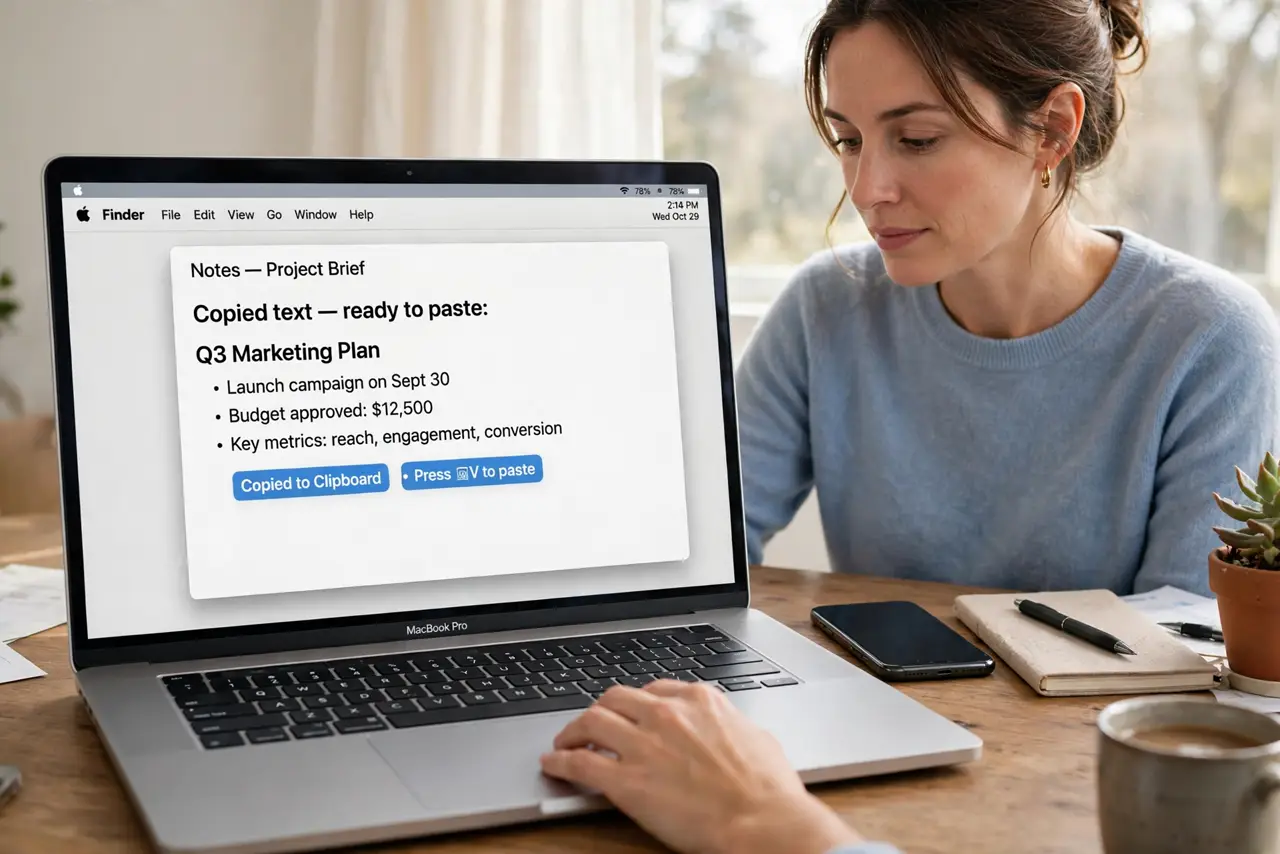
Quick fix: on both devices, confirm Handoff is on, Bluetooth and Wi-Fi are on, and both are signed into the same iCloud account. Then copy a short piece of text again and paste within a couple of minutes, before the clipboard expires.
Follow these steps
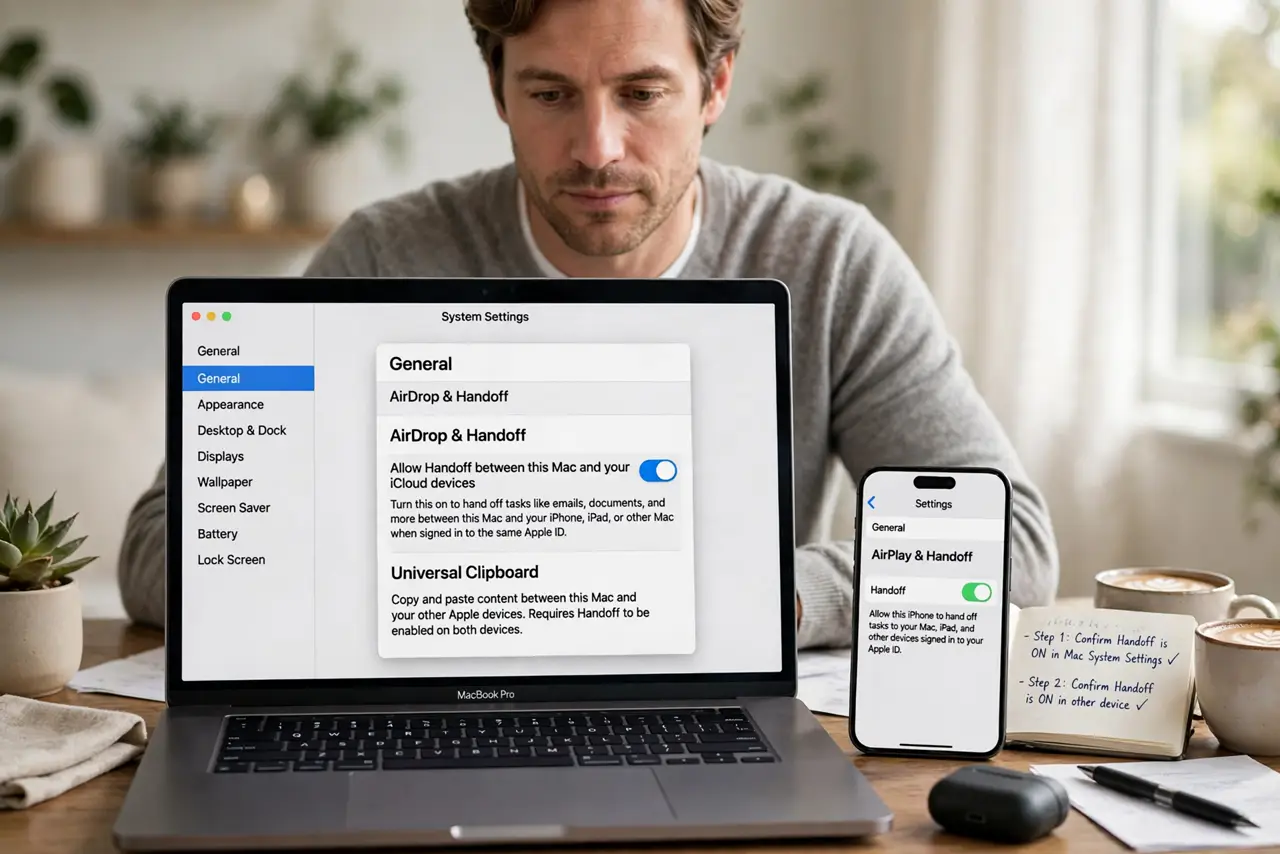
- Confirm Handoff is on. On the Mac, check Handoff settings, and on the other device check its Handoff setting too. Universal Clipboard needs Handoff enabled on both ends, not just the copying device.
- Check Bluetooth and Wi-Fi. Confirm Bluetooth and Wi-Fi are turned on for both devices, even if they are not connected to the same network. Handoff discovery uses both radios directly.
- Confirm the same iCloud account. Check that both devices are signed into the same iCloud account. Different accounts break Universal Clipboard even when everything else looks right.
- Copy and paste quickly. Copy a short text snippet, then paste on the other device within a minute or two. The shared clipboard is temporary, and waiting too long lets it expire.
- Toggle Handoff off and on. Turn Handoff off on both devices, wait a few seconds, and turn it back on. A fresh Handoff handshake clears the stuck state that blocks pasting.
- Restart both devices. If pasting still fails, restart both devices and test again. A restart clears the discovery services on both ends at once, which one-sided fixes cannot do.
What NOT to do
- Do not keep copying the same text hoping it eventually pastes. Each new copy resets the timer, but it never fixes a broken Handoff link.
- Do not turn off Wi-Fi to save battery while expecting Handoff to work. Universal Clipboard needs Wi-Fi on, even without a shared network.
- Do not sign out of iCloud as a first fix. Signing out disrupts far more than clipboard, and the usual cause is a Handoff or account mismatch you can check first.
- Do not paste sensitive passwords through Universal Clipboard casually. The shared clipboard is convenient, but it copies across devices by design.
Frequently asked questions
Why does copy work but paste fail?
Because copying is local, while pasting needs Handoff, Bluetooth, Wi-Fi, and the same iCloud account working on the receiving device too.
Do both devices need the same Wi-Fi network?
No, but both need Wi-Fi and Bluetooth on. Handoff discovers devices directly, rather than only through a shared network.
How long does a copied item last?
Only a short time, usually a minute or two. Paste promptly, or the shared clipboard expires and you must copy again.