Tell Thunderbolt Cables Apart
Your drawer holds a tangle of identical-looking USB-C cables, but some carry 40 Gbps Thunderbolt and others barely manage charging. Using the wrong one silently downgrades your dock, display, or drive — and nothing on the outside screams the difference. Here is how to identify what each cable actually is.
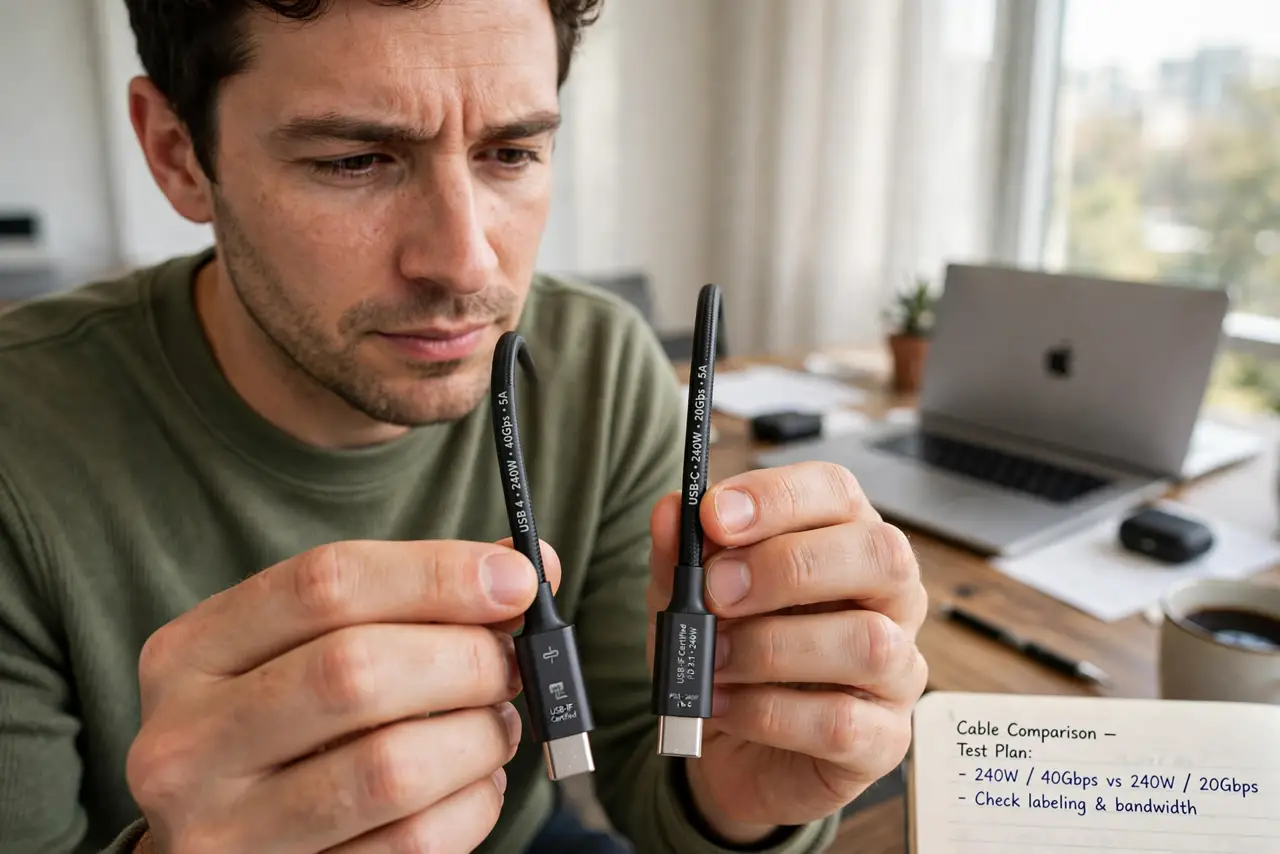
TL;DR / Quick Fix
Quick fix: real Thunderbolt cables carry a lightning-bolt logo on the connector; plain USB-C cables do not. Check the printed text for speed ratings like 40Gbps or 10Gbps, and test unknown cables with a fast drive or display. When in doubt, buy cables from reputable brands.
Follow these steps
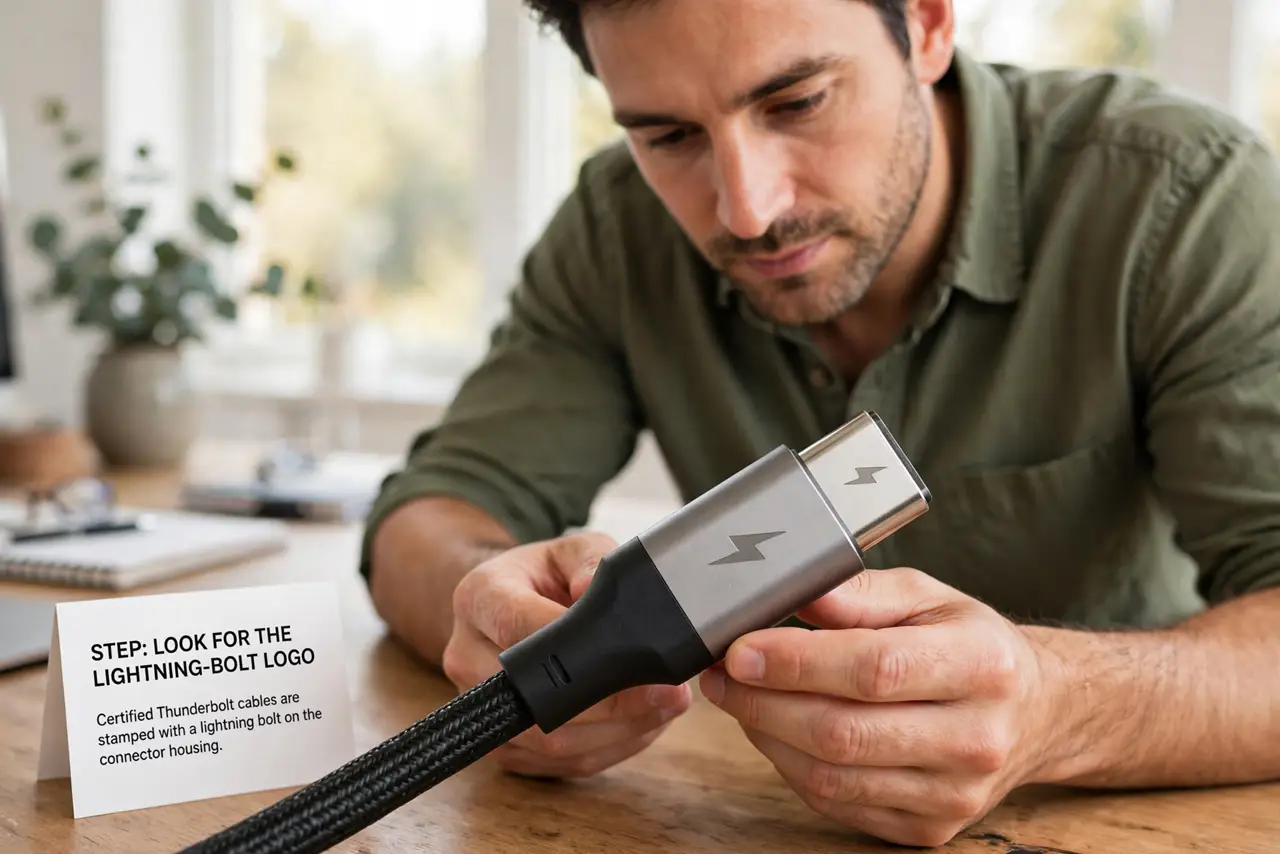
- Look for the lightning-bolt logo. Certified Thunderbolt cables stamp a small lightning bolt on the connector housing — the single most reliable visual ID. No bolt usually means plain USB-C, whatever the seller claimed.
- Read the fine print on the cable. Quality cables print their rating along the jacket: 40Gbps, 20Gbps, 10Gbps, or 5Gbps. Cheap unmarked cables are a gamble — see the cable identification guide for the markings that matter.
- Know that length limits speed. Passive Thunderbolt cables only reach full speed up to about 0.8 meters; longer ones need active electronics and cost more. A cheap 2-meter 'Thunderbolt' cable is almost certainly not.
- Test with a demanding device. Plug the cable into a fast SSD or 4K display and check the actual negotiated speed in System Information. Real-world testing beats packaging claims every time.
- Match cable to job. Charging a phone: any cable works. Driving a dock with two displays: only a true Thunderbolt cable will do. Using the wrong cable is the classic cause of 'my dock half-works'.
- Label your cables once identified. A wrap of colored tape — say, red for Thunderbolt — ends the drawer lottery forever. Future you will be grateful the next time a dock misbehaves.
What to avoid
- Do not trust listings that say 'Thunderbolt compatible'. Compatible often means 'fits the port', not 'carries Thunderbolt speeds' — look for certification.
- Do not use a 2-meter bargain cable for a Thunderbolt dock. Physics wins: long passive cables cannot sustain 40Gbps.
- Do not assume the cable Apple shipped does everything. MacBook charging cables are often charge-plus-slow-data — fine for power, wrong for docks.
- Do not throw away the markings info. If you cannot read any printing on a cable, treat it as the slowest type until proven otherwise.
Frequently asked questions
Can a USB-C cable damage my Mac?
No — the port negotiates safely with any cable. The risk is underperformance, not damage: slow charging or a dock that half-works.
Why does my dock work with one cable but not another?
Almost certainly the cable: docks need full Thunderbolt bandwidth, and a plain USB-C cable silently downgrades the connection.
Are expensive Thunderbolt cables worth it?
For short certified cables, mid-range reputable brands are fine. You are paying for certification and active electronics on long ones — that cost is real.