Tell a Thunderbolt Cable From a USB-C Cable
Thunderbolt and USB-C cables share the same connector, which makes them easy to confuse and annoying to tell apart. The markings, the price, and one simple test reveal which one you are holding.
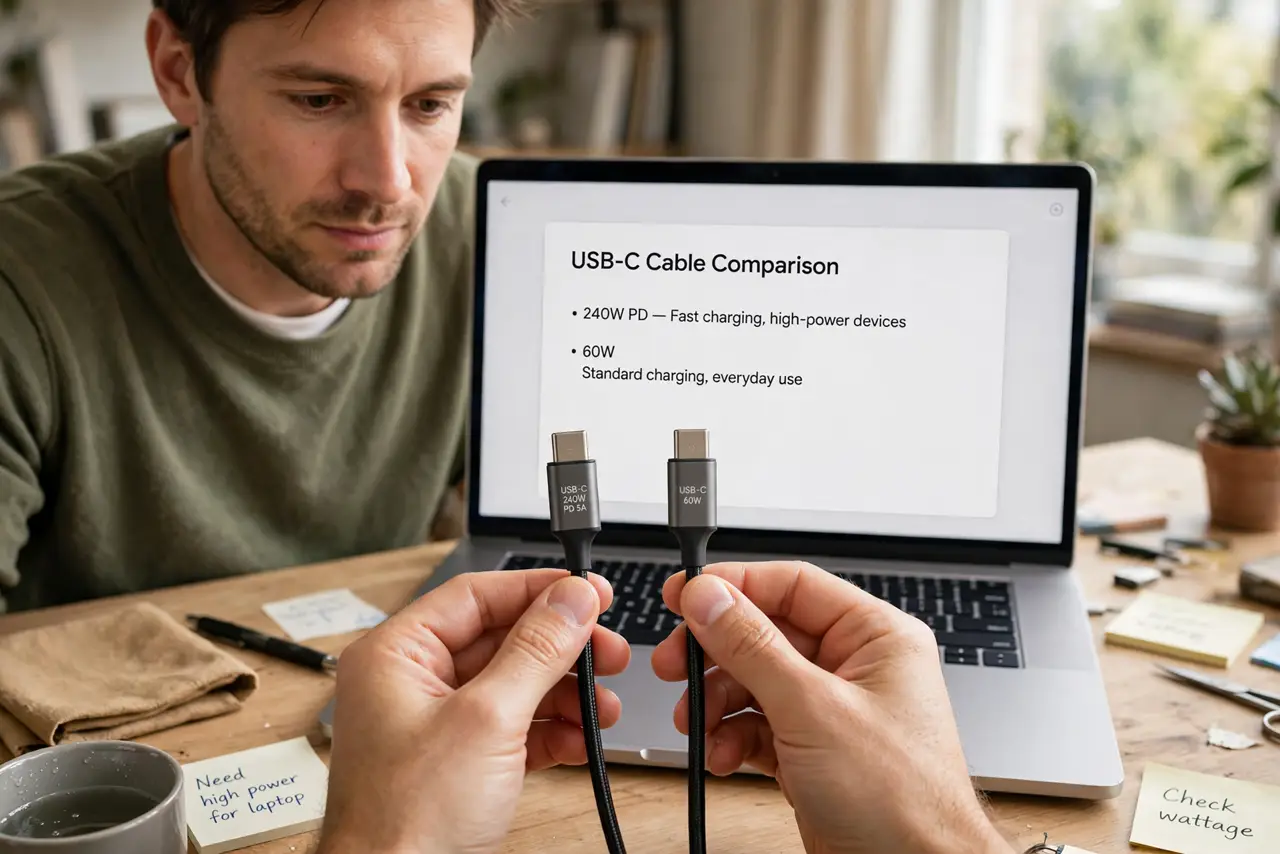
TL;DR / Quick Fix
Quick fix: look for a lightning-bolt symbol on the connector — that marks a Thunderbolt cable. No symbol usually means plain USB-C. When in doubt, test the cable with the fastest device you own and keep Thunderbolt cables for docks and monitors.
Follow these steps
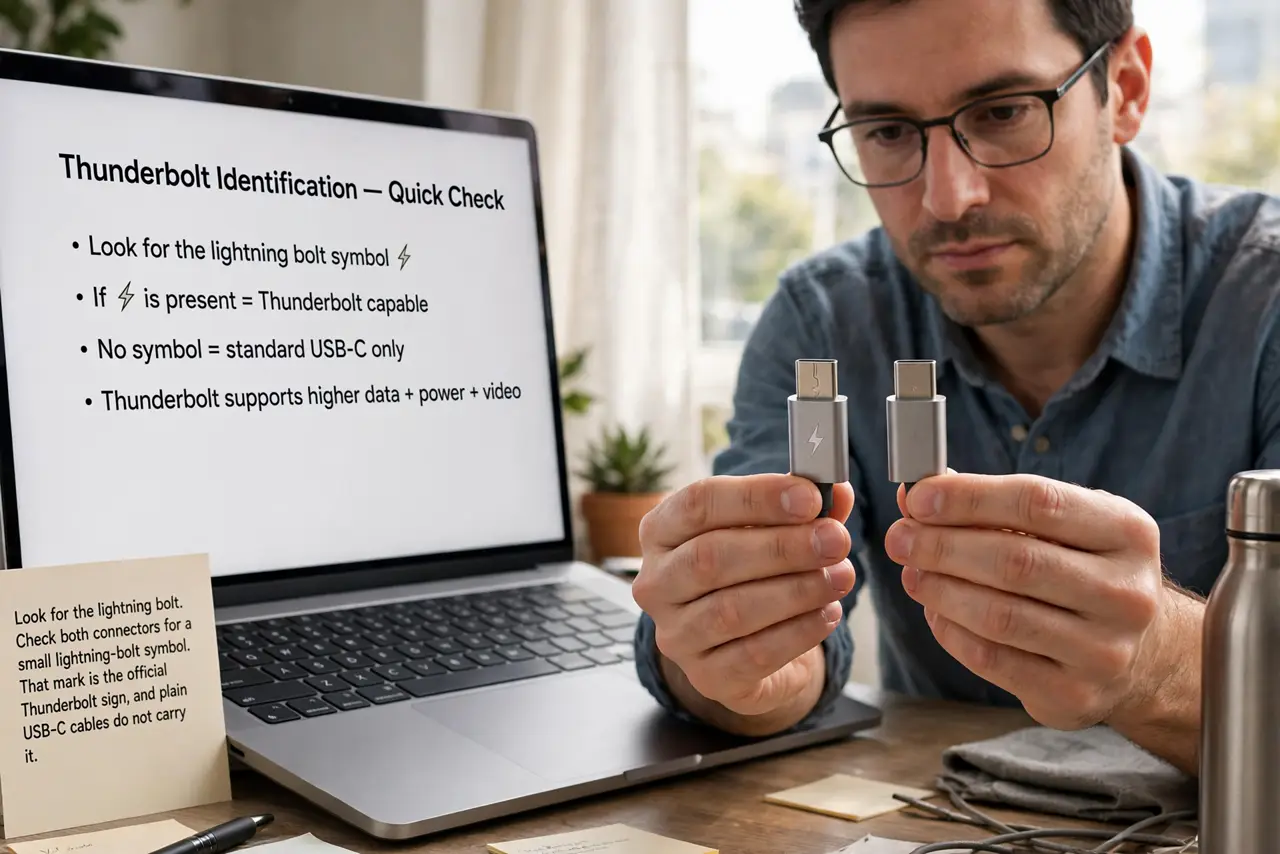
- Look for the lightning bolt. Check both connectors for a small lightning-bolt symbol. That mark is the official Thunderbolt sign, and plain USB-C cables do not carry it.
- Check the cable's printed specs. Read any text printed along the cable for Thunderbolt 3 or 4, or a speed like 40Gbps. Markings are the most reliable ID when the symbol is tiny.
- Consider the length and price. Thunderbolt cables are usually short and cost noticeably more than plain USB-C. A long, cheap cable claiming Thunderbolt speeds deserves suspicion.
- Test with a demanding device. Plug the cable into a dock or fast SSD and check the speed or monitor support. A cable that cannot drive the dock's full features is almost certainly plain USB-C.
- Label your cables once identified. Wrap a small tag or colored tape around each confirmed Thunderbolt cable. Future you will thank present you the next time a dock misbehaves.
- Keep a data-capable spare handy. Even correctly identified, cables fail. Keep one known-good Thunderbolt cable and one known-good data-capable USB-C cable as test spares for troubleshooting.
What NOT to do
- Do not assume all USB-C cables are equal. The shared connector hides huge differences in speed, video, and power.
- Do not buy a no-name Thunderbolt cable for a critical dock. Counterfeit cables cause exactly the flaky behavior you are trying to avoid.
- Do not judge by thickness alone. Some thick cables are just well-shielded USB-C, and some thin ones are genuine Thunderbolt.
- Do not throw away the symbol check because it is small. The lightning bolt is tiny but it is the official mark, so look closely with good light.
Frequently asked questions
Can I use a USB-C cable for Thunderbolt?
Sometimes, at reduced speed and features. For full Thunderbolt performance, use a real Thunderbolt cable.
Does Thunderbolt work in a USB-C port?
A Thunderbolt cable works in USB-C ports at USB-C speeds. Full Thunderbolt speed needs Thunderbolt on both ends.
Why is my dock flaky with this cable?
Because the cable may be plain USB-C without the bandwidth the dock needs. Swap in a confirmed Thunderbolt cable and retest.