iMessage on Mac? Basics
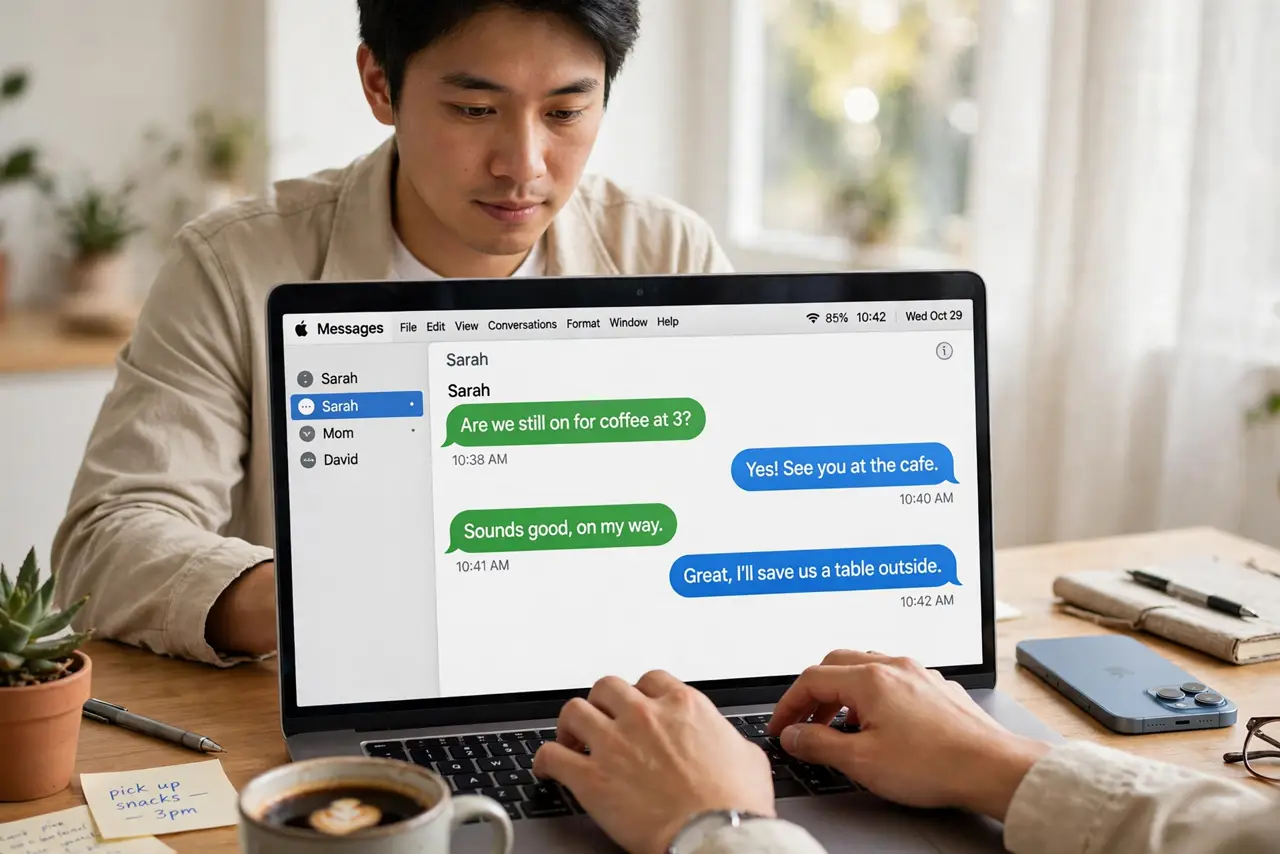
iMessage on the Mac lets you send texts from your computer — blue bubbles to other Apple users, green SMS via your iPhone — all synced with your phone. Getting it working means signing in with your Apple ID and turning on the right forwarding. This guide walks through setup and the most common reason messages stop syncing.
TL;DR / Quick Fix
Quick fix: to use iMessage on Mac, open the Messages app and sign in with your Apple ID. For green SMS texts, turn on Text Message Forwarding on your iPhone under Settings, Messages. Both devices need Wi-Fi and the same Apple ID. If syncing breaks, sign out and back in.
Follow these steps
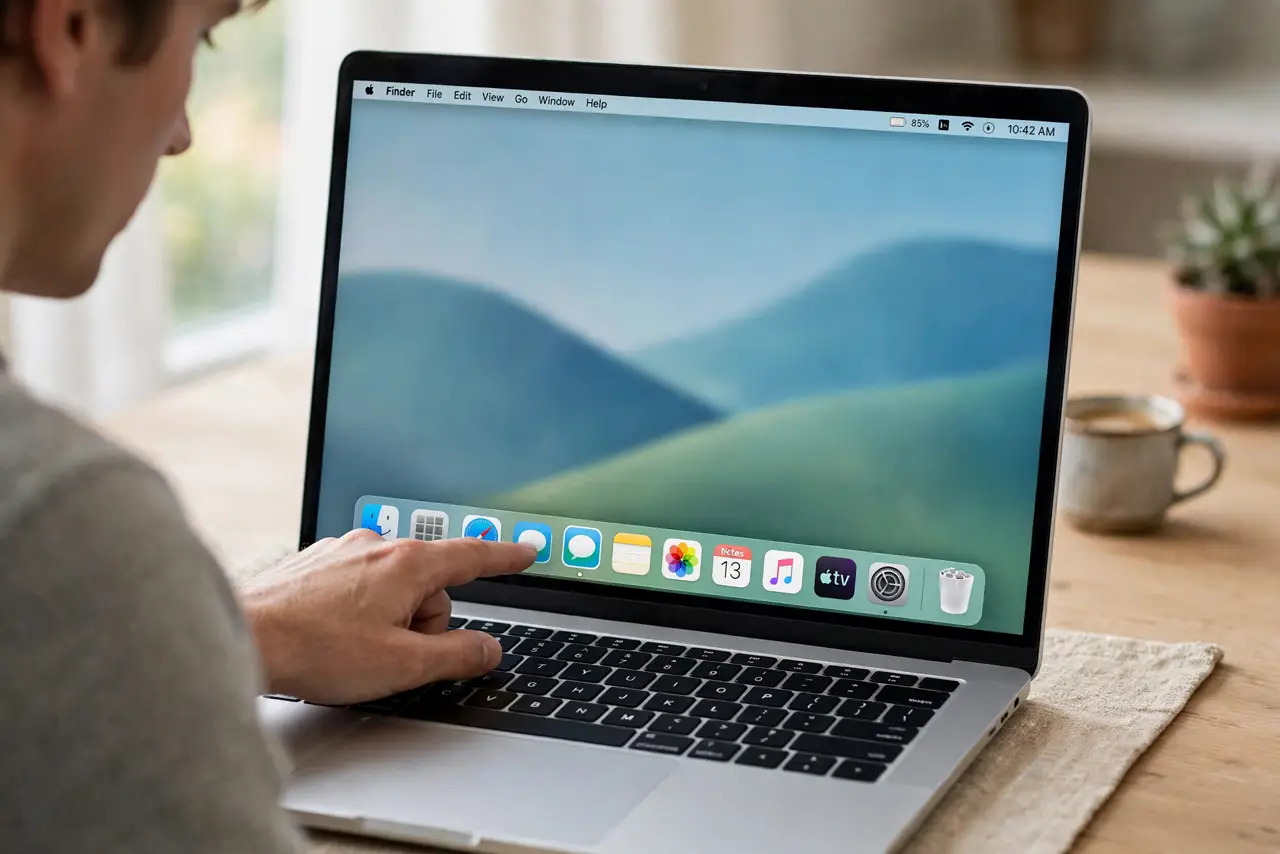
- Open Messages on the Mac. Find Messages in the Applications folder or Spotlight. If it asks you to sign in, use the Apple ID you use on your iPhone — mismatched IDs are the top cause of sync trouble.
- Sign in and enable your addresses. In Messages settings, under iMessage, check that your phone number and email addresses are enabled. These are the 'send and receive' identities for your blue bubbles.
- Turn on Text Message Forwarding on iPhone. On your iPhone, go to Settings, then Messages, then Text Message Forwarding, and enable your Mac. Enter the code the Mac shows — this is what allows green SMS bubbles.
- Check both devices are online. iMessage needs an internet connection on both ends. If the Mac shows messages as 'not delivered,' confirm Wi-Fi works and the date and time are set automatically.
- Start new conversations from the Mac. Click the compose button and type a contact name. Blue names mean iMessage; green means SMS through your iPhone. Either way, replies sync to both devices.
- Fix sync by signing out and back in. When messages arrive on one device but not the other, sign out of iMessage in Messages settings on the Mac, restart the app, and sign back in. This resolves most sync stalls.
What NOT to do
- Do not use different Apple IDs on the two devices. Everything about iMessage sync assumes one ID — a second ID splits your conversations permanently.
- Do not expect SMS without the iPhone nearby and on. Green bubbles route through your iPhone's cellular plan; a dead or faraway iPhone means no SMS from the Mac.
- Do not disable iMessage on the iPhone to 'fix' the Mac. That breaks the chain for both — fix the Mac side first.
- Do not ignore the verification code step. Text Message Forwarding requires the code from the Mac; skipping it leaves SMS silently broken.
Frequently asked questions
Why are my texts green instead of blue?
Green means the message went as SMS through your carrier, usually to a non-Apple phone — or Text Message Forwarding is off for Apple contacts. Blue means it went as iMessage over the internet.
Do iMessages on Mac cost money?
iMessages use the internet and are free. Green SMS texts use your carrier plan, just as if you sent them from the iPhone itself.
Can I use iMessage on Mac without an iPhone?
Yes for blue-bubble iMessage with your Apple ID email — but green SMS texting requires an iPhone with Text Message Forwarding enabled.