Mirror iPhone on Your Mac
Your iPhone screen is small and your Mac screen is big — iPhone Mirroring puts the iPhone's display on the Mac, fully interactive, while the phone itself stays locked. Great for demos, showing apps, or typing with a real keyboard. When the Mac cannot see the iPhone, the cause is almost always the Apple Account or the radios.
TL;DR / Quick Fix
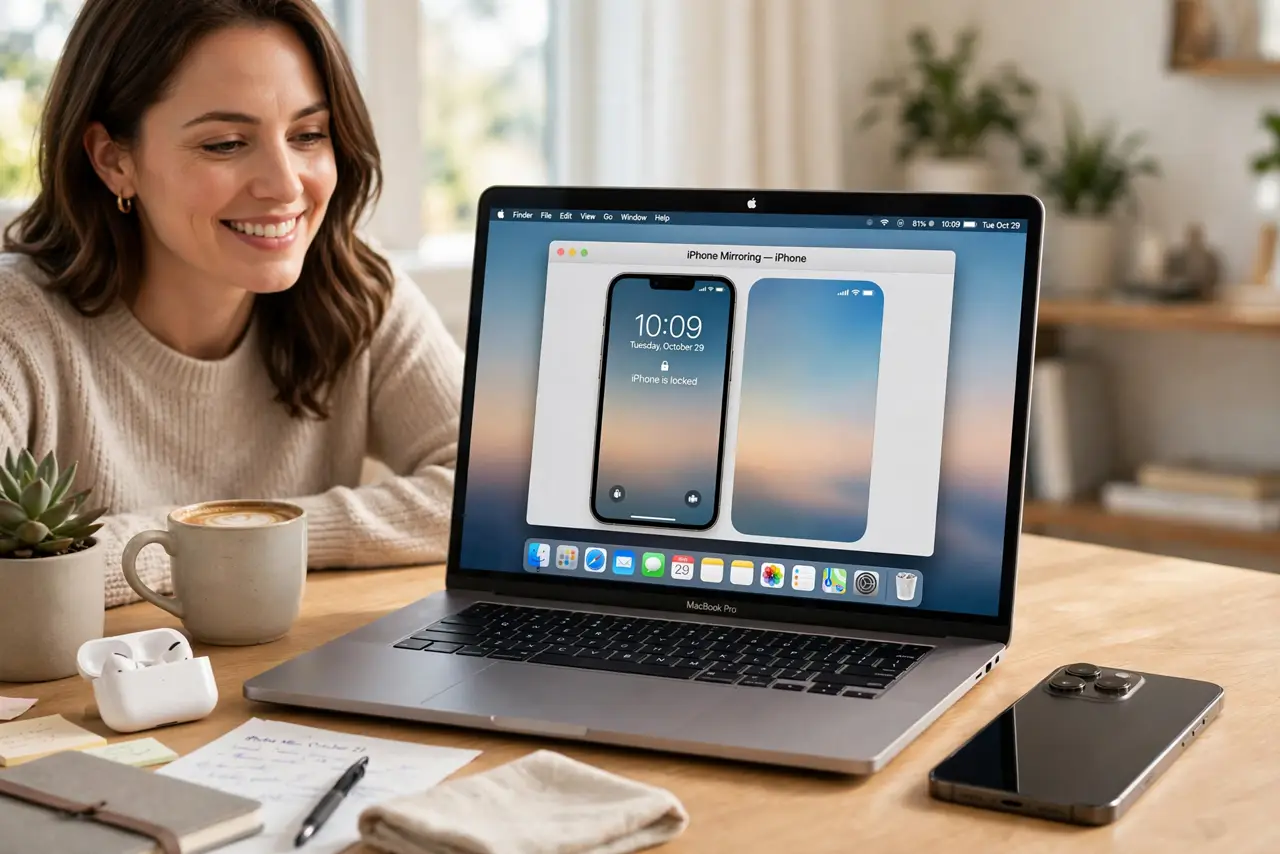
Quick fix: on your Mac, open the iPhone Mirroring app from the Dock or Applications, pick your iPhone, and authenticate once with your passcode or biometrics. Both devices need the same Apple Account with Wi-Fi and Bluetooth on. Your iPhone stays locked while you control it from the Mac.
Follow these steps
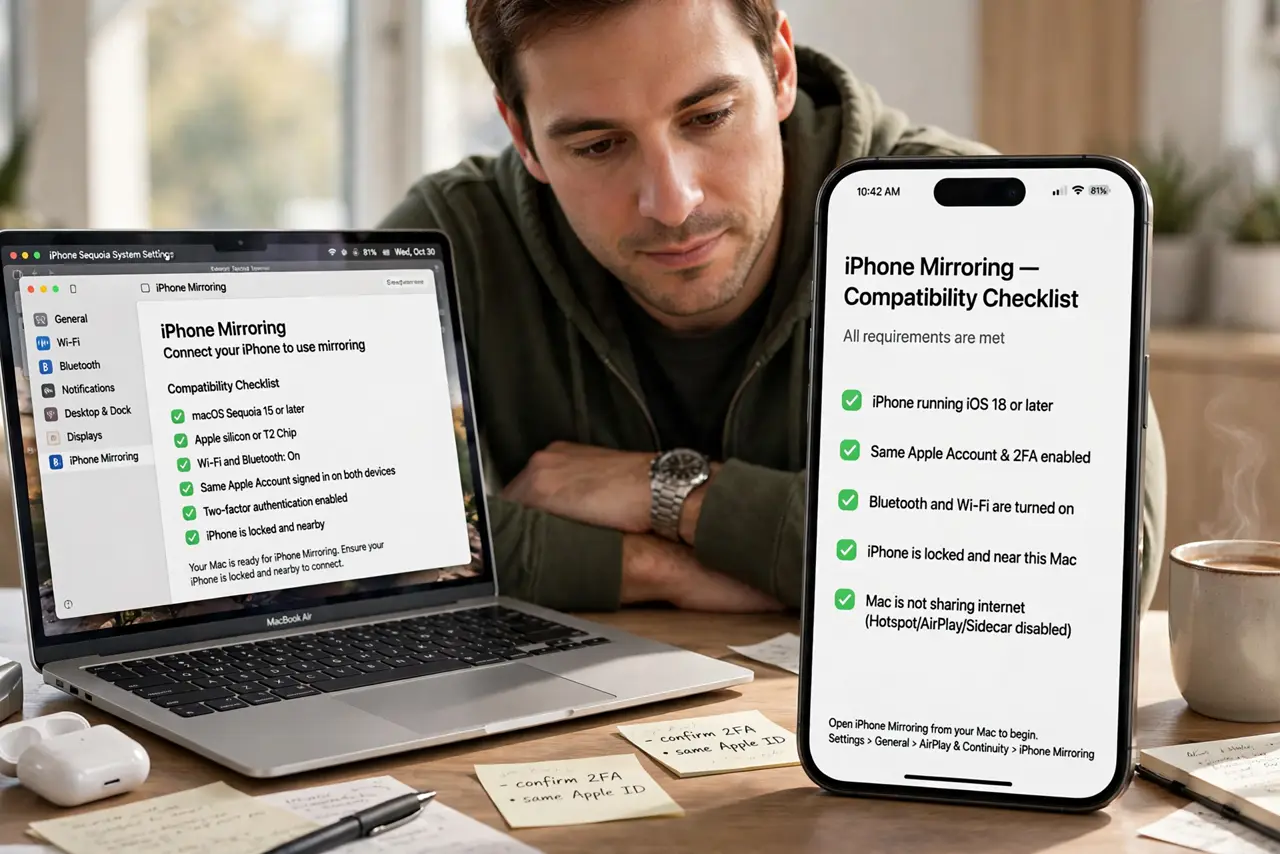
- Check the requirements. You need a compatible iPhone and Mac on recent software, both signed into the same Apple Account. Older devices simply do not offer the feature — check the setup requirements if unsure.
- Turn on Wi-Fi and Bluetooth. Both radios must be on, on both devices, with the iPhone nearby and unlocked at least once. Airplane mode or a distant phone breaks discovery.
- Open iPhone Mirroring on the Mac. Find iPhone Mirroring in the Dock or the Applications folder and open it. Select your iPhone when it appears.
- Authenticate the first time. The Mac asks for your iPhone passcode or Mac biometrics to authorize the connection. Approve it — after this one-time step, future connections are instant.
- Control the iPhone from the Mac. Click, type, and scroll on the mirrored screen with your mouse and keyboard. The physical iPhone stays locked — anyone picking it up sees only the lock screen.
- Drag files between devices. You can drag photos and files from the mirrored iPhone straight to the Mac. It is the fastest way to move a batch of screenshots without cables or cloud.
What NOT to do
- Do not expect it across different Apple Accounts. Same account on both devices is a hard requirement.
- Do not leave Bluetooth off. Mirroring needs both Wi-Fi and Bluetooth even though the heavy data rides on Wi-Fi.
- Do not panic if the iPhone looks locked. That is by design — the mirror is live on the Mac while the phone stays private.
- Do not confuse it with Continuity Camera. That turns the iPhone into a webcam; mirroring shows the whole iPhone screen.
Frequently asked questions
Why is my iPhone not listed?
Different Apple Accounts, radios off, outdated software, or the iPhone too far away. Fix those four and restart both devices.
Can I use iPhone Mirroring over USB?
It is designed for wireless, but plugging in with USB often stabilizes a flaky connection while keeping the same steps.
Is the mirrored iPhone secure?
Yes — the phone stays locked, notifications can be filtered, and the session needs your authentication to start.