Organize Launchpad Pages
Your Launchpad is a sprawling mess of apps across half a dozen pages, and finding anything means swiping through chaos. Launchpad pages work like iPhone home screens — drag, folder, reorder — and five minutes of organizing pays off every day.
TL;DR / Quick Fix
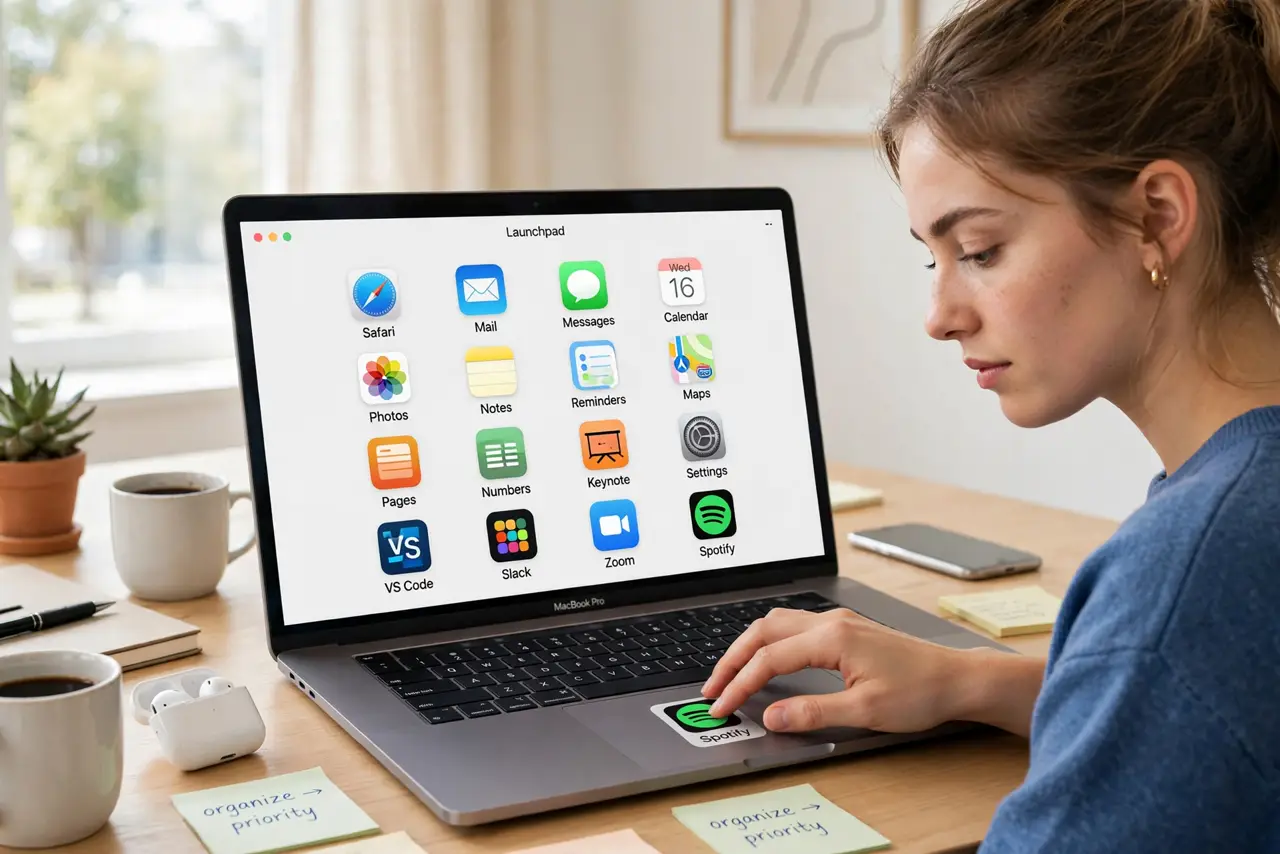
Quick fix: open Launchpad, click and hold any app until the icons jiggle, then drag apps onto each other to make folders and drag pages into order. Put daily apps on page one and bury the rest in labeled folders.
Follow these steps
- Open Launchpad. Pinch with thumb and three fingers on the trackpad, press F4, or click Launchpad in the Dock. Pick whichever gesture you'll remember.
- Enter jiggle mode. Click and hold any app until everything jiggles — the same as arranging iPhone home screens. This is edit mode.
- Make folders by stacking. Drag one app onto another to create a folder, then name it (Productivity, Games, Utilities). Folders collapse a page of chaos into one icon.
- Drag apps between pages. Drag an icon to the screen edge to move it to the next page. Order pages deliberately: daily tools on page one, rarities at the back.
- Remove what you don't need. Click the X on jiggling apps you never use — this deletes App Store apps; for others, it just removes them from Launchpad's view. Fewer icons, less hunting.
- Reset if it's beyond saving. A Terminal command resets Launchpad to default layout. And if you live in Mission Control spaces instead, organize those the same afternoon.
What NOT to do
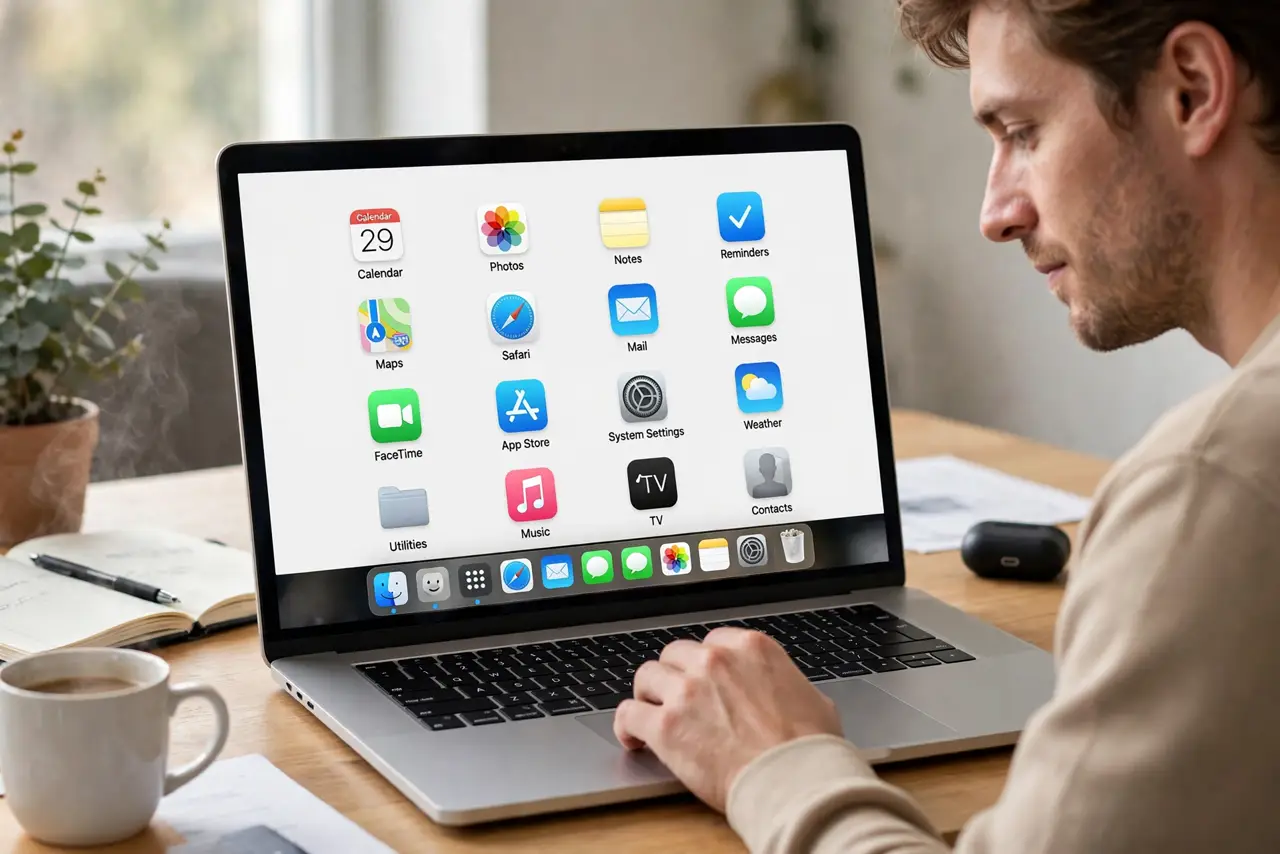
- Do not delete apps from Launchpad thinking it only hides them. The X deletes App Store apps for real — check what the X means before clicking.
- Do not create one folder called 'Misc' and dump everything in it. That's a junk drawer with a label — sort into real categories.
- Do not reorganize weekly. Set a sensible layout once; constant fiddling costs more time than it saves.
- Do not forget Spotlight exists. Cmd+Space and typing the app name beats paging through Launchpad for anything you open rarely.
Frequently asked questions
Why do deleted apps reappear in Launchpad?
The app wasn't actually deleted — only its Launchpad entry hid, or it reinstalled via iCloud. Delete the app properly from Applications.
Can I hide Launchpad pages?
No — but you can empty a page by moving all its apps elsewhere, and macOS drops empty pages automatically.
Launchpad is empty — where did everything go?
Its database got corrupted. The Terminal reset command rebuilds it from your Applications folder in seconds.